Tasks
The Tasks tab in Craftapp Studio allows you to create, organize, and execute tasks that make up your application. Tasks provide a structured way to build an application step by step, either individually, by task pools, or as an entire task plan.
Tasks are available directly inside Craftapp Studio, next to the Preview tab.
What is the Tasks system?
The Tasks system is a task manager for organizing the work required to build an application.
You can use Tasks to:
- Create tasks manually
- Let Craftapp automatically generate tasks from your project requirements
- Organize tasks into task pools
- Run tasks individually
- Run a group of tasks as a task pool
- Run all available tasks sequentially
- Monitor task progress and status
- Review generated changes in real time
- Handle tasks that require additional information or human interaction
Tasks are designed to break an application into smaller implementation steps so that each part can be generated, tested, and verified before moving to the next step.
Accessing Tasks
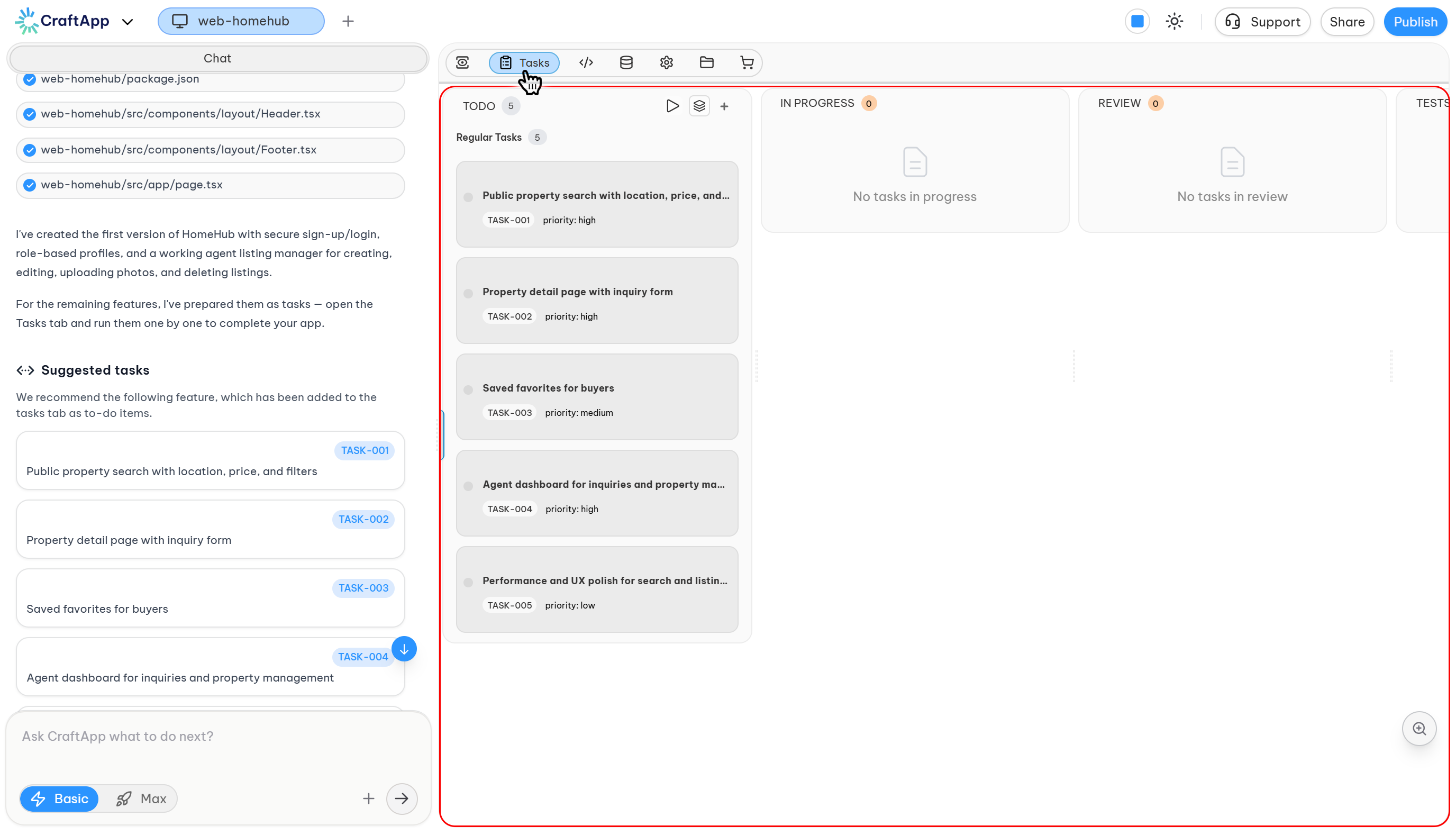
To open the Tasks manager:
- Open your project in Craftapp Studio.
- Locate the Tasks tab next to Preview.
- Select Tasks.
- The Tasks manager displays all tasks available for the project.
The Tasks manager is organized into columns based on the current status of each task.
Automatically generated tasks
After your project is successfully created, Craftapp automatically analyzes the project requirements and can generate a set of tasks.
Typically, Craftapp generates between 3 and 10 tasks, depending on the complexity of the project.
These tasks are created sequentially so that each task represents a step in the overall implementation process.
For example, a project might be divided into tasks such as:
- Authentication
- User profiles
- Product creation
- Product listing
- Product management
- Testing and validation
The generated tasks can be reviewed and modified before they are executed.
Note
For the most reliable results, run generated tasks sequentially from the first task to the last. Later tasks may depend on functionality implemented by earlier tasks.
Why use Tasks?
Tasks are useful when you want Craftapp to execute a complete development plan without requiring you to manually submit and test every prompt.
Instead of repeatedly:
- Writing a prompt
- Waiting for implementation
- Testing the result
- Fixing issues
- Writing the next prompt
You can organize the required work into tasks and let Craftapp execute the planned workflow.
For example, you can prepare the tasks for an entire application before starting execution. Craftapp can then process the tasks sequentially, implement the required changes, and test the resulting functionality.
Task statuses
Every task belongs to one of six statuses:
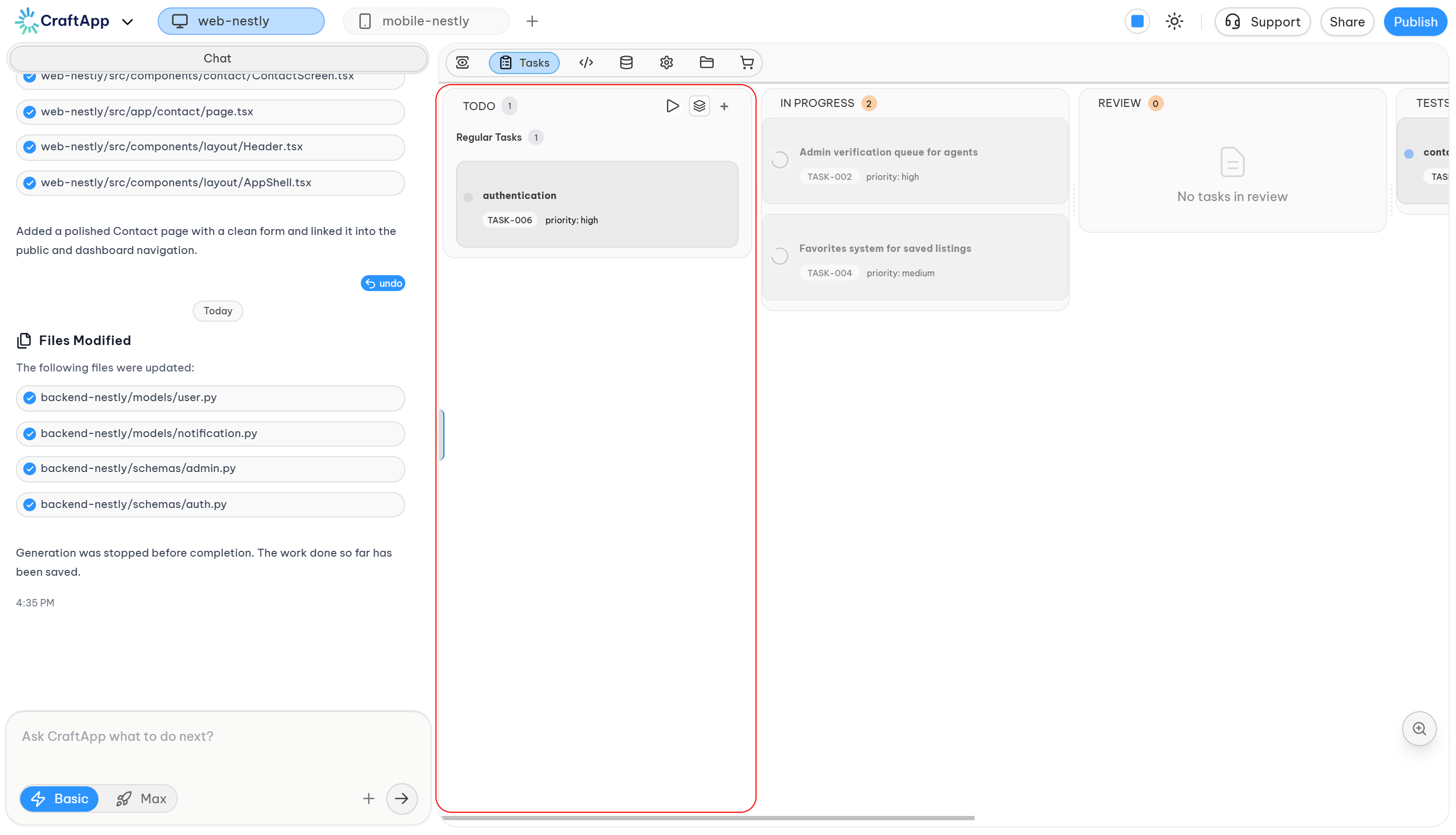
- To Do
- In Progress
- Review
- Test
- Completed
- Issue
Each status is displayed as a separate column in the Tasks manager.
Next to each column name, a number indicates how many tasks currently have that status.
To Do
The To Do column contains tasks that have been created but have not yet been executed.
This includes:
- Automatically generated tasks
- Manually created tasks
- Tasks moved back from Issue
Tasks in this column are available to run.
In Progress
The In Progress column contains tasks that Craftapp is currently executing.
When a task is running, Craftapp generates or updates the required application code.
The task remains in this status while its implementation is in progress.
Review
After implementation, a task can move to Review while the generated changes are being reviewed.
Craftapp uses this stage as part of the task execution workflow before testing.
For autonomous execution, this stage may be completed quickly and may not remain visible for a significant amount of time.
Test
The Test column represents the testing stage.
Craftapp tests the implemented functionality to verify that the task was successfully completed.
Testing can include:
- Functional validation
- Application behavior checks
- UI validation
- Detection of implementation issues
- Verification of the requested requirements
During autonomous execution, the transition between Review and Test may happen quickly.
Completed
A task is moved to Completed when its implementation and testing have successfully finished.
A completed task has successfully passed the execution workflow without an unresolved issue.
Issue
The Issue column contains tasks that could not successfully complete.
A task can enter Issue for different reasons, including:
- Missing API keys or secrets
- Required third-party configuration
- Internet or external service problems
- An implementation error
- A requirement that needs human input
- Another execution failure
Tasks in Issue retain their generated changes so that execution can continue from the appropriate point when the task is run again.
Running tasks
Craftapp provides three main ways to execute tasks:
- Run an individual task
- Run a task pool
- Run all tasks
For automated execution, Craftapp processes tasks sequentially.
Run all tasks
The Run all tasks action executes all available tasks in the To Do column.
When you select Run all tasks, Craftapp:
- Starts with the first available task.
- Implements the task.
- Reviews and tests the implementation.
- Moves the task to the appropriate status.
- Continues with the next task.
- Repeats the process until all tasks have been processed.
This allows an entire task plan to be executed without manually starting each task.
Note
Running all tasks is intended for autonomous execution. However, some tasks may require human interaction, such as providing an API key, configuring a third-party service, or supplying another required secret. Review your tasks before starting a fully autonomous run when external integrations are involved.
Completion notification
When all tasks have been successfully implemented and tested, Craftapp sends an email notification indicating that the task execution has finished and the application is ready to use.
Task pools
A Task Pool allows you to group selected tasks and execute them together as a specific part of your project.
Task pools are useful when you want to divide a project into logical groups such as:
- Authentication
- Profile
- Products
- Payments
- Administration
Instead of running the entire task list, you can create a pool containing only the tasks related to a specific part of the application.
Creating a task pool
To create a task pool:
- Open the Tasks tab.
- In the To Do column, select Create Task Pool.
- A task pool dialog opens.
- Enter a Task Pool Title.
- Select the tasks that should belong to the pool.
- Select Create Pool.
The new pool appears in the To Do column under the task pools section.
Running a task pool
After creating a task pool, you can run it directly.
When a task pool is executed, Craftapp:
- Processes the tasks in the pool sequentially.
- Implements each task.
- Tests the implementation.
- Moves each task to the appropriate status.
- Continues until the tasks in the pool have been processed.
You can then review the completed functionality before moving to another task pool.
When the entire pool has completed successfully, Craftapp sends an email notification.
Deleting a task pool
A task pool can be deleted when it is no longer required.
Deleting a task pool does not delete the tasks that belong to it. The tasks themselves remain available in the task manager.
Creating tasks manually
Craftapp automatically creates tasks for a project, but you can also create additional tasks manually.
This is useful when you need to:
- Add functionality that was not included in the generated plan
- Add a new requirement
- Split an existing requirement into smaller tasks
- Add a specific implementation step
Creating a task
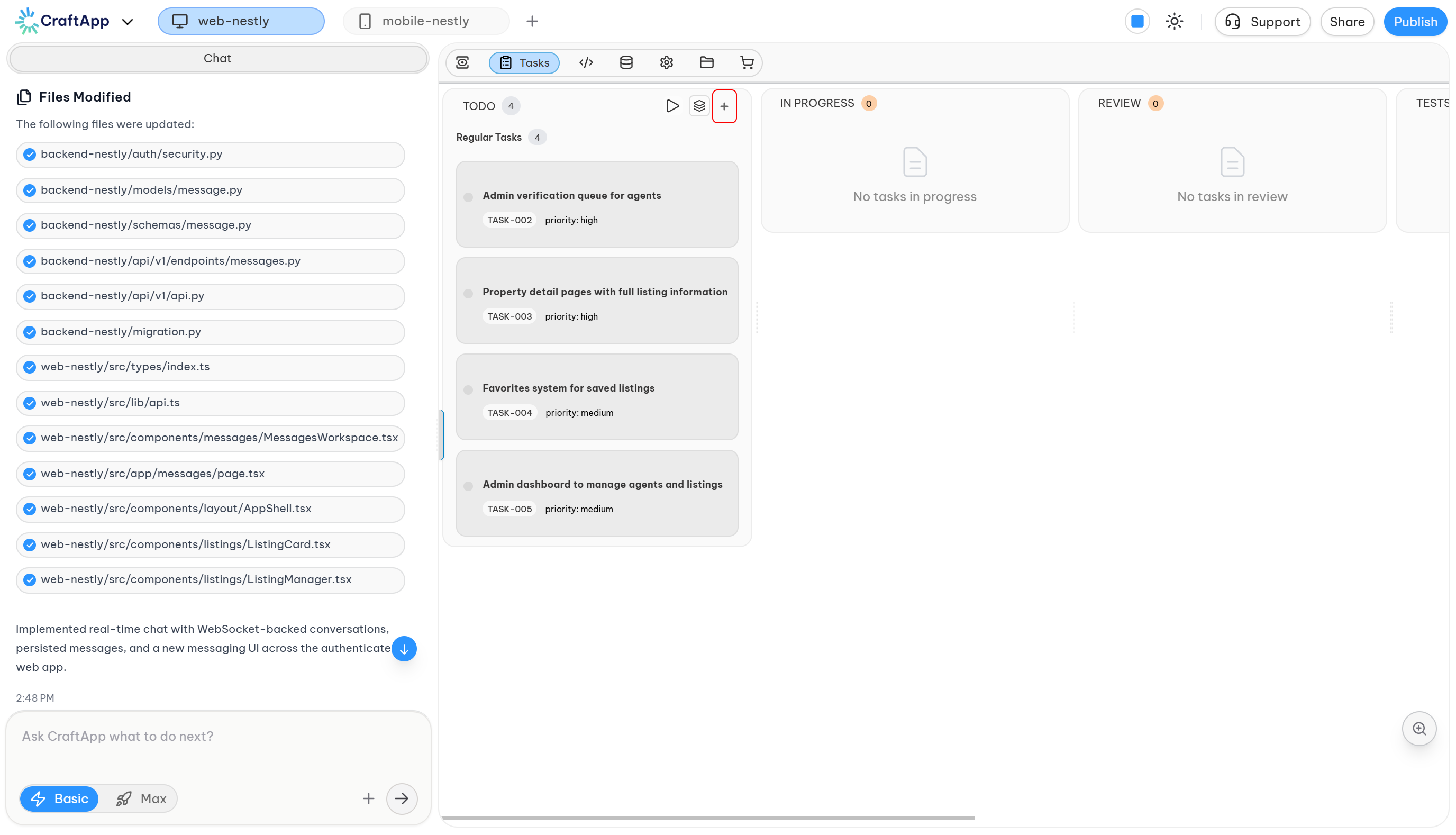
To create a task:
- Open the Tasks tab.
- In the To Do column, select the + button.
- The task creation dialog opens.
- Enter the Task Title.
- Enter the Task Description.
- Select Create Task.
The new task is added to the To Do column.
Writing effective task descriptions
Task descriptions should clearly explain what needs to be implemented and the expected behavior.
Avoid descriptions that are too broad or ambiguous.
Example of a vague task
Add a product listing page.
This does not define the required behavior in enough detail.
Example of a detailed task
Add a product posting page where users can post products by providing a product name, description, and image. Users must be signed in before posting a product. Users must be able to create, update, and delete their own products. A user must not be able to update or delete products created by another user.
The second example provides the implementation requirements and expected behavior much more clearly.
Tip
When creating a task, describe the required functionality, user actions, permissions, data requirements, and expected behavior whenever they are relevant.
Task information
Each task displayed in the task manager shows its:
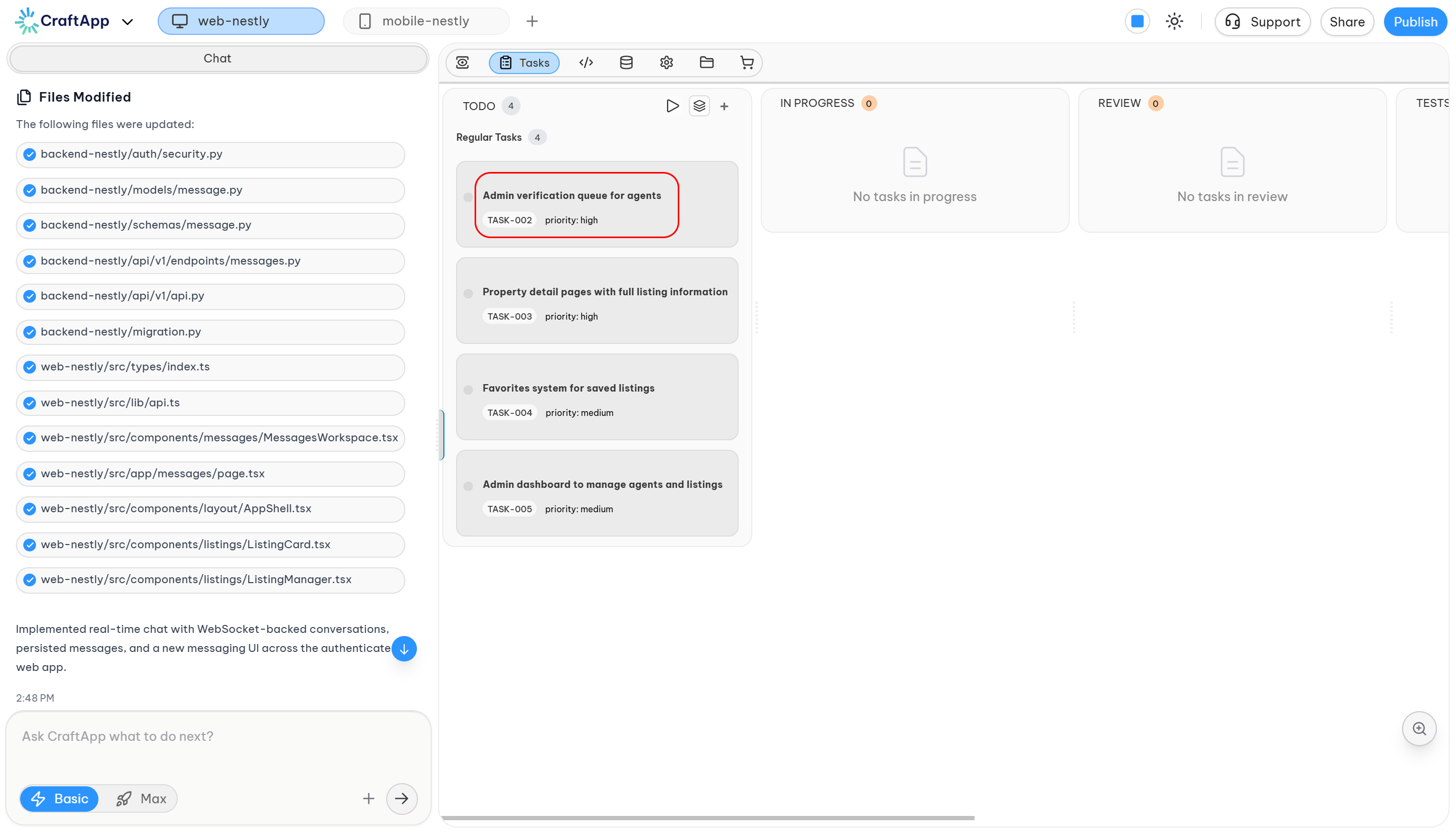
- Task number
- Task title
- Priority
The task number identifies the task and can also be used when requesting task operations through the Craftapp chat.
Task details
Each task displayed in the task manager shows its:
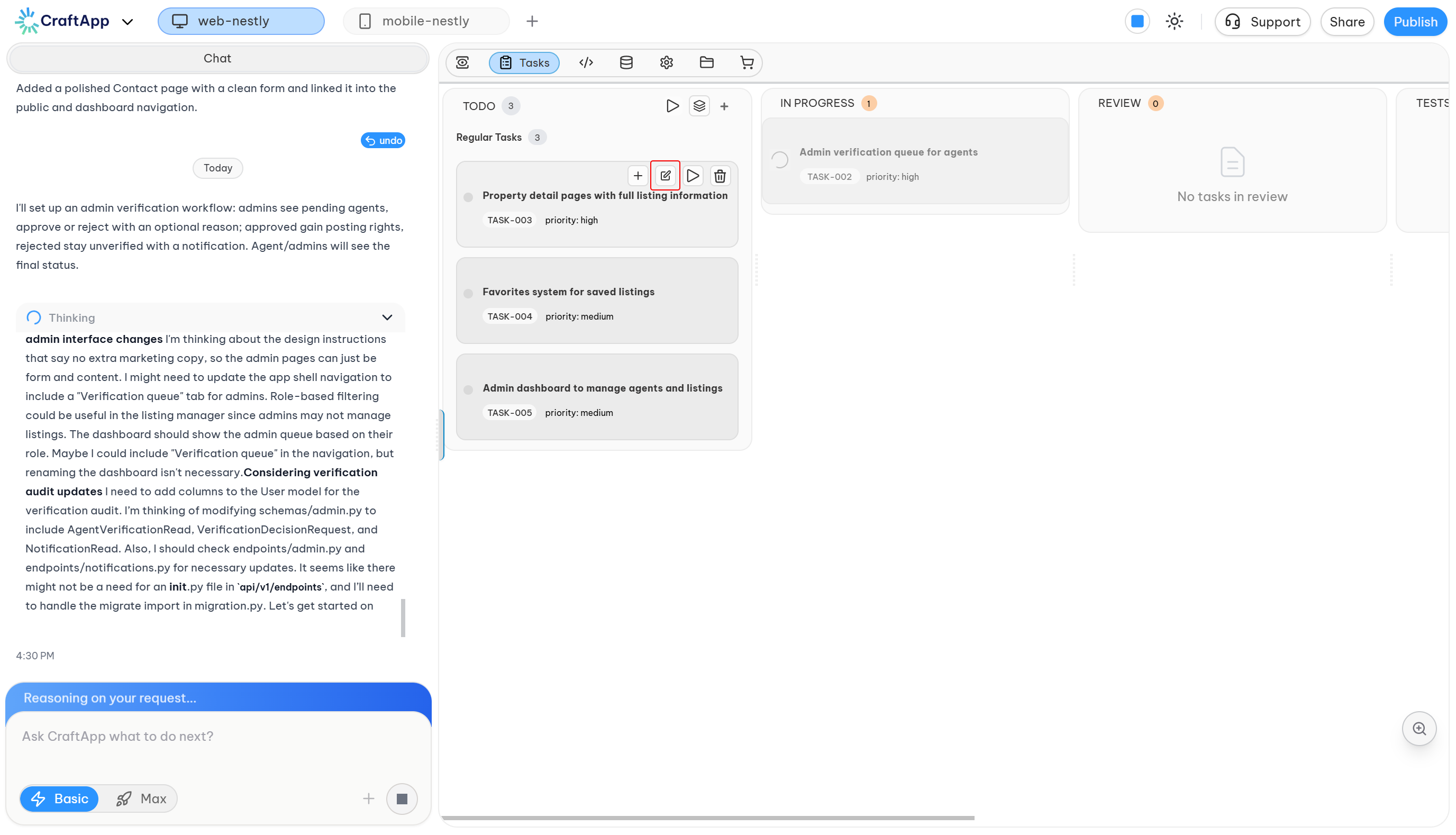
Selecting a task opens its task details dialog.
The task details include:
- Task title
- Full task description
- Current status
- Task controls
- Editing options
- Execution options
From the task details dialog, you can review the complete requirements before running or modifying the task.
Managing individual tasks
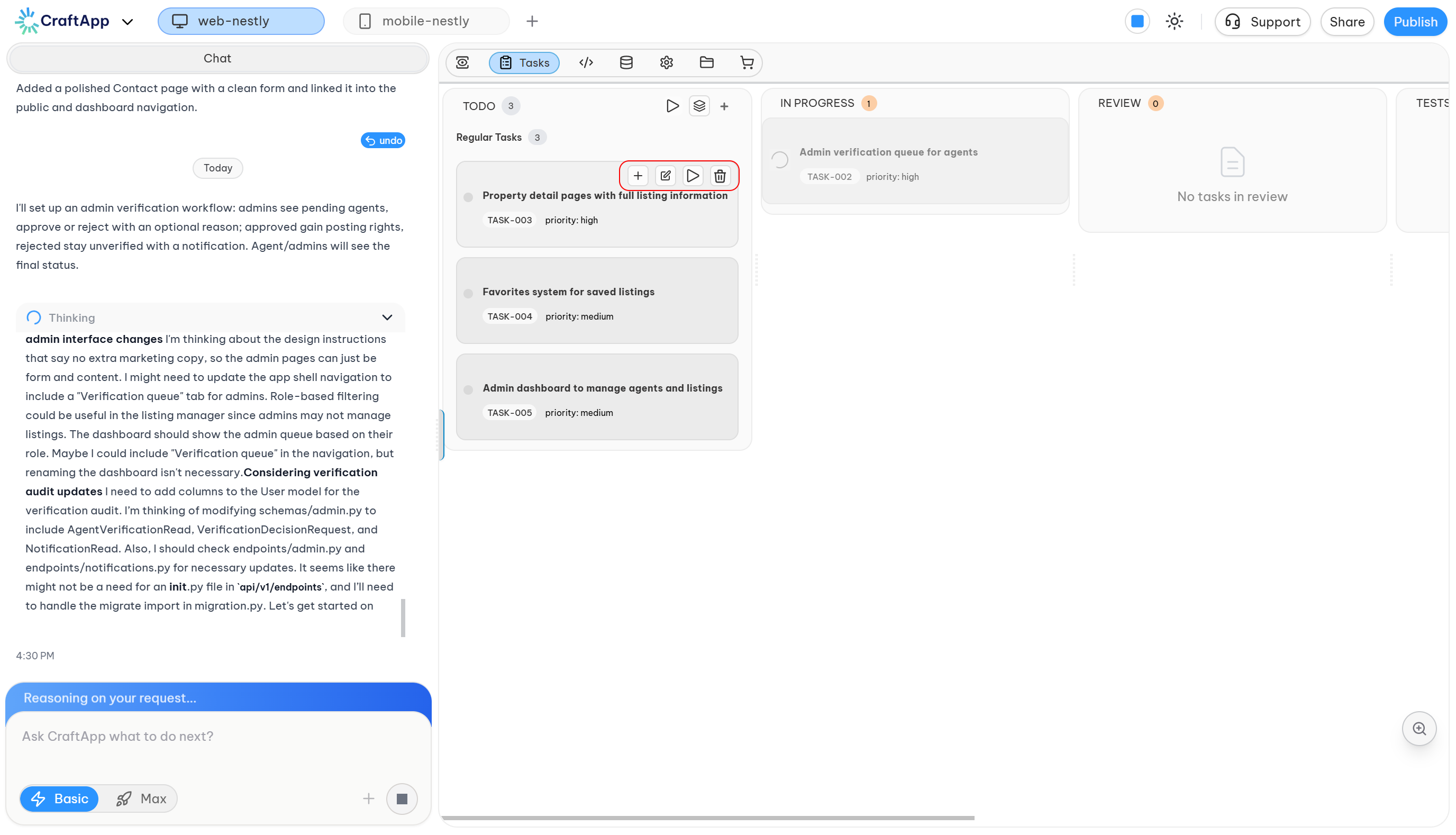
Tasks in the To Do column provide additional actions when you hover over them.
The available actions include:
- Run
- Edit
- Delete
Running an individual task
The Run action executes only the selected task.
This is useful when you want to implement and test one specific task without running the rest of the project.
You can also ask Craftapp to run a specific task from the chat box.
For example:
Run task 1
or:
Run task-001
Craftapp can identify the requested task and start its execution.
Editing a task
Select Edit to open the task details dialog.
You can modify:
- Task title
- Task description
After making changes:
- Select Save to apply the changes.
- Select the X button in the top-right corner to close the dialog without saving the changes.
Deleting a task
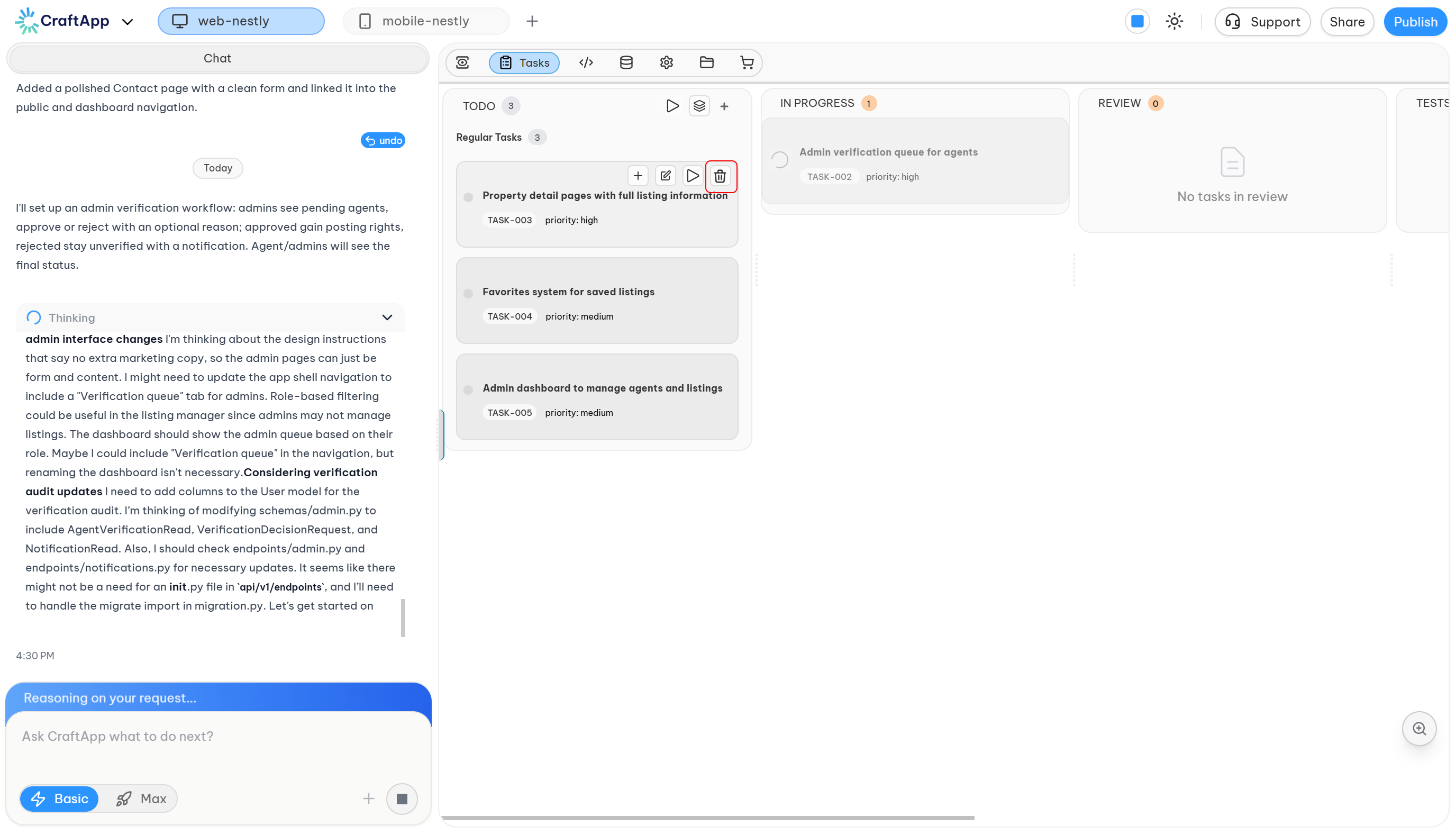
Select Delete to remove a task that is no longer required.
Tasks can be deleted when:
- They were created by mistake
- They are no longer needed
- Their requirements have been merged into another task
Deleting a task does not remove application code that was already generated by that task.
Tasks and the Craftapp chat
You can also manage and inspect tasks through the Craftapp chat box.
You can ask Craftapp for information about:
- A specific task
- The current task status
- Task details
- The progress of a task
- Running a specific task
For example:
Run task-001
You can use the chat to request task operations without manually navigating through the task manager.
Autonomous task execution
Craftapp can execute tasks autonomously.
When running a task or task pool, Craftapp handles the implementation and testing process automatically.
For Run all tasks, the complete task plan can be executed sequentially from the first task to the last.
The autonomous workflow is:
Task
  ↓
Implementation
  ↓
Review
  ↓
Testing
  ↓
Completed
If an issue prevents successful completion:
Task
  ↓
Implementation
  ↓
Issue
The task remains available for further action.
Note
Although task execution is autonomous, some requirements cannot be completed without human input. Third-party integrations may require API keys, secrets, account configuration, permissions, or other information that Craftapp cannot provide automatically.
Handling tasks in Issue
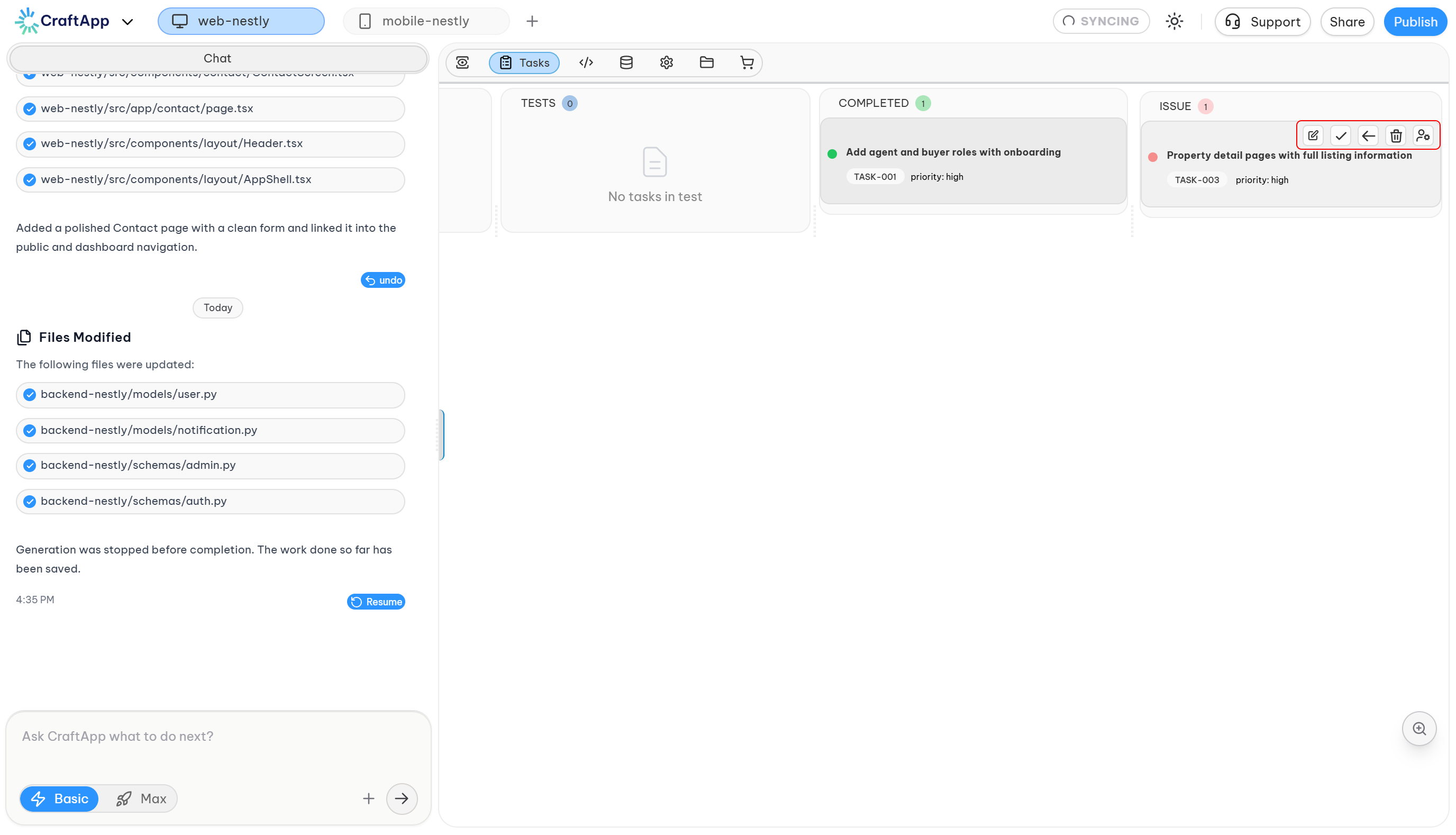
When a task enters the Issue column, you can choose how to proceed.
Depending on the situation, you can:
- Keep the task in Issue
- Move the task back to To Do
- Assign the task to a developer
Mark as Issue
Use Mark as Issue when the task has encountered a problem that requires attention.
This keeps the task in the Issue workflow so that the problem can be investigated before execution continues.
Move back to To Do
Use Move back to To Do when the task could not continue because it requires information or interaction that was not available during execution.
For example, a task may require:
- An API key
- A third-party account
- A secret
- Additional requirements
- User confirmation
After the required information is available, the task can be moved back to To Do and run again.
Assign to a developer
If you cannot determine how to resolve an issue, you can use Assign to Developer.
This allows the issue to be assigned to a developer through the Craftapp community so that an engineer can help investigate and resolve the problem.
Resuming tasks after an issue
When a task encounters an issue, Craftapp preserves the changes that were already generated.
When the task is run again, Craftapp does not need to unnecessarily recreate work that was already completed. Execution can continue from the appropriate point in the task workflow.
Note
Generated changes are preserved when a task enters Issue. Running the task again continues from the available implementation state rather than intentionally discarding all previous work.
Real-time task execution
Task execution is visible in real time inside Craftapp Studio.
While a task is running:
- The task status is updated in the Tasks manager.
- Generated code can be viewed in the Chat and Code Editor.
- Application changes can be viewed in Preview.
- The task progresses through the execution workflow.
This allows you to monitor both the implementation and the resulting application while Craftapp is working.
Recommended workflow
For projects where tasks depend on one another, use the following workflow:
- Review the automatically generated tasks.
- Check that the tasks are ordered logically.
- Edit task descriptions when requirements are incomplete.
- Add additional tasks if required.
- Create task pools when you want to work on specific groups independently.
- Run tasks sequentially when later tasks depend on earlier implementation.
- Review the generated changes in Preview and Code Editor.
- Check tasks that enter Issue.
- Provide missing requirements, secrets, or configuration when necessary.
- Move resolved tasks back to To Do and run them again.
- Verify completed functionality before considering the project finished.
For a fully autonomous workflow, you can use Run all tasks after reviewing the task plan and confirming that required external integrations and credentials are available.
Task lifecycle
The complete task lifecycle is:
To Do
  ↓
In Progress
  ↓
Review
  ↓
Test
  ↓
Completed
If execution cannot be completed:
In Progress
  ↓
Issue
  ↓
To Do
  ↓
In Progress
  ↓
Review
  ↓
Test
  ↓
Completed
The exact transitions may happen quickly during autonomous execution, particularly between Review and Test.
Summary
The Tasks manager provides a structured workflow for building applications through individual implementation steps.
You can:
- Review automatically generated tasks
- Create tasks manually
- Edit or delete tasks
- Run individual tasks
- Create and run task pools
- Run all tasks sequentially
- Monitor task execution
- Review implementation and preview changes
- Handle issues and resume interrupted tasks
- Assign unresolved issues to a developer
- Manage tasks through the Craftapp chat
The main workflow is:
Plan → Run → Review → Test → Complete
When a task cannot be completed, it moves to Issue, where it can be investigated, resolved, reassigned, or returned to To Do for another execution attempt.