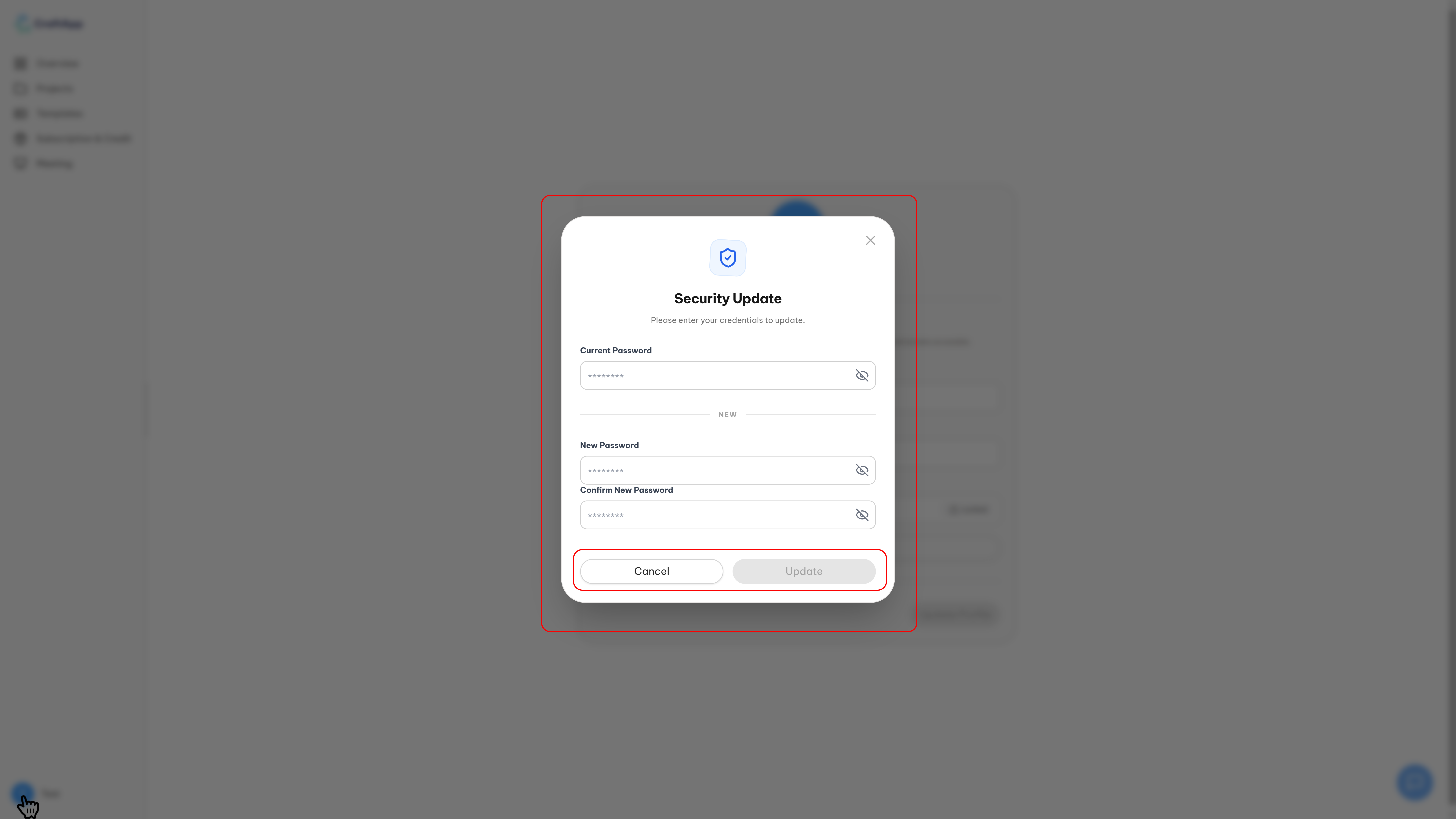
Dashboard Interface
Overview
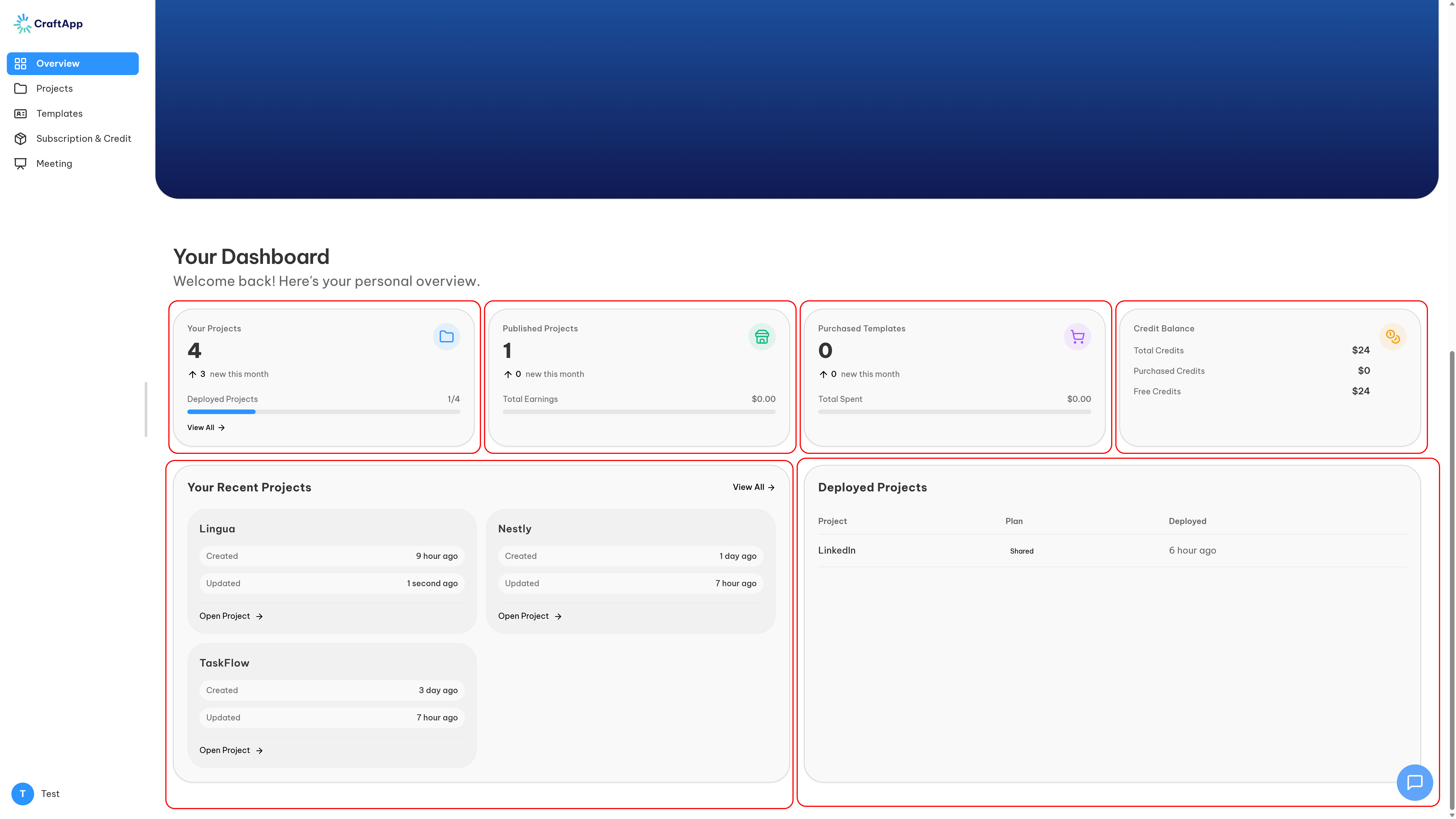
The Craftapp Dashboard is the central command center, redesigned to streamline project initiation, management, and platform interaction. It provides a unified, real-time overview of project health, resource consumption, and marketplace activity, all within a modern, intuitive interface.
The dashboard instantly answers critical user questions:
- What is the status of my projects?
- How much of my resources have I consumed?
- What is my next action, whether creating a new project or continuing an existing one?
- How can I get immediate help or manage my account?
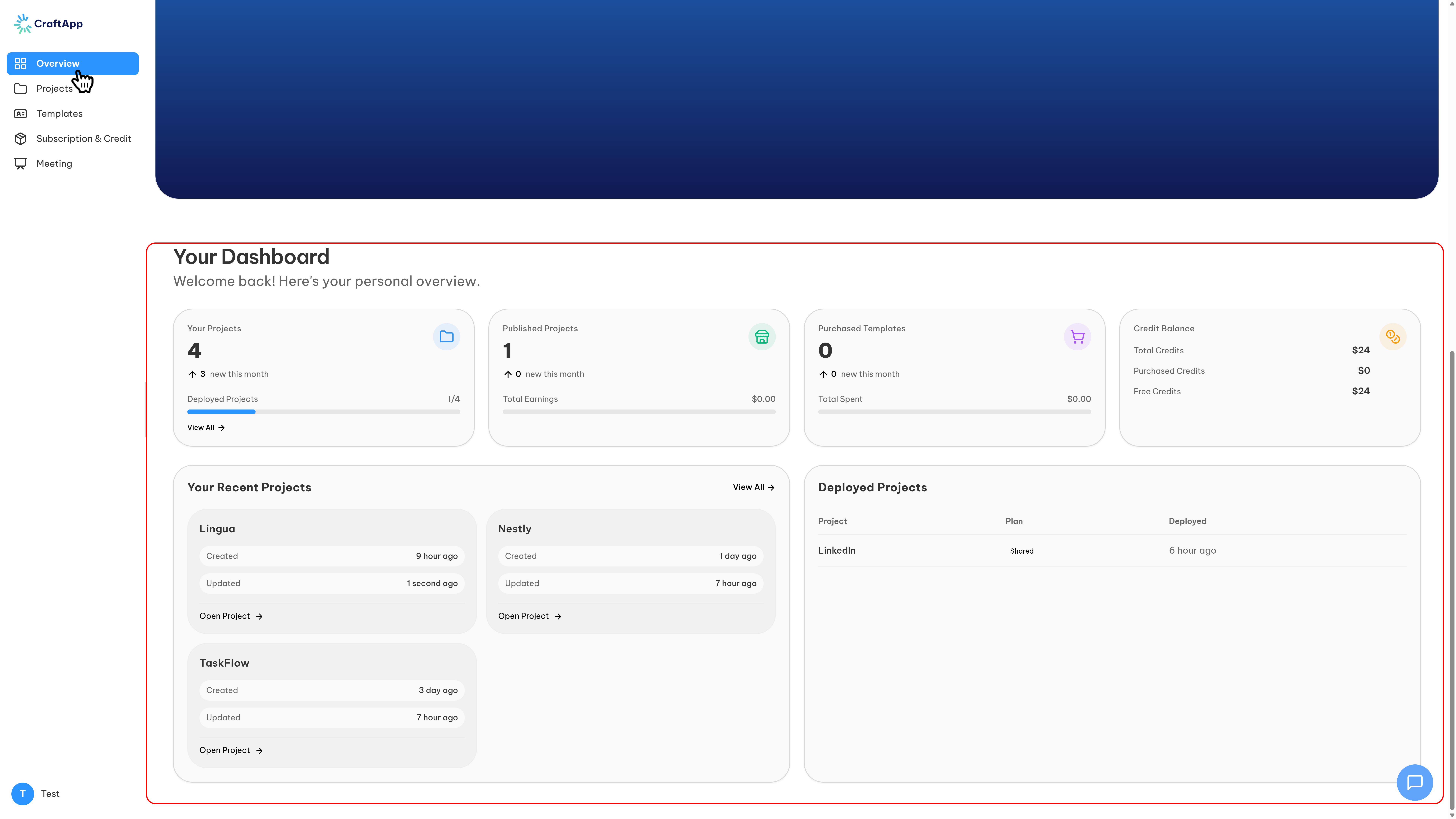
Core Interface & Global Elements
The interface is built for persistent accessibility and immediate action.
Global Left Sidebar
A permanent navigation panel providing access to all core modules of the platform:
| Page | Description |
|---|---|
| Dashboard | The main overview page |
| Projects | Manage all created applications |
| Templates | Access the marketplace to buy and sell templates |
| Subscription & Credits | Manage your plan and resource balance |
| Meetings | Schedule time with technical support and advisors |
| Profile | Accessible from the bottom of the sidebar, opening a menu for theme switching, signing out, or navigating to profile settings |
Floating Support Chatbox
A persistent floating action button in the bottom-right corner, available across all pages. It provides instant access to the support team for real-time assistance without leaving your current workflow.
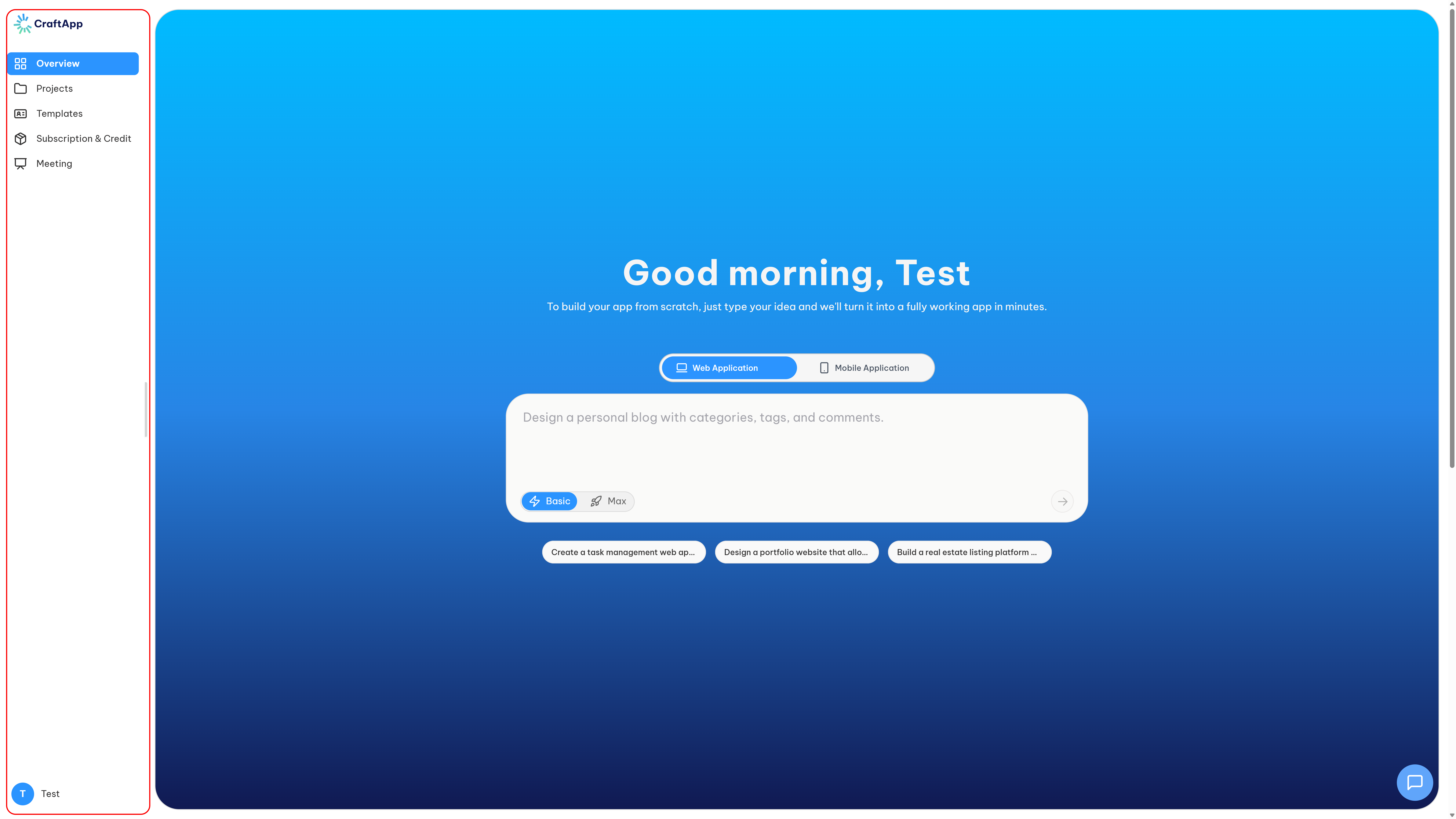
Dashboard: Main Overview Page
The main dashboard page is the landing and launchpad for your Craftapp experience, structured into distinct operational zones.
Project Initiation Zone
At the heart of the dashboard is the Create Project prompt area. This is your direct input field to describe the application you want to build, acting as a project launchpad that turns a simple text prompt into a new project scaffold.
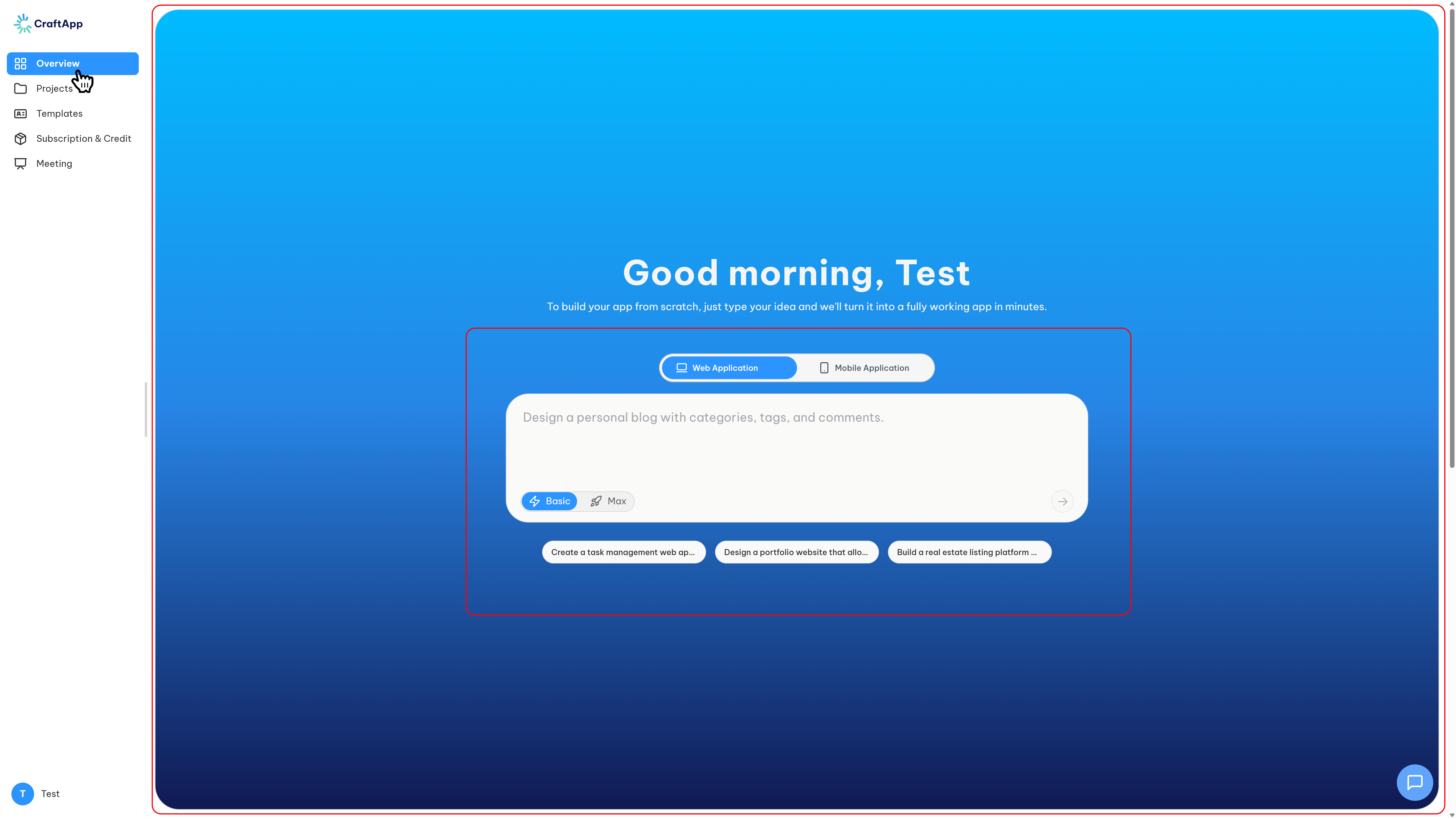
Key Metrics & Statistics Cards
A summary section displaying key platform and activity metrics in an at-a-glance card format:
| Card | Description |
|---|---|
| Your Projects | Total count of created projects and the number that are currently deployed |
| Published & Earnings | Number of projects published to the marketplace and total revenue earned from paid publications |
| Purchased Templates | Number of templates acquired from the marketplace |
| Credit Balance | Statistical overview of total available credits, broken down into free and purchased credit, along with total credit consumed |
Project Activity Lists
Two dedicated lists provide immediate access to your work:
- Recent Projects: A chronological list of your most recently opened projects for quick resumption.
- Deployed Projects: A list of projects currently live and deployed, giving you a direct view of your active portfolio.
Projects Page
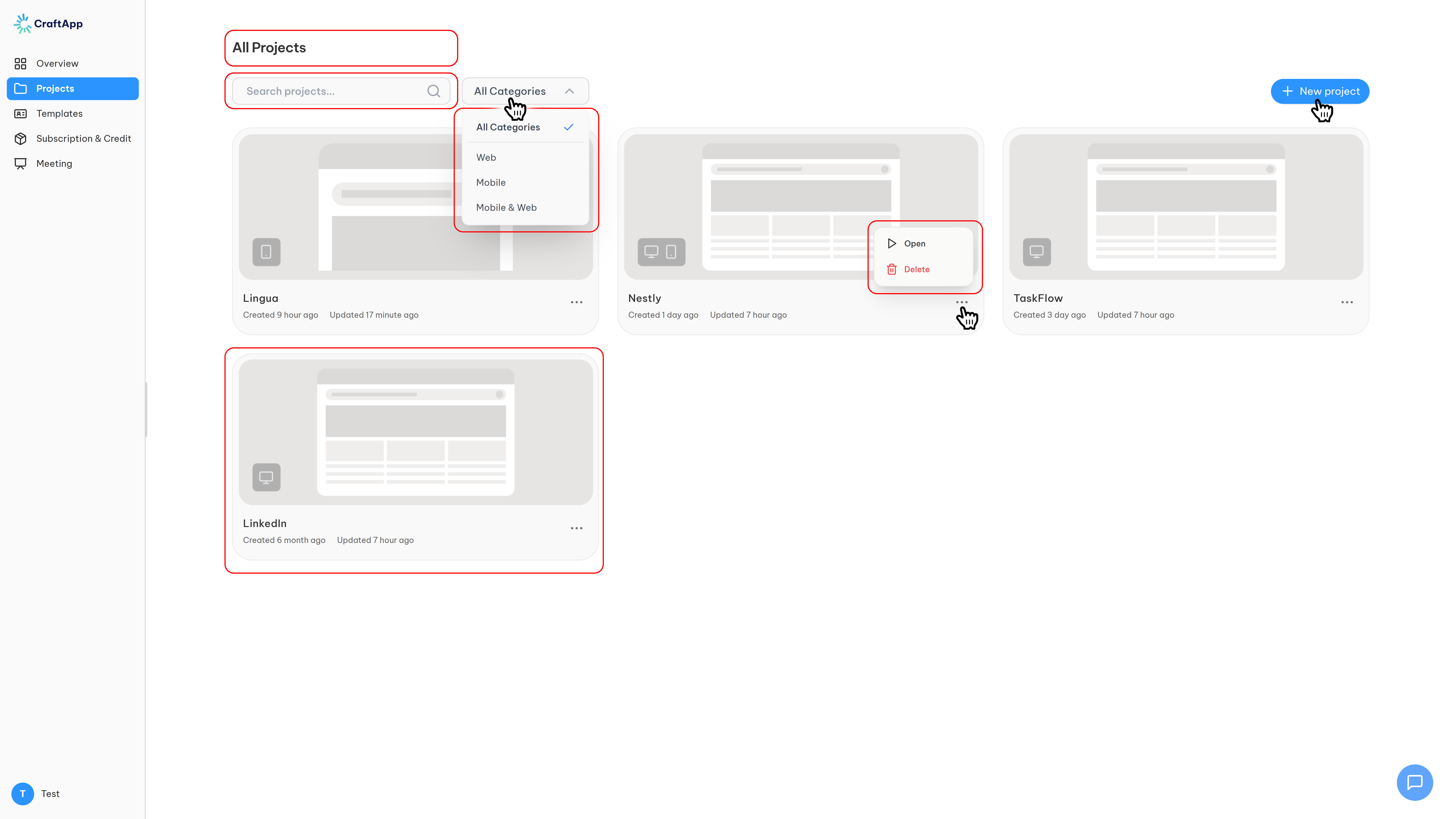
The centralized repository for all your created applications, designed for easy management and discovery.
Key Features & Functionality
| Feature | Description |
|---|---|
| Project Search | A search bar to quickly locate a specific project by name |
| Advanced Filtering | Filter your project view by target platform: Web, Mobile, or Enterprise (both Web and Mobile) |
| Direct Creation | A dedicated button redirects you to the main prompt page to initiate a new project |
Project Interaction
- Open: Clicking directly on a project tile navigates you into its editor.
- Context Menu: An ellipsis (
...) button on each project tile reveals quick actions to Open or Delete the project.
Templates Page (Marketplace)
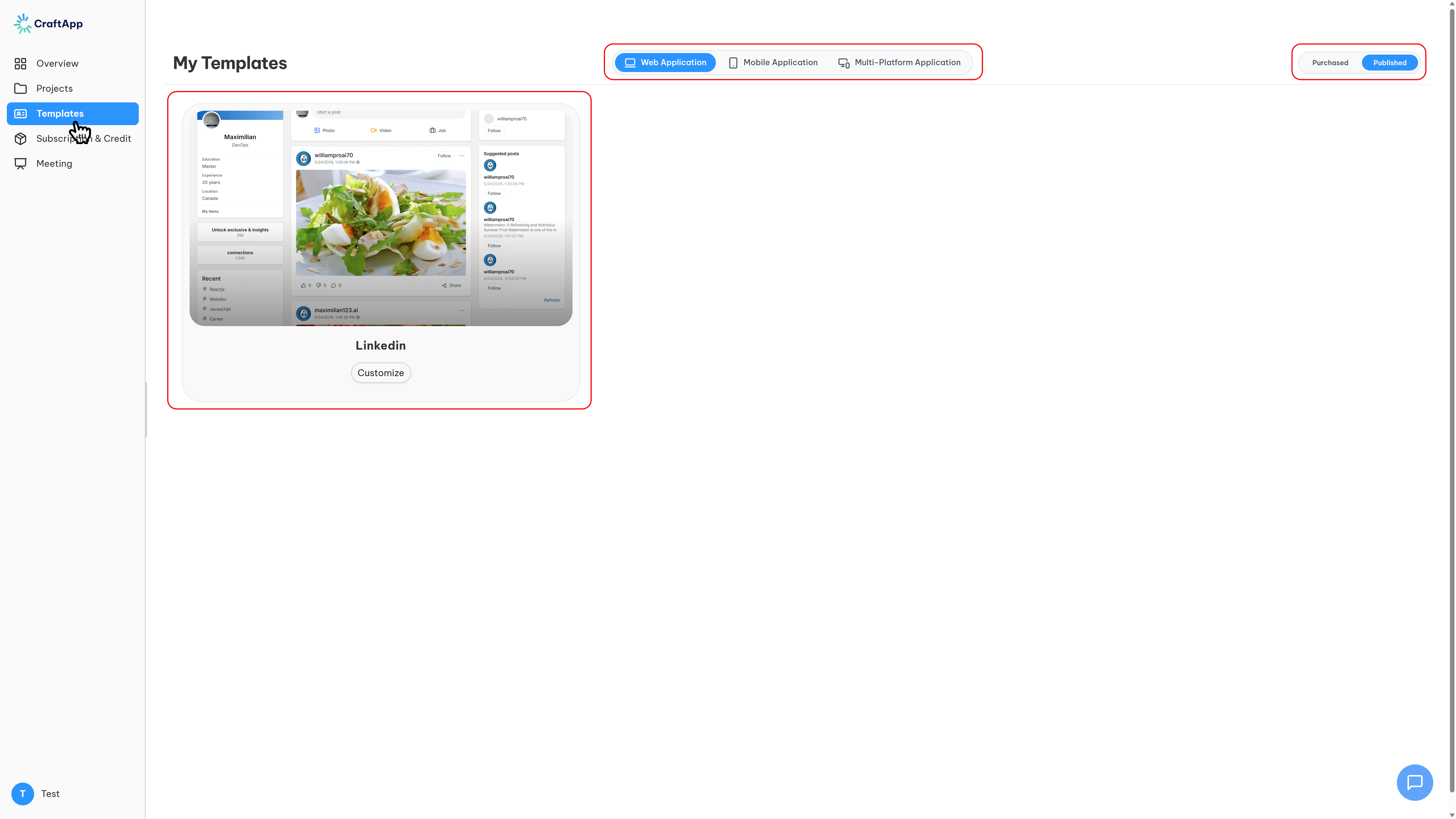
A unified marketplace for discovering new assets and managing your own intellectual property.
Dual-Mode View
A toggle button in the top-right corner switches the page between two distinct states:
| Mode | Description |
|---|---|
| Purchased | Displays a list of all templates you have bought |
| Published | Displays a list of templates you have published for sale |
Content Filtering
A filter bar in the top-middle of the page allows you to sort and view templates by their target platform: Web, Mobile, or Enterprise.
Subscription & Credits Page
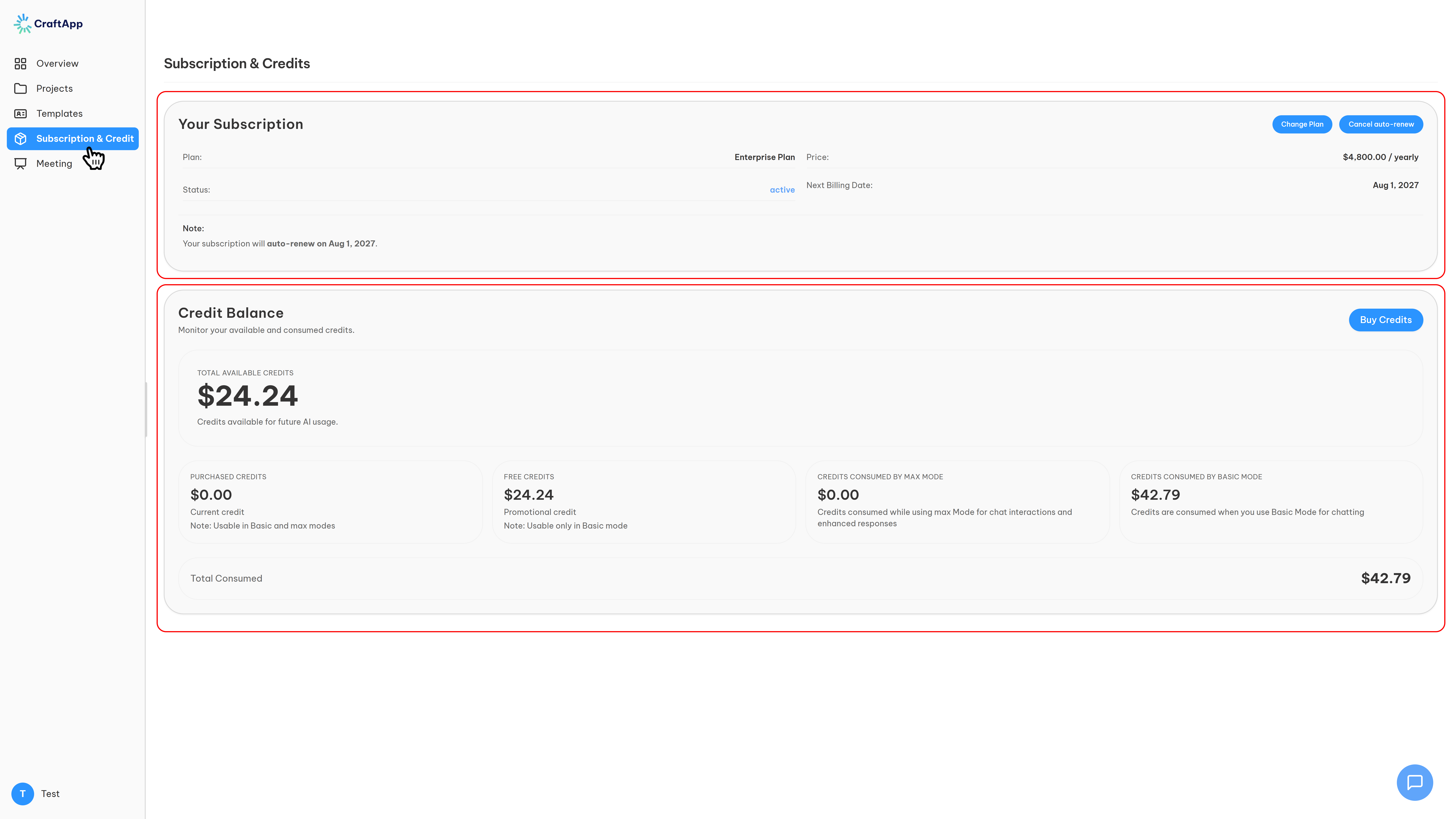
A comprehensive control panel for your financial plan and AI resource consumption. The page is divided into two distinct sections.
Top Section: Plan Subscription
Manages your current subscription level and billing.
Default State:
- A "Free Plan" is active by default
- A View Plans button is displayed, redirecting to
https://Craftapp.ai/dashboard/plansto explore features and purchase a paid subscription
Active Paid Plan State: Once a plan is purchased, this section displays all relevant plan details and two control buttons:
| Button | Function |
|---|---|
| Change Plan | Allows you to upgrade or downgrade your plan based on your evolving needs |
| Cancel Auto-Renew | Disables the default monthly automatic payment renewal for your subscription |
Bottom Section: Credit Balance
Manages the AI credits consumed when interacting with the Craftapp AI.
Summary Bar:
- Displays the Total Available Credits
- Displays the Total Consumed Credits
Credit Breakdown (Four Detail Columns):
| Column | Description |
|---|---|
| Purchased Credit | Credits acquired through purchase packages |
| Free Credit | Complimentary credits included with your plan |
| Credit Consumed by Max Mode | Credits used in high-capability AI mode |
| Credit Consumed by Basic Mode | Credits used in standard AI mode |
Purchase Credits: A Buy Credit button opens a pop-up modal displaying a list of purchasable credit packages to replenish your account.
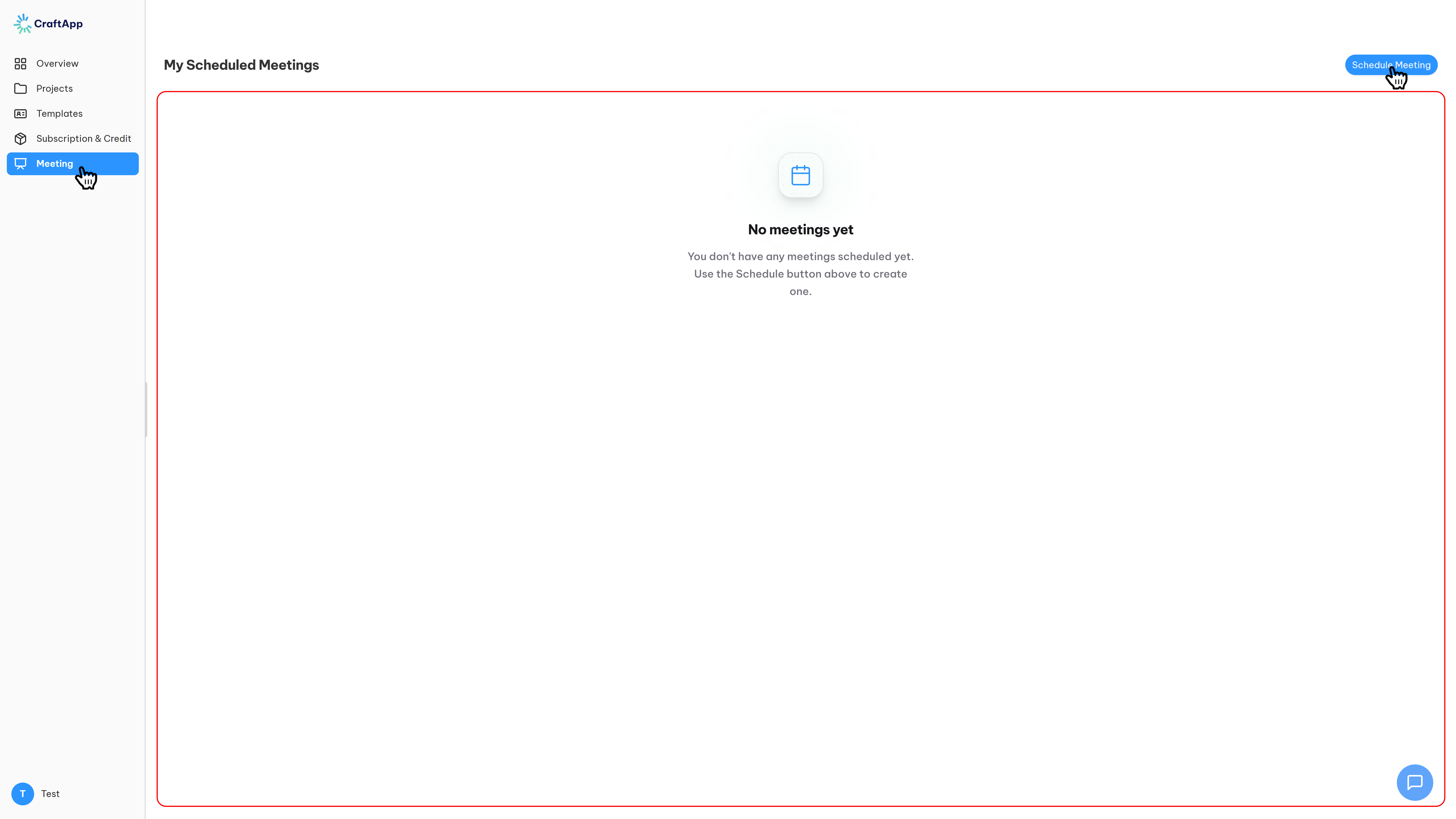
Meetings Page
A dedicated portal for direct, high-value human interaction with Craftapp's technical staff.
Purpose
Schedule sessions for:
- Complex issue resolution
- Technical advisory
- System architecture advice
- Assistance in migrating an existing project to Craftapp
Availability
This is a plan-dependent feature with allocated hours per plan. Review the plan details at https://Craftapp.ai/dashboard/plans for eligibility.
Booking Flow
Profile Page & Settings
The central location for managing your personal account details and application preferences.
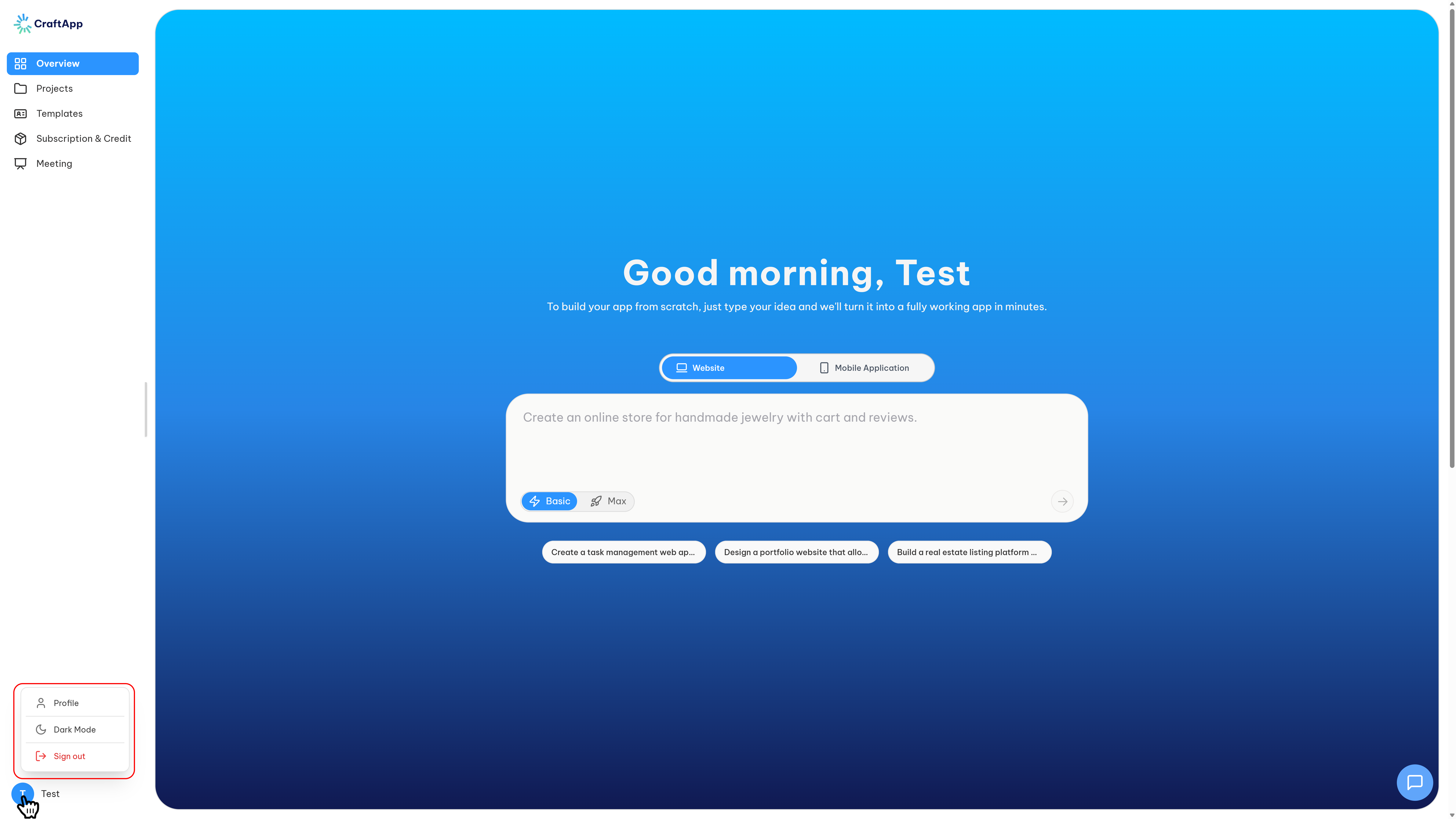
Profile Pop-up (Quick Access)
Accessed via the profile button at the bottom of the left sidebar:
| Action | Description |
|---|---|
| Toggle Theme | Switch the entire application interface between Light and Dark mode |
| Navigate to Profile | Go to the dedicated profile management page |
| Sign Out | Log out of your Craftapp account |
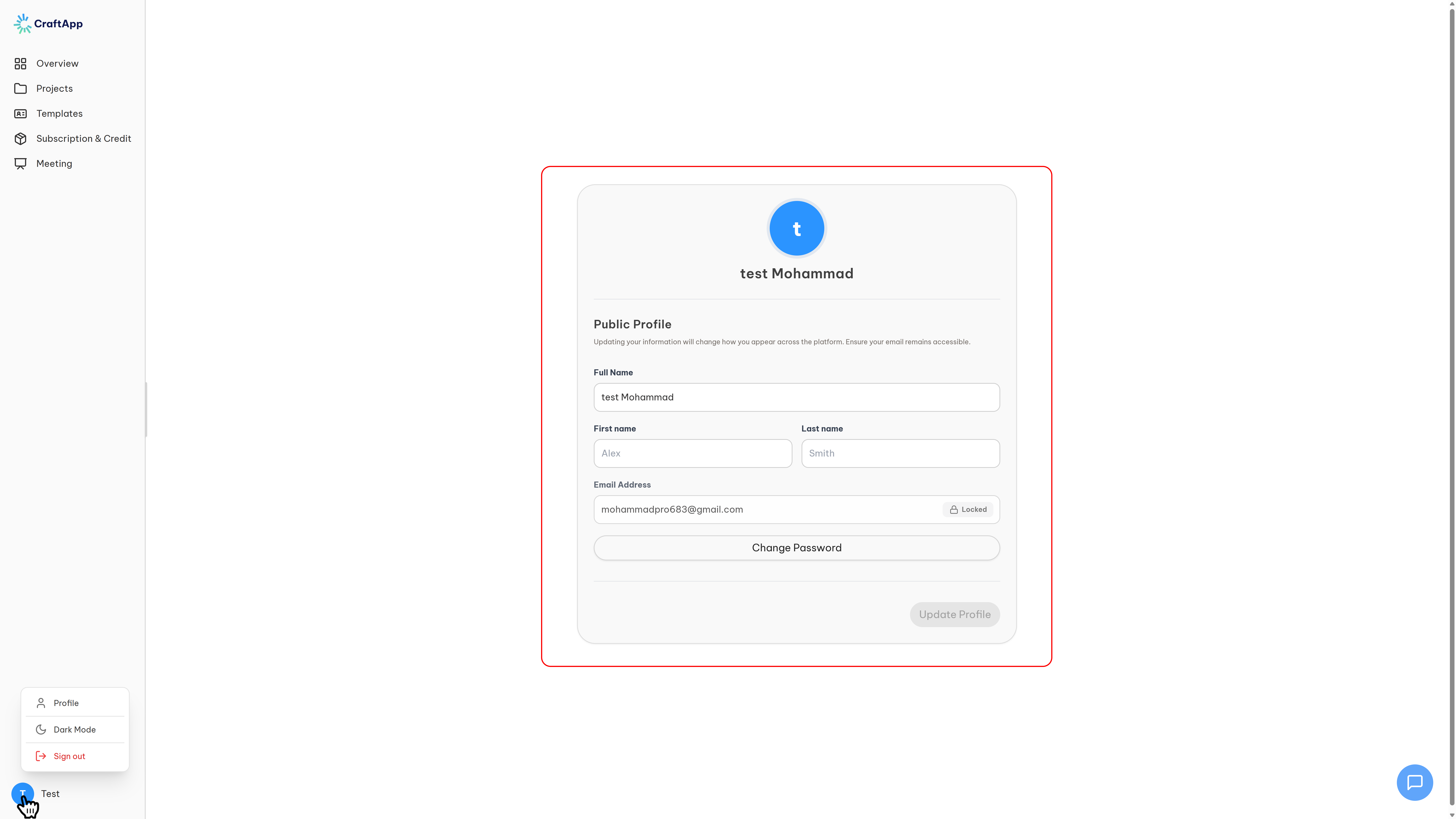
Dedicated Profile Page
Update Profile:
- Modify your first name, last name, and other personal details
- Email address is a permanent identifier and cannot be changed
- Finalize all changes with the Update Profile button
Change Password Flow:
- Initiated by the Change Password button
- A "Security Updates" pop-up modal appears requiring:
- Current Password
- New Password
- Confirm New Password
- Use Update to finalize or Cancel to abort