AI Chat Interface
Overview
The Chat Interface is where you communicate with Craftapp's AI to build, modify, and manage your application.
It also acts as a live activity log, showing AI updates, files that were created or modified, required inputs, and the result of each request — all within the same conversation.
Craftapp is designed to handle as much of the development process as possible automatically. However, some requests require additional input or validation from you before the AI can continue.
Interface Layout & Components
Project Context
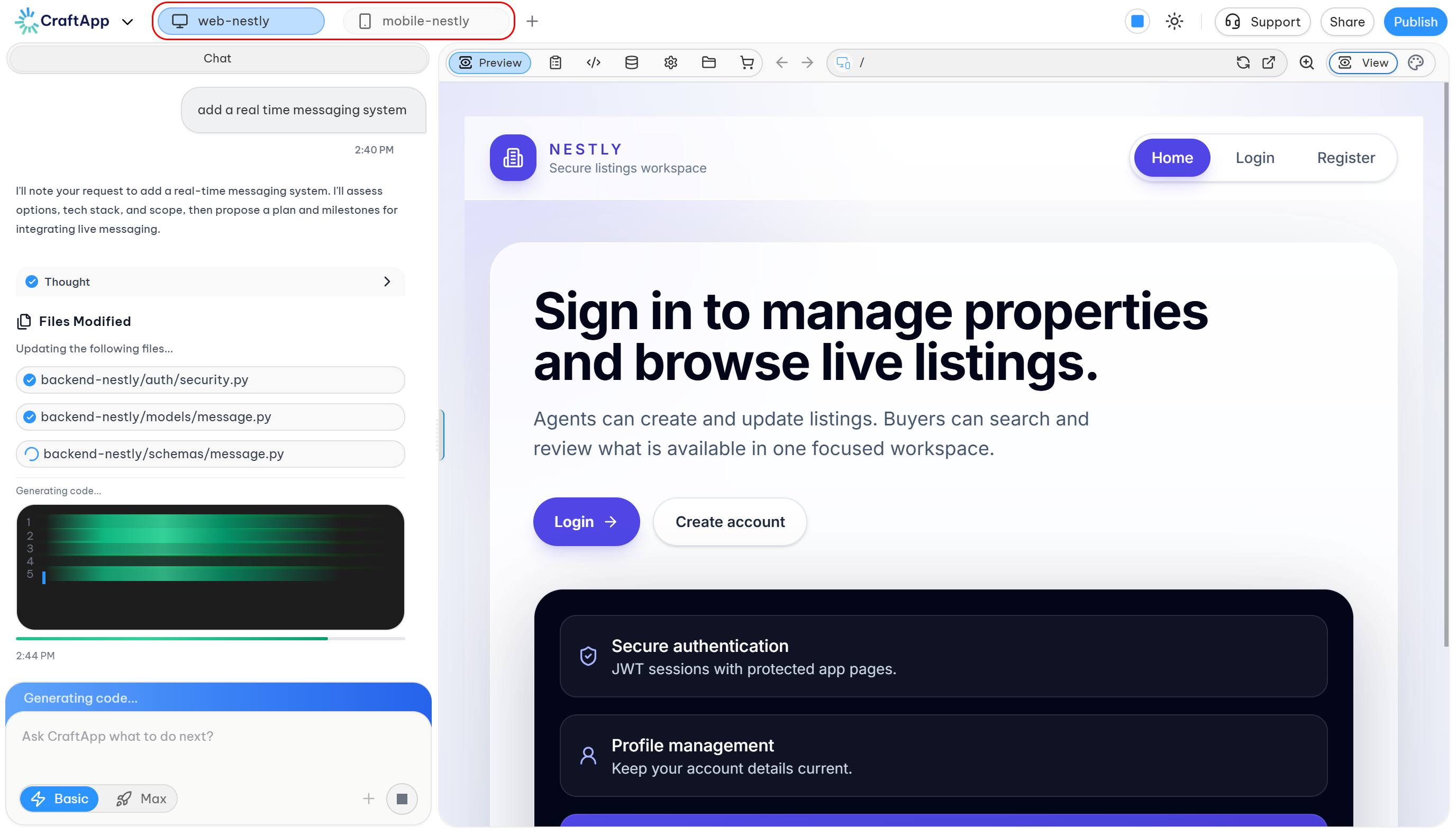
The active project is shown at the top of the workspace, for example mobile-chrono.
Use the project dropdown to switch between projects without leaving the chat interface.
Chat Log
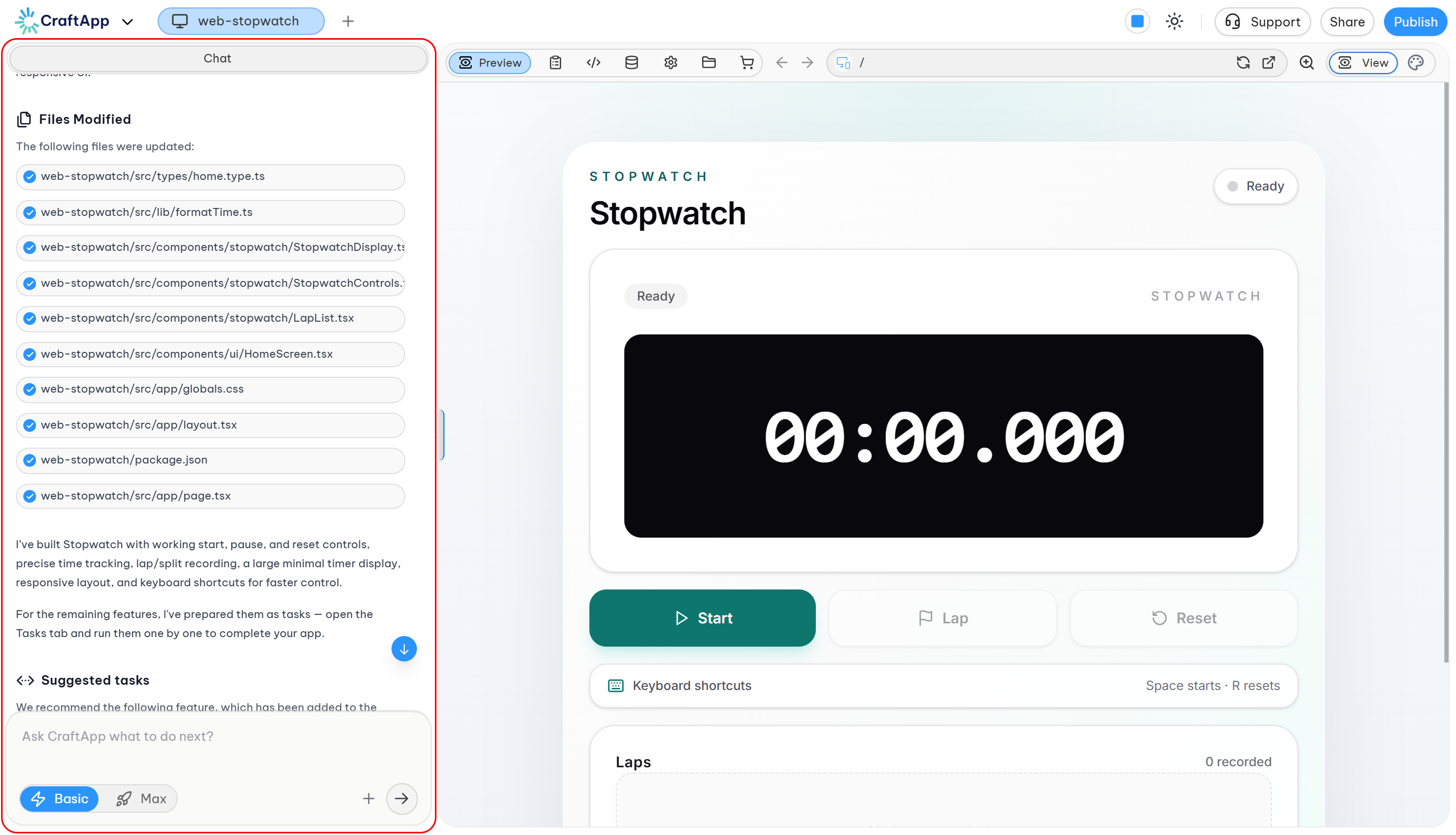
Messages appear in chronological order, with the newest messages at the bottom.
The chat can contain several types of information depending on what Craftapp needs to complete your request.
AI Updates
Craftapp provides status messages while working on your project.
For example:
Your Chrono Stopwatch app has been created successfully!
These updates help you understand what Craftapp is currently doing or what it has completed.
Files Modified
After making changes, Craftapp can display the files that were created or updated during the request.
For example:
App.tsxsrc/components/Header.tsxsrc/screens/HomeScreen.tsxapp.jsonpackage.json
This gives you visibility into the changes made by Craftapp.
Additional Inputs
Some requests cannot continue automatically because Craftapp needs validation or information from you.
Two common examples are:
- Backend Required
- Secrets Required
These inputs appear directly inside the chat and allow you to provide what Craftapp needs without leaving the conversation.
Backend Required
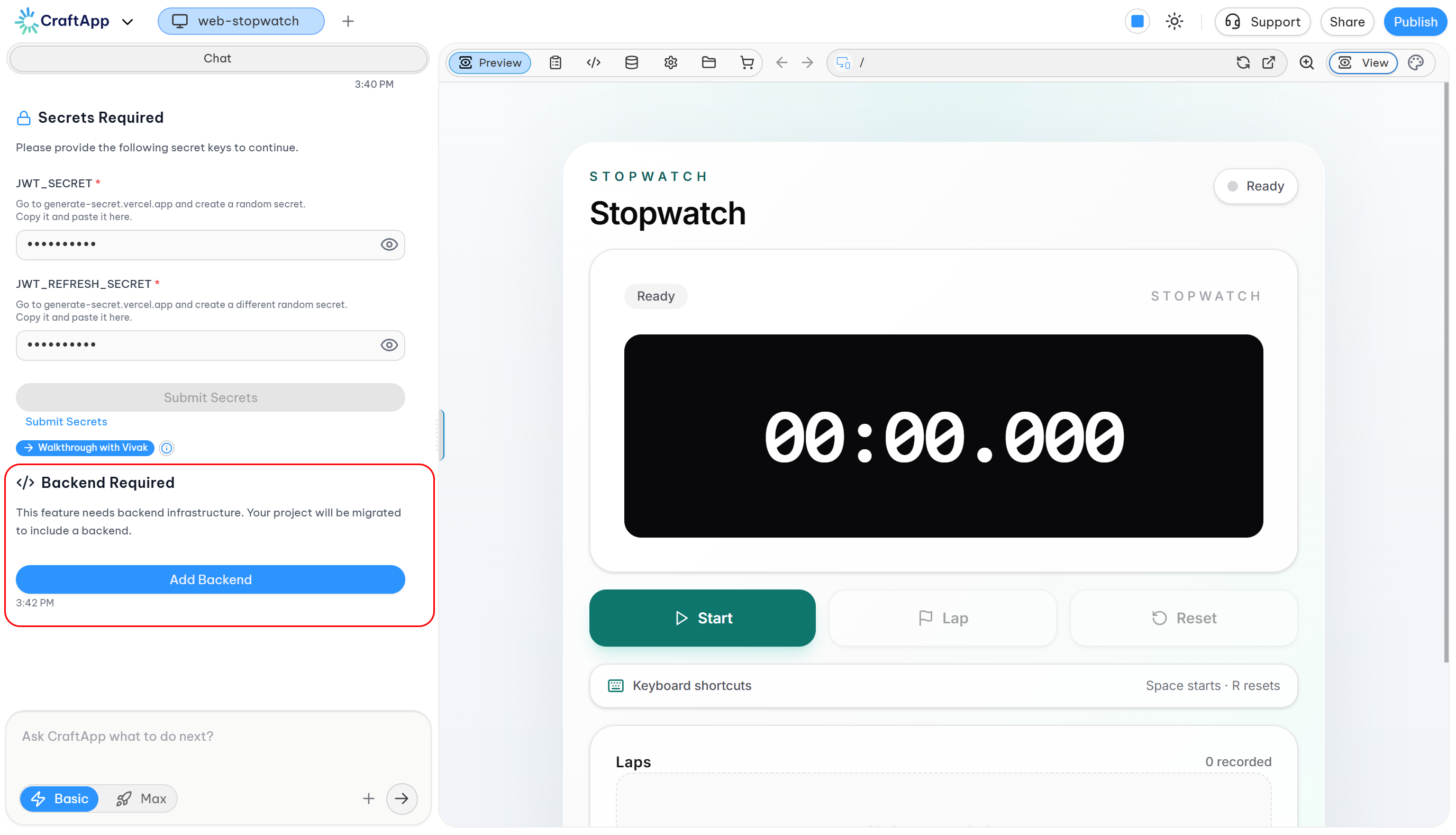
Some projects are frontend-only applications. In other words, they contain only the user interface and do not have a backend.
Craftapp automatically detects when your request requires backend functionality.
For example, a project may initially contain only a frontend, but you may ask Craftapp to add a feature that requires:
- Database access
- User authentication
- Server-side logic
- API endpoints
- Data storage
When this happens, Craftapp pauses the current request and displays a Backend Required box.
Adding a Backend
The Backend Required box allows you to validate the operation before Craftapp creates the backend.
Click:
Add Backend
After you confirm:
- Craftapp creates the required backend.
- It performs the necessary backend configuration automatically.
- The project is prepared for the requested functionality.
- Your original request continues automatically.
The backend setup normally takes approximately 15 seconds.
You do not need to manually configure the backend. Once the setup is complete, Craftapp continues working on the original request.
This allows frontend-only projects to remain simple while still making it possible to add backend functionality whenever it is needed.
Secrets Required
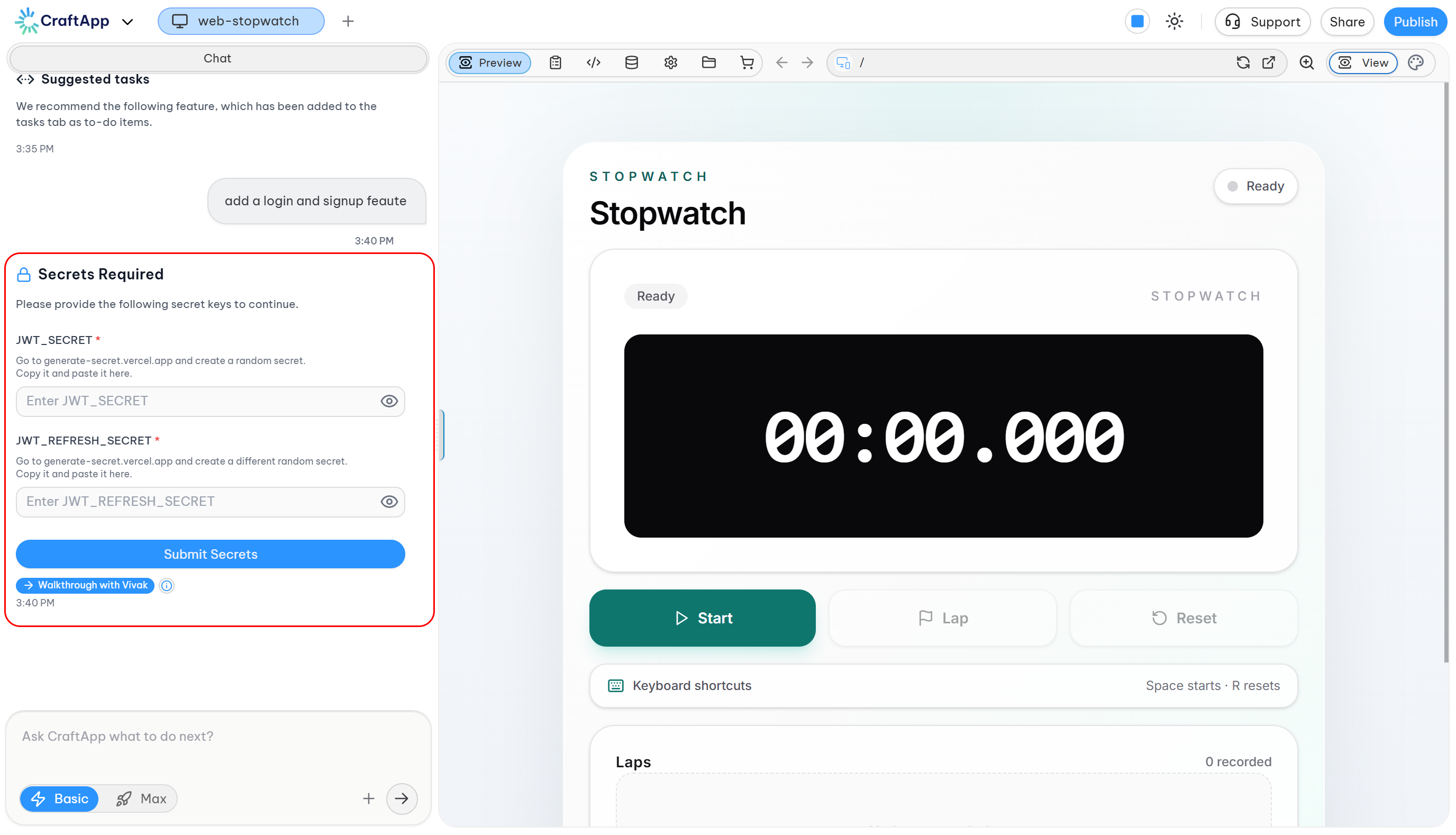
Some features depend on third-party services.
For these features, Craftapp may need credentials or API keys from you before it can continue.
Examples include:
- Sending confirmation emails for registration or password reset
- Sending emails through services such as Brevo
- Fetching real-time weather data
- Adding AI-powered features
- Connecting external APIs or services
When Craftapp detects that a third-party integration requires credentials, it pauses the request and displays a Secrets Required box.
Example
You may see something similar to:
Secrets Required
Please provide the following secret keys to continue.
BREVO_API_KEY *
Go to brevo.com and sign in. Go to SMTP & API > API keys. Copy the key and paste it here.
Depending on the feature, there may be:
- One secret to provide
- Multiple secrets to provide
Fill in all required fields and click:
Submit Secrets
Once the secrets are submitted, Craftapp resumes the request and continues implementing the feature automatically.
What Are Secrets?
Secrets are sensitive values such as API keys, access tokens, or service credentials that allow Craftapp's generated application to communicate with external services.
For example, an email feature may require an API key from an email provider so that your application can send emails.
Craftapp tells you which secret is required and provides instructions about where to find it.
You do not need to search through the generated code to determine what is missing. The required information is requested directly in the chat.
Walk Through with Vivak
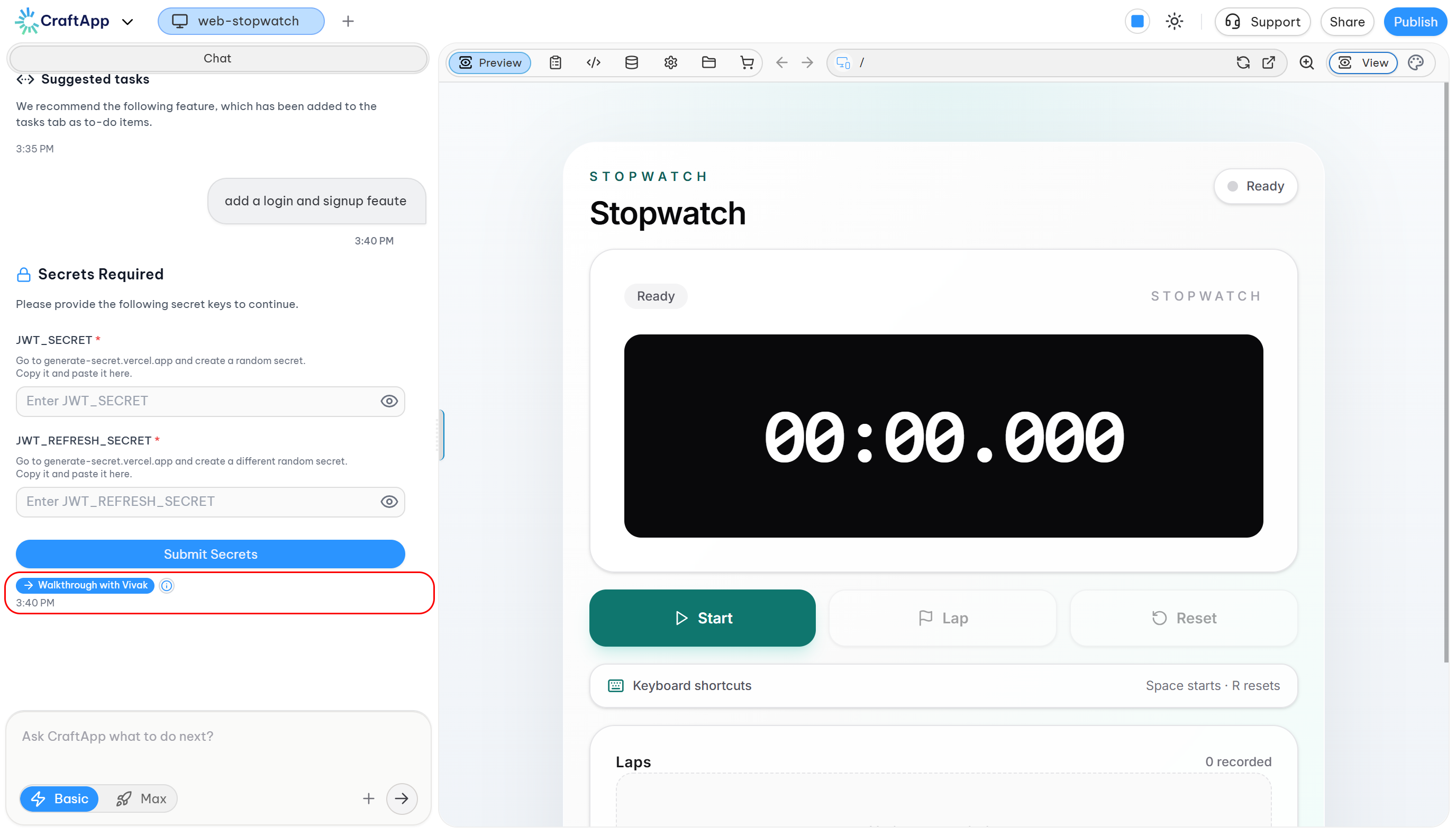
Finding API keys and configuring third-party services can be confusing, especially when you are unfamiliar with a particular platform.
To make this easier, Craftapp provides a Walk through with Vivak option below the Submit Secrets button.
Vivak helps you find and configure the required secret step by step.
What Is Vivak?
Vivak.ai is a browser-based AI assistant and copilot that guides you through tasks directly on websites.
Instead of searching for instructions yourself, you give Vivak a task and it can guide you through the relevant website step by step.
For example, Vivak can help you:
- Open the required website.
- Find the correct section or settings page.
- Identify where the required API key or configuration is located.
- Explain what to click.
- Guide you through the configuration.
- Tell you what information to copy back into Craftapp.
You still control the website and submit the information yourself. Vivak helps you understand where to go and what to do.
Getting Started with Vivak
Go to:
Create an account and install the Vivak browser extension.
If the extension is not installed, Vivak can detect this and guide you to the installation.
You can also install it manually:
- Chrome: https://chromewebstore.google.com/detail/iimhmnoiimhllianajolcfkailailole
- Microsoft Edge: https://microsoftedge.microsoft.com/addons/detail/ocbegfgefhjamhkdlcbkpgmfjfmkdcmi
Once the extension is installed, you can use Vivak to guide you through the configuration required by Craftapp.
Basic / Max Toggle
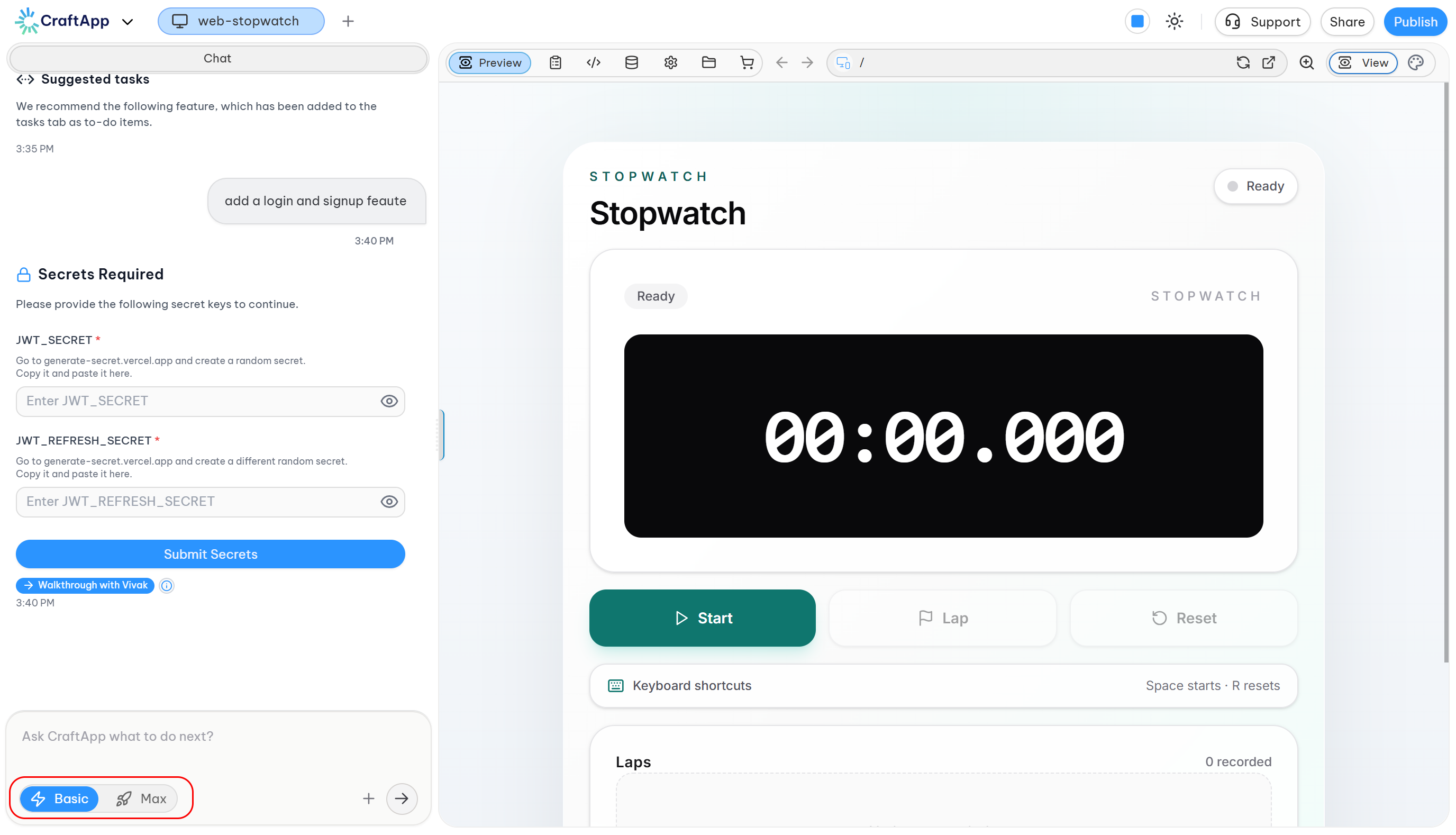
Next to the input bar, you can choose the amount of effort Craftapp uses for the request.
Basic
Basic is designed for faster, lighter requests and simple changes.
Use it for tasks such as:
- Small UI changes
- Minor modifications
- Simple questions
- Quick fixes
Max
Max is designed for more complex requests that require deeper analysis and more thorough implementation.
Use it for tasks such as:
- Complex features
- Larger application changes
- More involved debugging
- Requests that require deeper reasoning
Input Bar
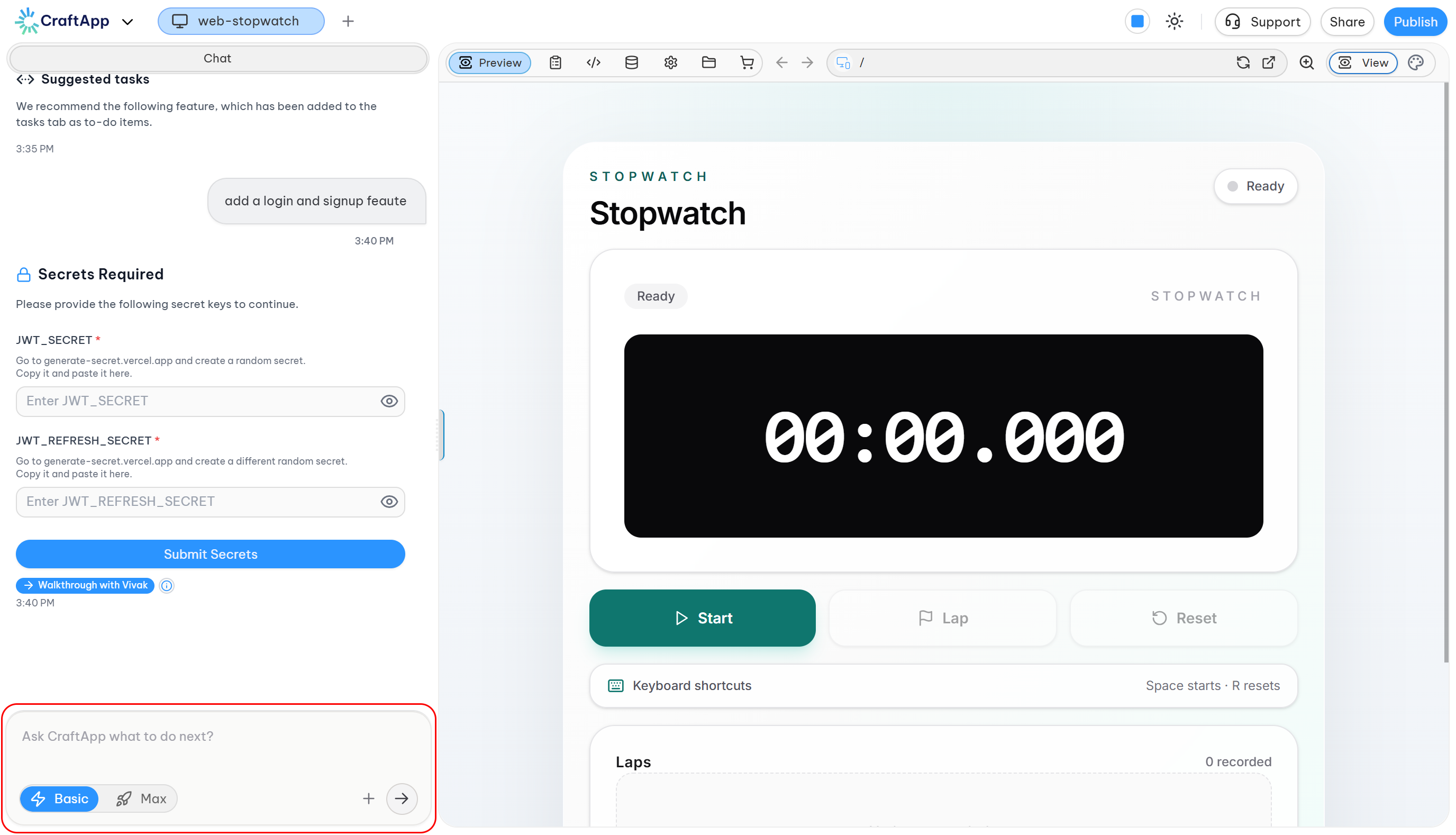
The input bar is where you describe what you want Craftapp to do.
Placeholder:
Ask Craftapp what to do next?
You can use natural language to:
- Add new features
- Modify existing features
- Fix problems
- Ask questions about your project
- Request specific actions
- Continue refining a previous implementation
After you submit your request, Craftapp processes it and may either continue automatically or pause for additional input when required.
Message Actions & Request Information
Craftapp also provides additional information and actions at the bottom of each message.
AI Messages
At the bottom-left of an AI response, you can see:
- Cost — the cost associated with processing the request
- Time — how long Craftapp took to process the request
At the bottom-right, you can see:
- Undo — reverses the changes made by that request
The Undo action allows you to revert the changes associated with a specific request.
Your Messages
At the bottom of your own messages, you can see:
- Copy — copies your original request
- Time — shows when the request was processed
These controls make it easier to review, reuse, and track your requests.
Visual & Structural Characteristics
The Chat Interface is organized to keep the conversation focused while still exposing the important information about the development process.
- Messages are displayed in chronological order, with the newest messages at the bottom.
- AI updates and file changes are visually separated.
- Backend and secret requests appear directly inside the conversation when additional input is required.
- Project switching and other workspace controls remain in the top bar rather than inside the chat history.
- Request cost and processing time are displayed with AI responses.
- Undo and copy actions are available directly from the relevant messages.
Interaction Flow
A typical Craftapp request follows this flow:
- Describe what you want in the input bar.
- Craftapp analyzes your request and determines what is required.
- Craftapp starts implementing the request when everything it needs is available.
- If a backend is required, Craftapp displays a Backend Required box and waits for you to click Add Backend.
- If third-party credentials are required, Craftapp displays a Secrets Required box and asks you to provide the required secrets.
- Use Walk through with Vivak when you need help finding or configuring those secrets.
- Submit the required information so Craftapp can continue.
- Craftapp resumes the original request automatically.
- Files Modified shows which files were created or updated.
- Craftapp confirms the result and provides any relevant next steps.
- Continue the conversation to refine the application or add more functionality.
Role Within Craftapp
The Chat Interface serves several purposes at once:
- Communication Channel — your direct way to communicate with Craftapp's AI.
- Development Activity Log — a record of what Craftapp is doing and which files it changes.
- Validation Point — a place where Craftapp can request confirmation when an operation requires your approval.
- Configuration Interface — a place where you can provide secrets and other required inputs.
- Request History — a record of your prompts, processing time, cost, and available undo actions.
This keeps the application-building workflow inside a single conversation instead of requiring you to manage different configuration steps manually.
Summary
Craftapp's Chat Interface is the central place for building and managing your application.
Describe what you want, and Craftapp handles the implementation as autonomously as possible. When additional input is necessary, Craftapp clearly pauses the request and tells you what is required.
For backend-dependent features, you can approve the addition of a backend with Add Backend.
For third-party integrations, you can provide the required credentials through Secrets Required. When you need help finding those credentials, Walk through with Vivak can guide you step by step.
After the required information is provided, Craftapp automatically resumes the original request so you can continue building without leaving the chat.