Projects Overview Page
Overview
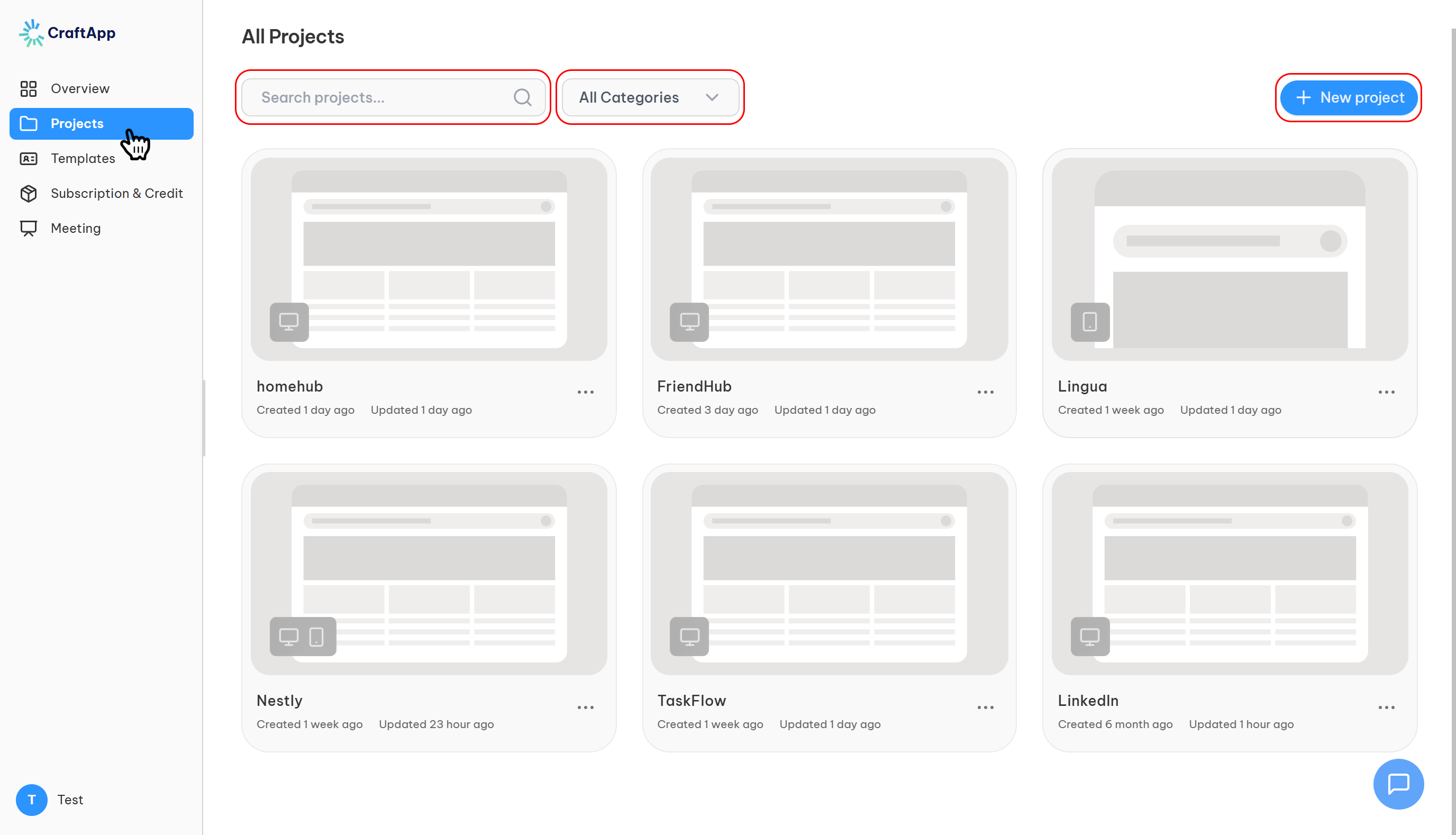
The Projects Overview Page is the central hub for managing all your applications within Craftapp. It displays every project you’ve created as a visual card, providing key information at a glance and quick access to essential actions like opening, searching, filtering, and creating new projects.
Supported Project Types
Craftapp supports the creation of three distinct application types, which are visually distinguishable on this page:
- Web Applications: Standard web-based projects.
- Mobile Applications: Projects designed specifically for mobile platforms.
- Enterprise Applications: Comprehensive projects that include both a web and a mobile application.
Page Structure & Layout
1. Page Header & Top Bar
The area below the main title contains all primary controls for managing the project list.
- Title:
Projects - Action Buttons & Search:
- Search Bar: Allows you to quickly find a specific project by name.
- Filter Option: A dropdown or toggle to refine the visible project list. Options include:
- All Projects
- Web Projects
- Mobile Projects
- Enterprise Projects (Web & Mobile)
- New Project Button: Positioned on the right side of the top bar. Clicking this initiates the workflow to create a new project.
2. Project Card Components
Each project is represented by a card. The card is the primary point of interaction for opening and managing a project.
A. Visual Identifier
- Thumbnail Placeholder: A visual graphic representing the project.
- Platform Icon: A distinct icon overlaid on the thumbnail or placed prominently to immediately identify the project type:
- Web icon for web applications.
- Mobile icon for mobile applications.
- Both icons for enterprise applications.
B. Project Identity
- Project Name: The primary identifier for the project, displayed prominently on the card.
C. Timestamps
- Two key dates are shown below the project name:
- Created: Relative timestamp indicating when the project was first made (e.g.,
20 hours ago). - Last Opened/Updated: Relative timestamp showing the last time the project was accessed or modified.
- Created: Relative timestamp indicating when the project was first made (e.g.,
D. Context Menu Trigger
- Element: A
...(ellipsis) button located in the bottom-right corner of the card. - Functionality: Clicking this opens a small context menu with two options:
- Open: Opens the project.
- Delete: Permanently removes the project.