Database
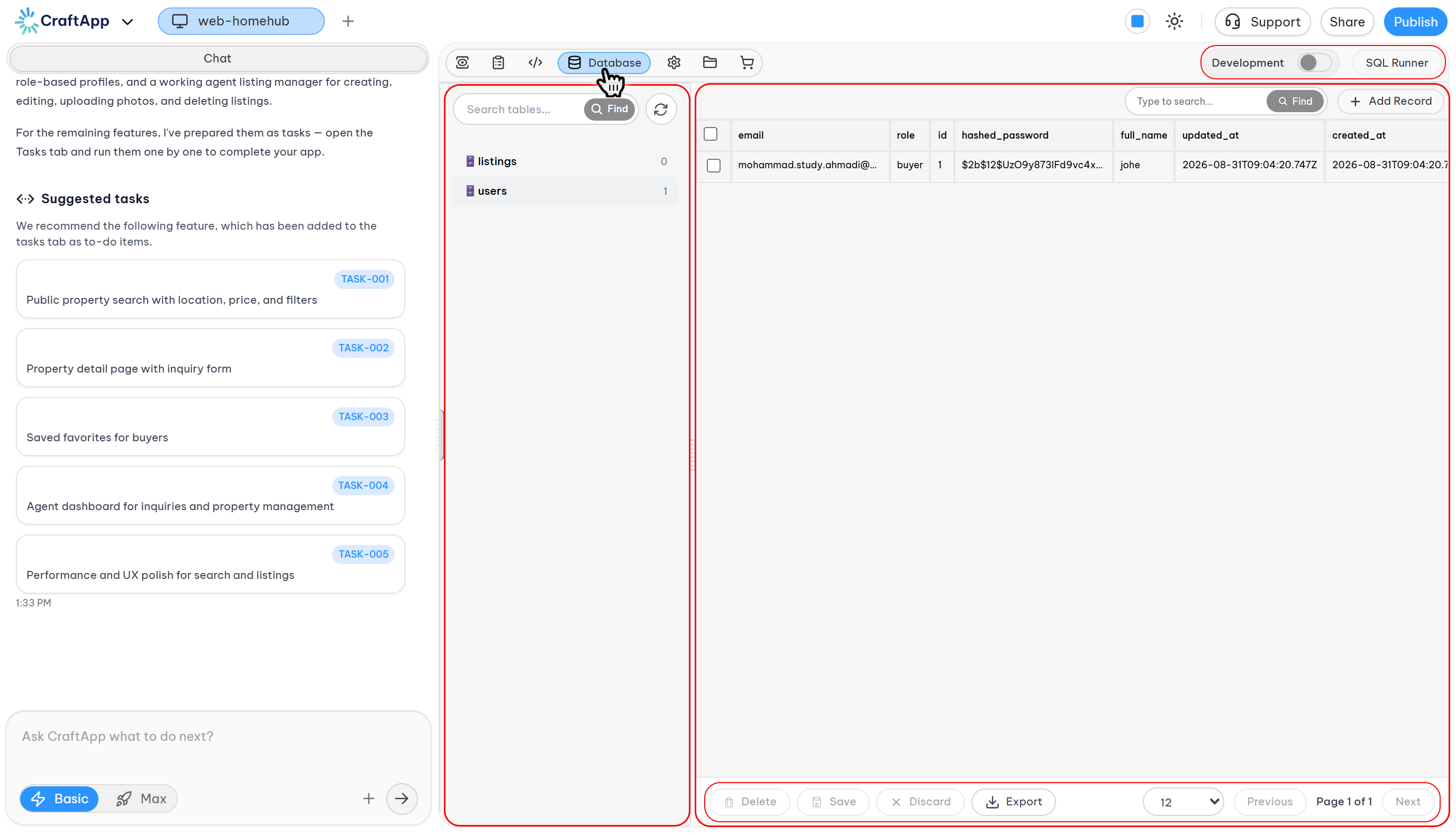
Design, manage, and query your application data—directly inside Craftapp Studio.
The Database section in Craftapp Studio provides a visual, developer-friendly way to create and manage structured data for your application.
It is tightly integrated with pages, forms, AI generation, and backend logic—so your data stays consistent across the entire project.
Accessing the Database
You can open the Database at any time from the top navigation bar:
- Open your project in Craftapp Studio
- Click Database in the top toolbar
Once opened, the Database interface is divided into three main areas:
- Tables list (left)
- Table data view (center)
- Actions and controls (top and bottom)
Tables and structure
Tables panel
On the left side, you’ll find the Tables panel, where all database tables for your project are listed.
From here, you can:
- Search existing tables
- Select a table to view its data
- Quickly understand your project’s data model
If no tables exist yet, you’ll see a prompt indicating that no tables are available.
Tip
Tables are often created automatically when you ask the AI to store data (for example, form submissions, users, or orders).
Viewing and managing data
Table data view
When you select a table, the main panel displays its records in a structured, readable format.
You can:
- Browse rows and columns
- Inspect stored values
- Understand how data flows through your application
If no table is selected, Craftapp Studio shows a helpful placeholder message.
Adding and editing records
Add records manually
You can add data manually using the Add Record button at the top right.
This is useful for:
- Testing features
- Creating demo data
- Seeding initial content
Save, discard, and delete
At the bottom of the Database view, you’ll find actions to:
- Save changes
- Discard unsaved edits
- Delete selected records
- Export data when needed
Changes are applied only when you explicitly save, ensuring data safety.
Note
Unsaved changes are not applied to your application or preview until you click Save.
SQL Runner (Advanced)
For advanced users, Craftapp Studio includes a built-in SQL Runner.
What you can do with SQL Runner:
- Run custom SQL queries
- Inspect or debug complex data relationships
- Perform advanced filtering or updates
You can toggle between environments (such as Production, if enabled) to control where queries are executed.
(Image placeholder: SQL Runner button)

Tip
The SQL Runner is intended for advanced use cases. Most applications can be fully managed using the visual interface.
Database and AI integration
The Database works seamlessly with Craftapp’s AI features:
- AI can create tables automatically based on your prompts
- Forms can store data without manual configuration
- Pages and components can read from the database instantly
- Updates remain consistent across Visual Editor and Code Editor
Example prompt:
Craftapp will handle table creation, relationships, and queries for you.
Best practices
Tip
- Let AI define your schema first, then refine manually if needed
- Use meaningful table and column names
- Save changes frequently to avoid data loss
- Use SQL Runner only for advanced scenarios
When to use the Database section
The Database is ideal when your application needs:
- User accounts or authentication data
- Forms and submissions
- Dashboards and analytics
- Content management (blogs, products, listings)
- Persistent application state
Together with the Visual Editor, Code Editor, and AI prompting, the Database completes the full backend experience inside Craftapp Studio.