Mobile Preview
Overview
The Mobile Preview interface is where you build, review, and refine mobile apps in CraftApp. It combines a live device simulator with an AI chat panel, so you can see your app update in real time as you describe changes.
Interface Layout & Components
1. Top Bar
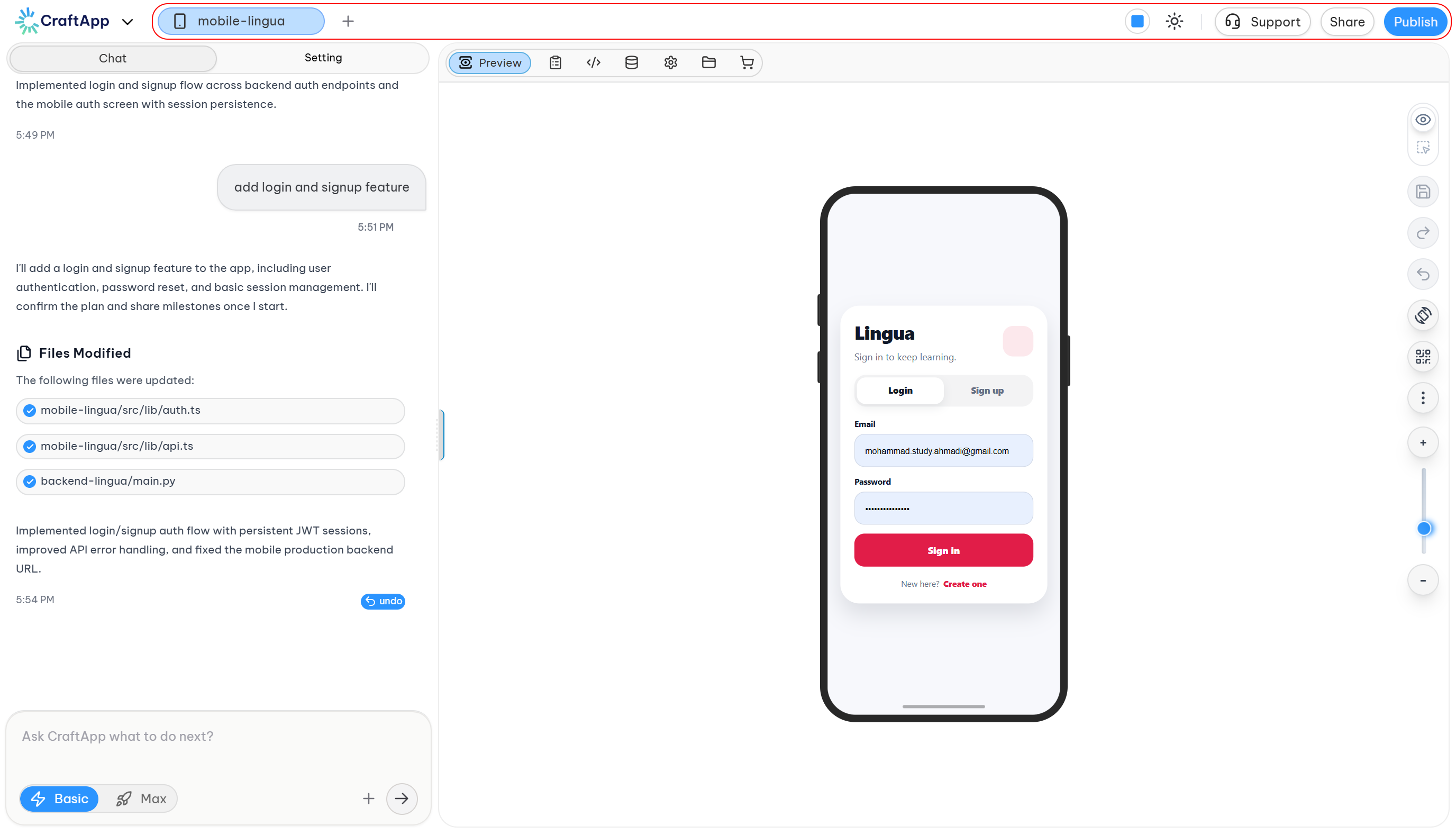
CraftApp Mobile Preview and its command center allow you to preview your mobile project and control its operations.
- Project Selector: Shows the active project (e.g.
mobile-chrono) with a dropdown to switch projects and a+button to start a new one. - Support, Share, Publish: Quick access to get help, share your project, or publish it live.
2. Left Panel – Chat
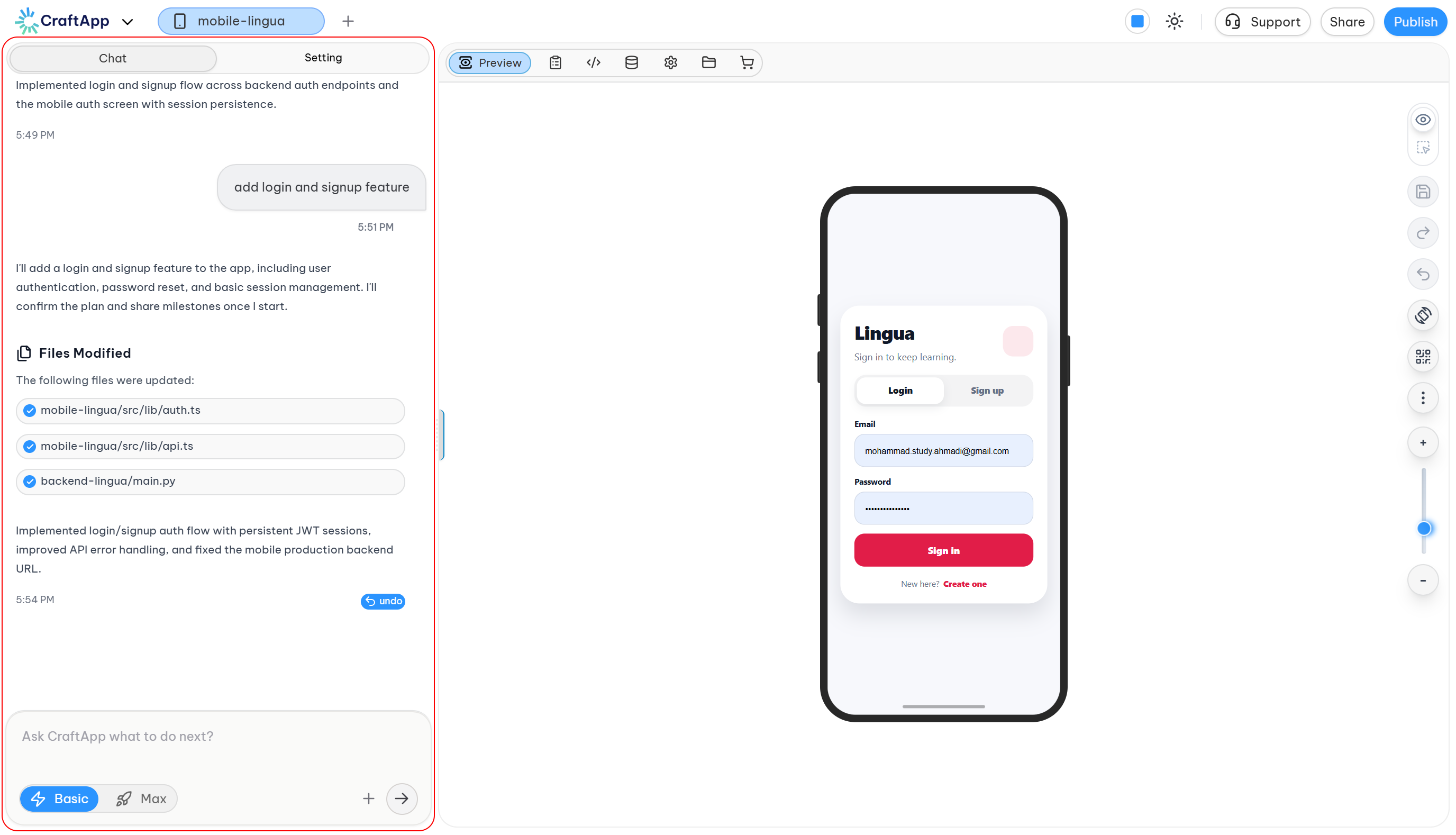
Left Panel – Chat
- Tabs:
ChatandSetting - Chat Log: A running conversation with the AI agent — it explains what it's building, then confirms once changes are complete.
- Files Modified: A checklist of the files the AI just created or updated, so you always know what changed.
- Input Bar:
Ask CraftApp what to do next?— where you type your next request. - Basic / Max Toggle: Switch between faster, lighter responses (
Basic) and deeper, more thorough ones (Max).
3. Right Panel – Preview
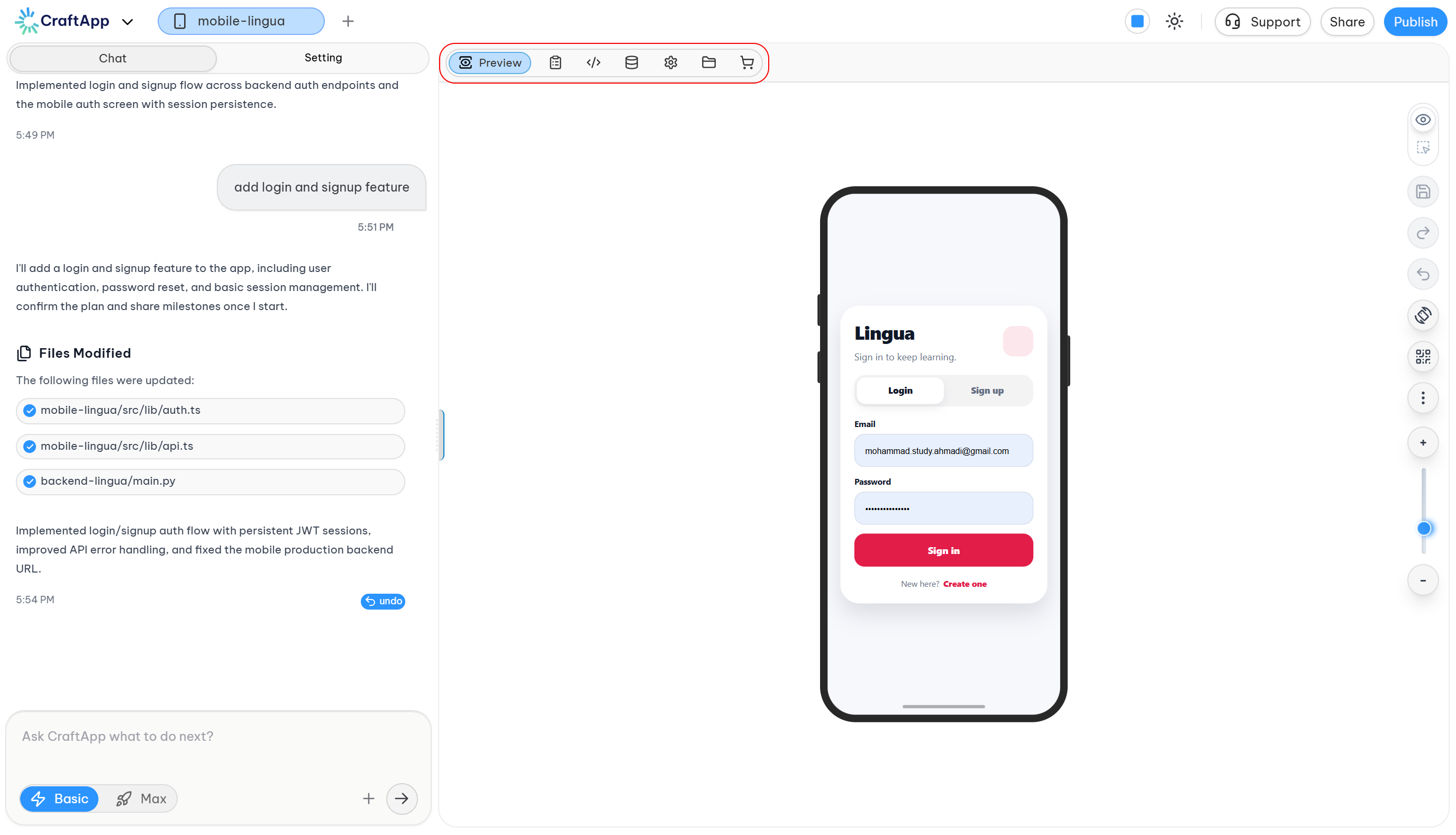
- Toolbar Tabs:
Preview, plus quick icons for copying, viewing code, the database, project settings, files, and the marketplace. - Device Simulator: A live, interactive mockup of your mobile app that updates as the AI makes changes.
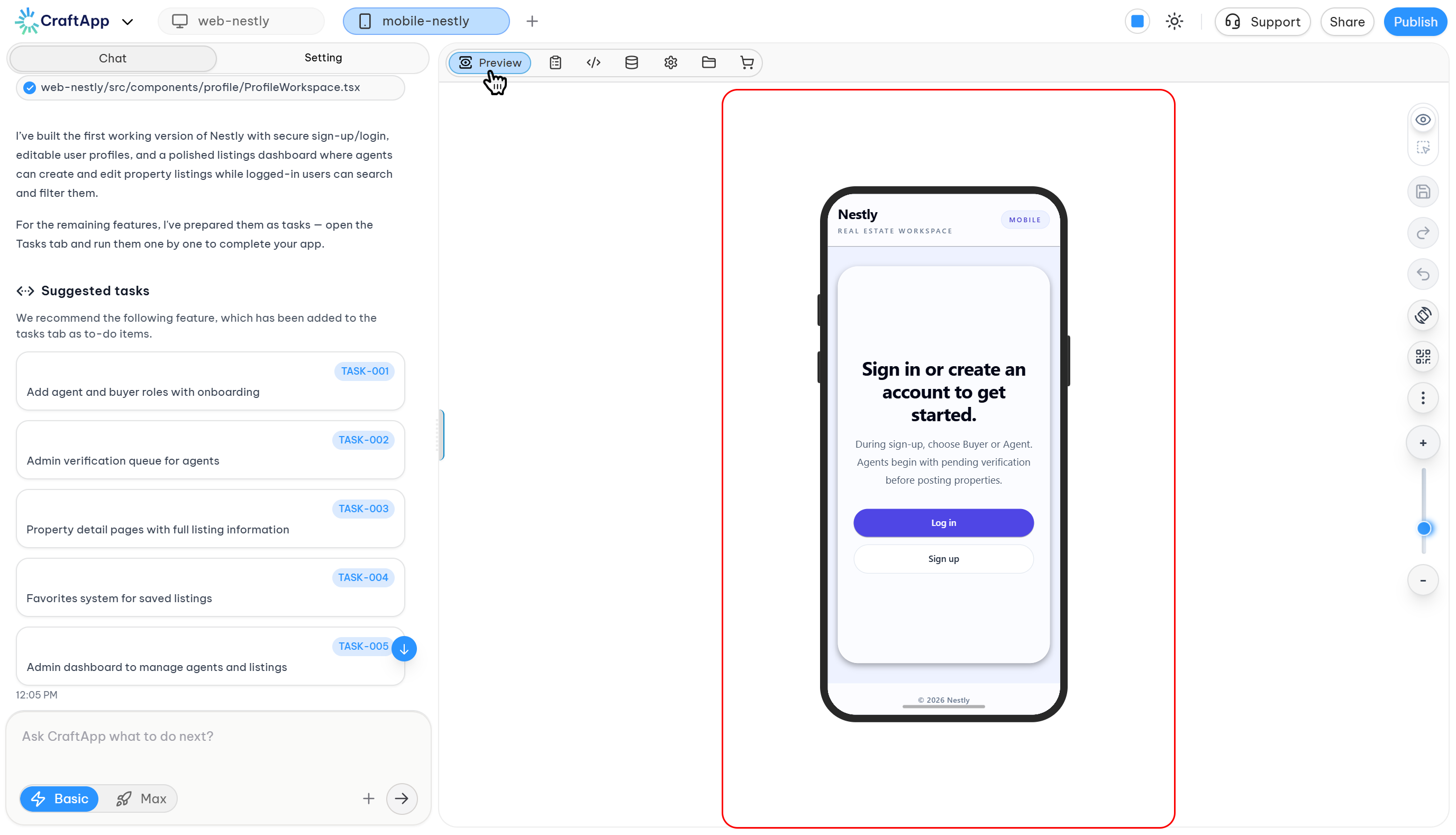
Device Simulator
- QR Code Check:
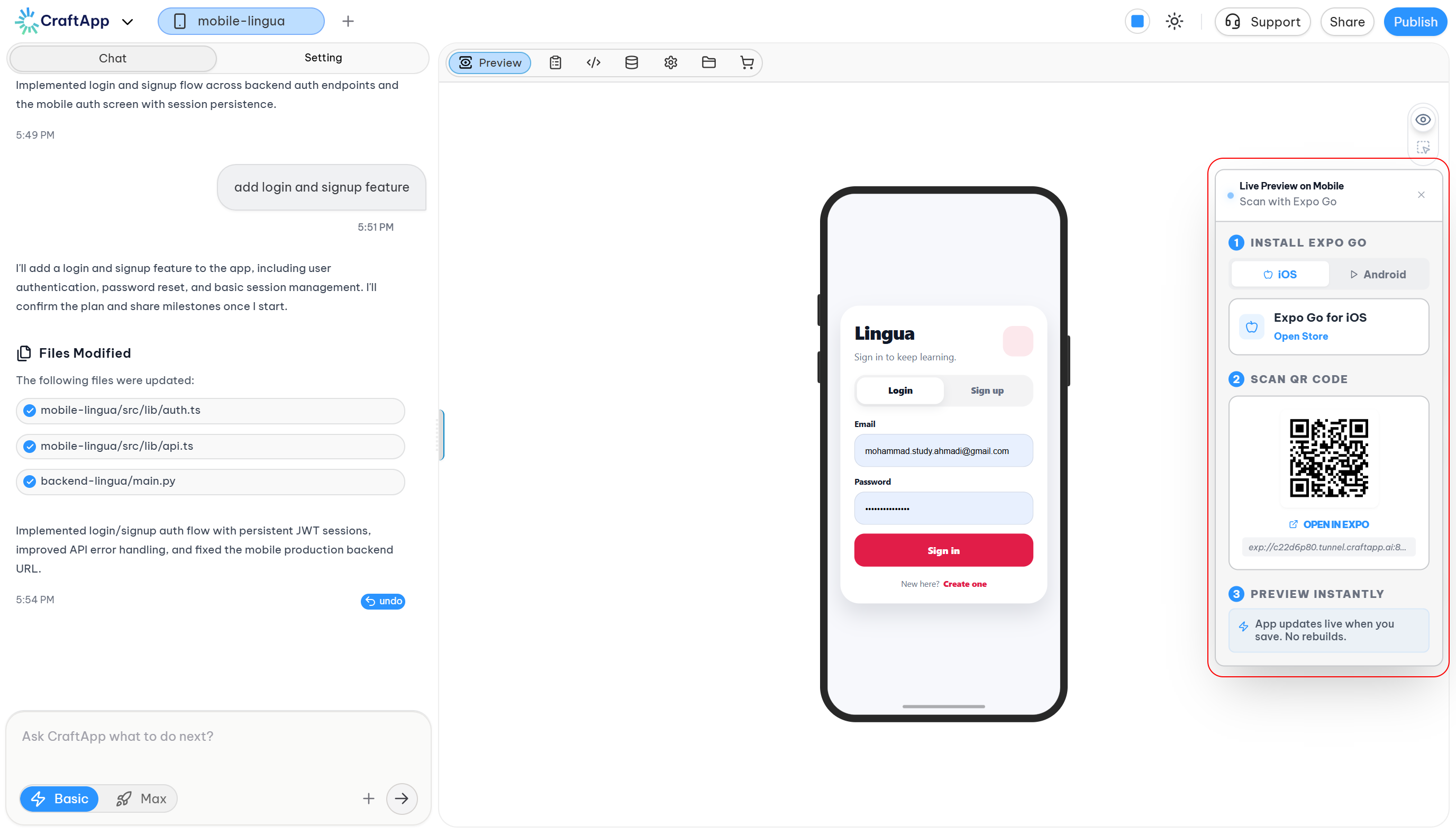
The Mobile QR Code, technically known as the Expo Go QR Code, allows you to open the native version of your mobile app in the Expo Go emulator for a real native app experience. To use it, download the Expo Go app on your Android or iOS device, follow the platform-specific instructions above the QR code, then scan the QR code to launch your app.
A tip banner reminds you the simulator may look slightly different from a real device — click the QR icon to preview your build on your own phone.
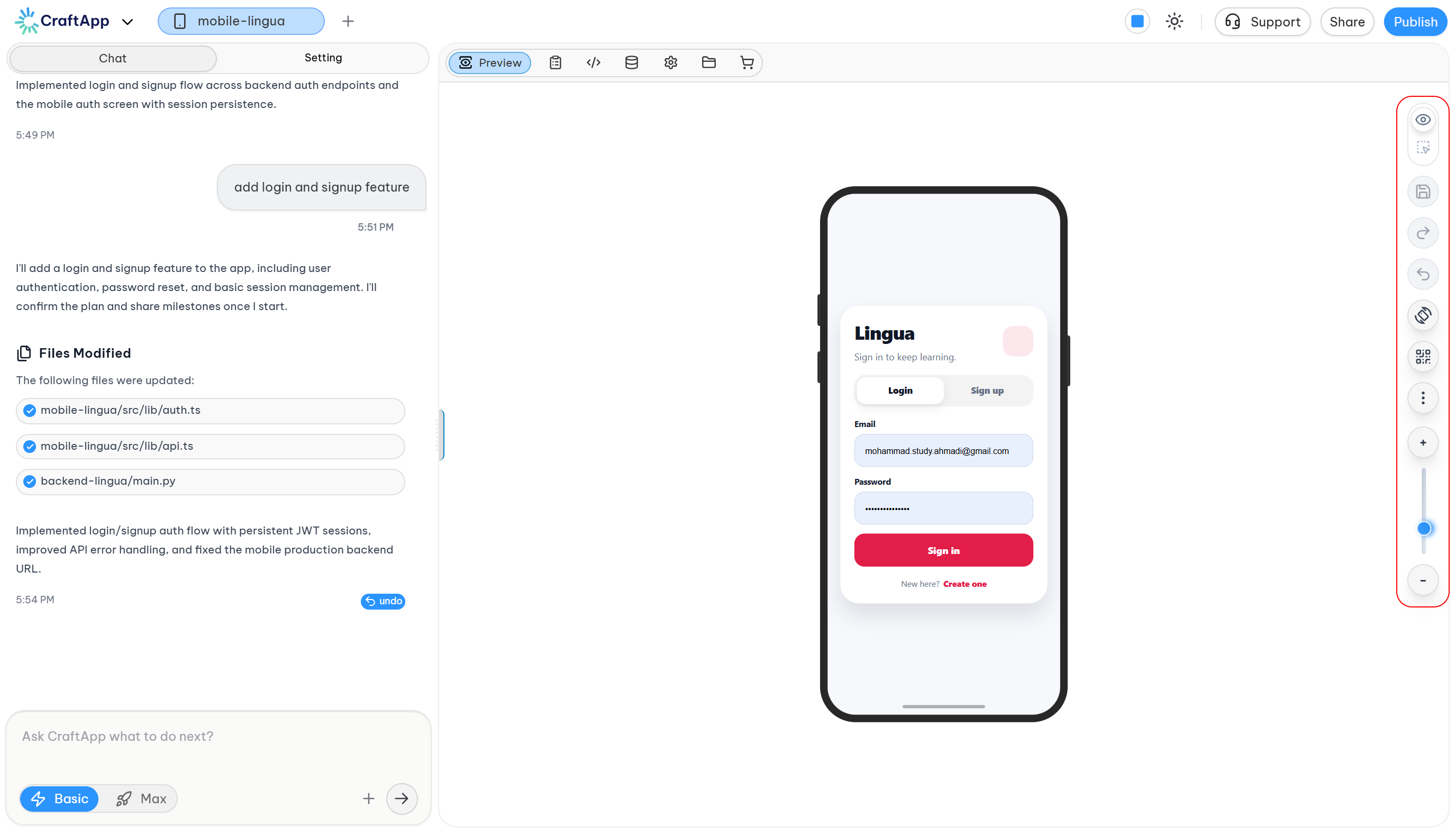
Simulator Controls
- Simulator Controls: Icons along the right edge let you toggle preview mode, select elements, save, share, undo, measure, scan the QR code, and zoom in or out.
Workflow
- Describe your request in the chat.
- AI builds it, updating the files and posting progress in the chat log.
- Preview updates live in the device simulator.
- Check on your own device using the QR code if needed.
- Keep iterating — ask for more changes in the chat, one step at a time.
Platform Capabilities Highlighted
- Full-Stack Mobile App Generation (React Native/Expo + backend)
- Real-Time Visual Previews that reflect code changes instantly
- Transparent File Tracking so you always see what the AI changed
- Basic / Max Modes to control how much effort the AI puts into each request
- On-Device Testing via QR code scan
- Integrated Workspace — code, database, settings, files, and marketplace all in one place