Settings & Assets
The Settings page is the central place for managing your application's identity, secrets, SEO configuration, and team access. Asset management has moved to its own dedicated page, which is covered at the end of this document.
Settings Page Overview
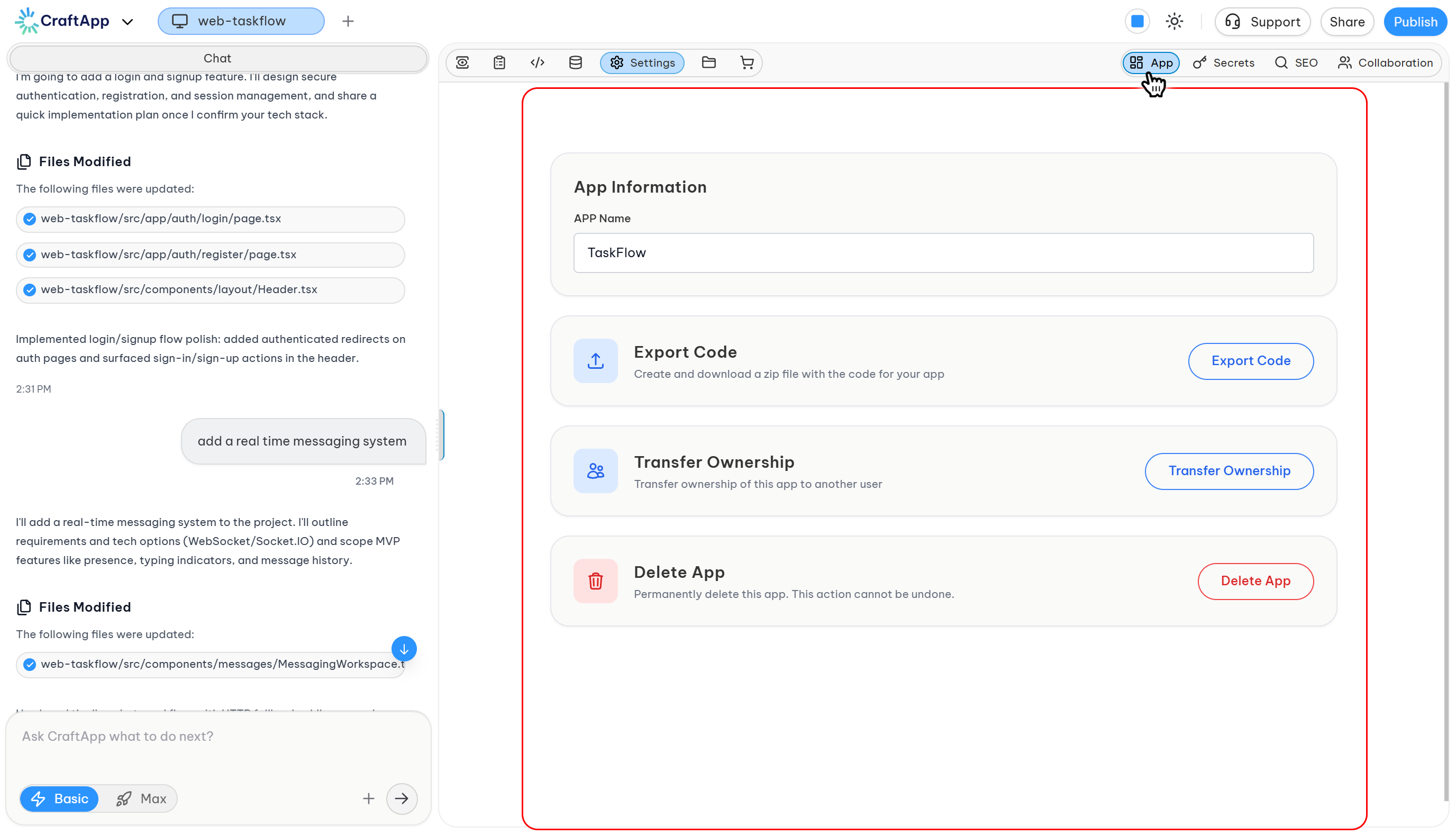
The Settings page is divided into four main categories, accessible from the top of the page:
- App
- Secrets
- SEO
- Collaboration
App
This section covers your project's identity and lifecycle. Here, you can view the project name, export the source code, transfer ownership, or delete the application.
Project Name
Displays the name of your project as shown across the Studio interface. This field is read-only and cannot be edited from Settings.
Export Code
Use this if you want to run the project locally, hand the source code off to a client, or keep a backup outside Craftapp.
Included:
- Frontend source code
- Backend logic and configuration
- Dependency manifests
- Project structure exactly as generated
Steps:
- Click Export Code.
- Craftapp packages the project. This can take a few seconds to a few minutes.
- The ZIP file downloads automatically.
Note
Exported projects are framework-ready and can be deployed independently.
Transfer Ownership
Use this when you built the project for someone else and they want to continue working on it under their own account, or when ownership needs to move to another team member.
Requirements:
- Recipient must have a verified Craftapp account.
- Recipient must have an active subscription.
Steps:
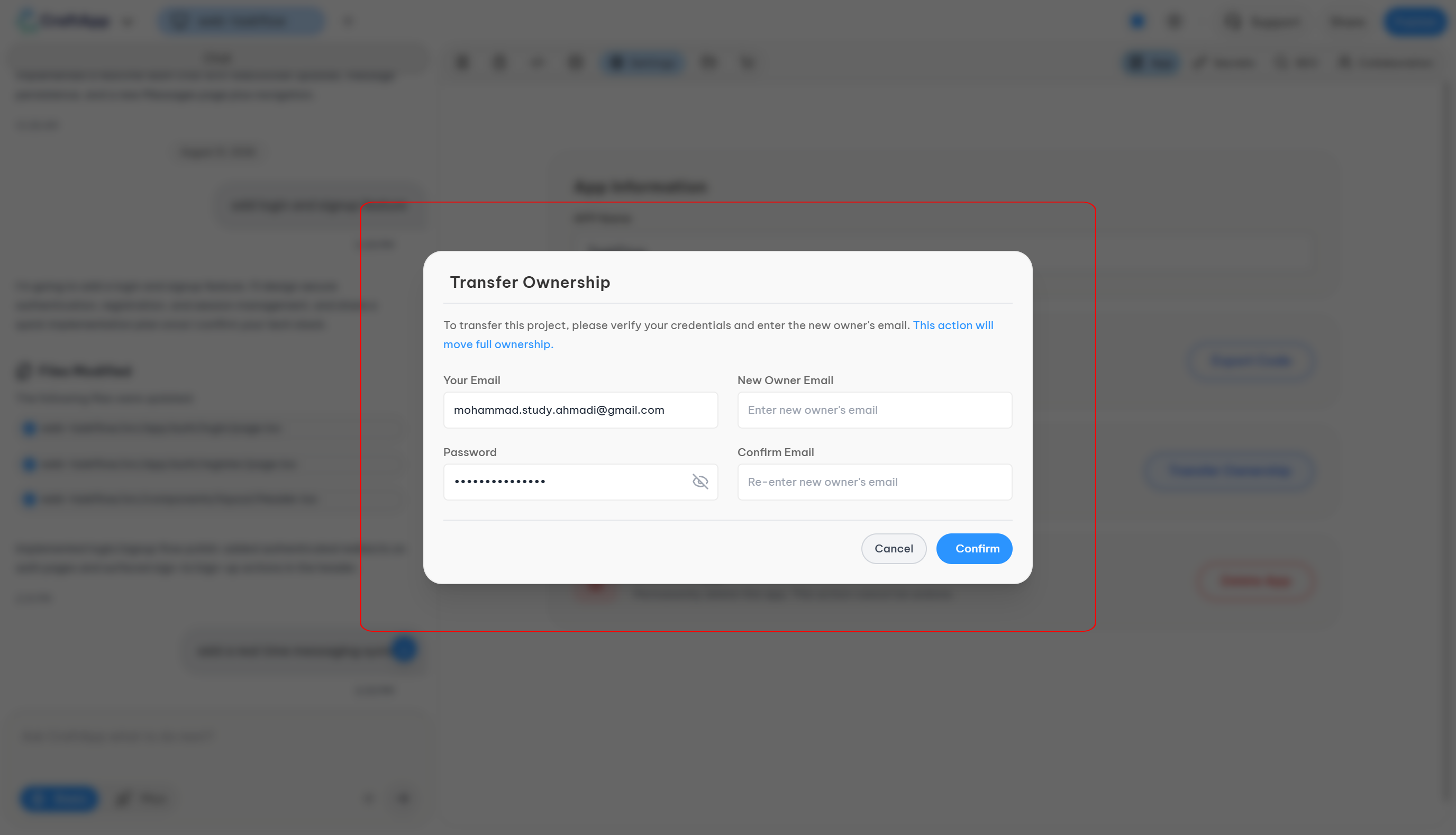
- Click Transfer Ownership.
- A popup will open, asking for your account email and password for confirmation.
- Enter the recipient's email address.
- Confirm the recipient's email address.
- Send the transfer request.
Ownership changes only after the recipient accepts the request via email.
Note
Ownership transfer includes full control over settings, deployment, and deletion.
Delete Application
This removes the project entirely, including its deployments, stored data, and associated assets. Since there's no way back, treat it as a last resort rather than a way to start over.
Before deleting:
- Export your project if you need a backup.
- Confirm the application is no longer in use.
Steps:
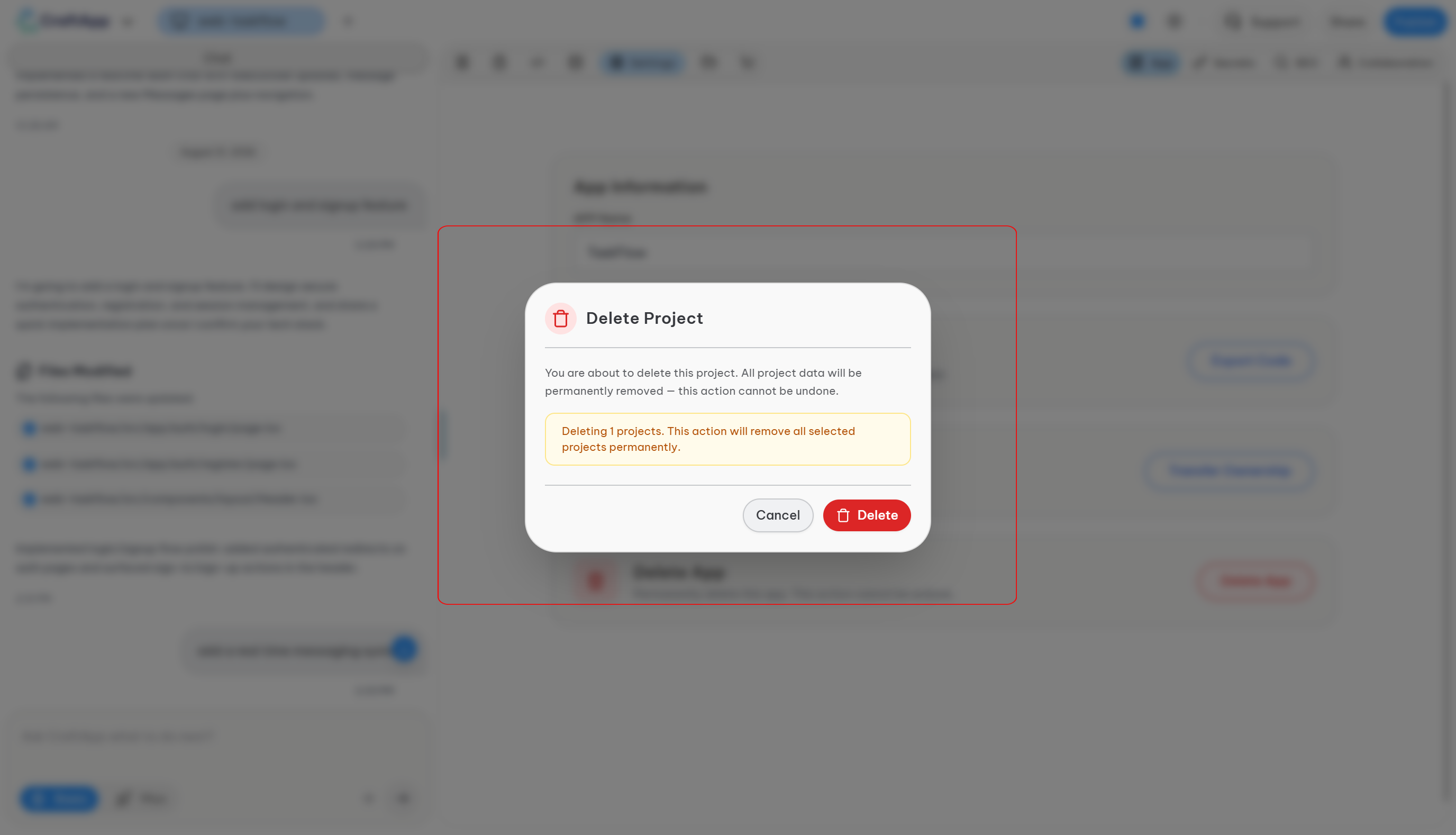
- Click Delete Application.
- A popup will appear to confirm your decision.
- Click the Delete button.
Deletion is permanent. All project data, settings, deployments, and assets are removed and cannot be recovered.
Secrets Management
This is the central point for all your credentials. These are the same values that live in your project's .env files. It is crucial to manage them here and never expose them.
Never hard-code sensitive values inside prompts or source files.
Environments
Development and Production secrets are kept separate so you can test against sandbox credentials without risking live data or accidentally hitting production APIs during development. You can toggle between them with the switch at the top right of the page.
- Development (default) — test credentials and proof-of-concept keys.
- Production — live credentials used by the deployed application.
Adding a Secret
Each secret is a key/value pair. You can see all existing secrets in a table below the "Add New Secret" input pair.
- Enter the variable name and value under Add New Secret.
- The Save button activates once both fields are filled in.
- Click Save.
Naming Conventions
Naming matters here — an invalid name can silently break the variable's availability in your code.
- Use uppercase letters and underscores, e.g.
BREVO_API_KEY. - Inconsistent casing or spacing in variable names can break the application.
- For web projects, any variable that needs to be accessible in frontend code must be prefixed with
NEXT_PUBLIC_, per Next.js convention. Variables without this prefix are only accessible to backend logic and are never exposed in the frontend bundle.
| Naming | Example |
|---|---|
| Correct | BREVO_API_KEY=your_secret_value |
| Incorrect | breve api key = your_secret_value |
SEO
What is SEO?
SEO stands for Search Engine Optimization. It means optimizing your website so that search engines like Google can understand it and rank it higher when people search for relevant things. For example, if you have a website selling hiking tours in the Alps, you want to appear when someone searches "best hiking tours near Alps." SEO helps Google understand that your page is relevant to that search.
These settings control what search engines and social platforms show when your project's pages are indexed or shared — the title, description, and preview image that appear outside your app.
Fields:
- Meta Title — search engine page title
- Meta Description — search result snippet
- Open Graph Image — social media preview image
- Canonical URL — prevents duplicate content issues
Built-in validation checks length and formatting.
Note
SEO settings only take effect after the application has been deployed and published. You must first deploy your application, then configure and update the SEO metadata.
Click Update Metadata and Verify Site to apply your changes.
Collaboration
Use this to bring teammates onto a project without giving up ownership-level control. As Craftapp always tries to give the best service to its customers, this feature allows you to work as a team. For example, if you have a team of four, you can all work on the same project.
Invite Collaborators
- Enter the collaborator's email address. The invited user must already have a Craftapp account.
- Click Invite.
An email will be sent to the person. Their status appears as Pending until they accept the invitation, after which it changes to Approved and they can start working.
Collaborator Permissions
Collaborators can edit and ship content, but the actions that affect the account itself — deploying to production, transferring ownership, or deleting the app — stay with the owner.
| Capability | Owner | Collaborator |
|---|---|---|
| View Project | ✓ | ✓ |
| Edit Design & Content | ✓ | ✓ |
| Visual Editor | ✓ | ✓ |
| Export Code | ✓ | ✓ |
| Deploy Application | ✓ | ✗ |
| Transfer Ownership | ✓ | ✗ |
| Delete Application | ✓ | ✗ |
Removing a Collaborator
Click the delete icon on the collaborator's entry to remove their access. This takes effect immediately.
Assets
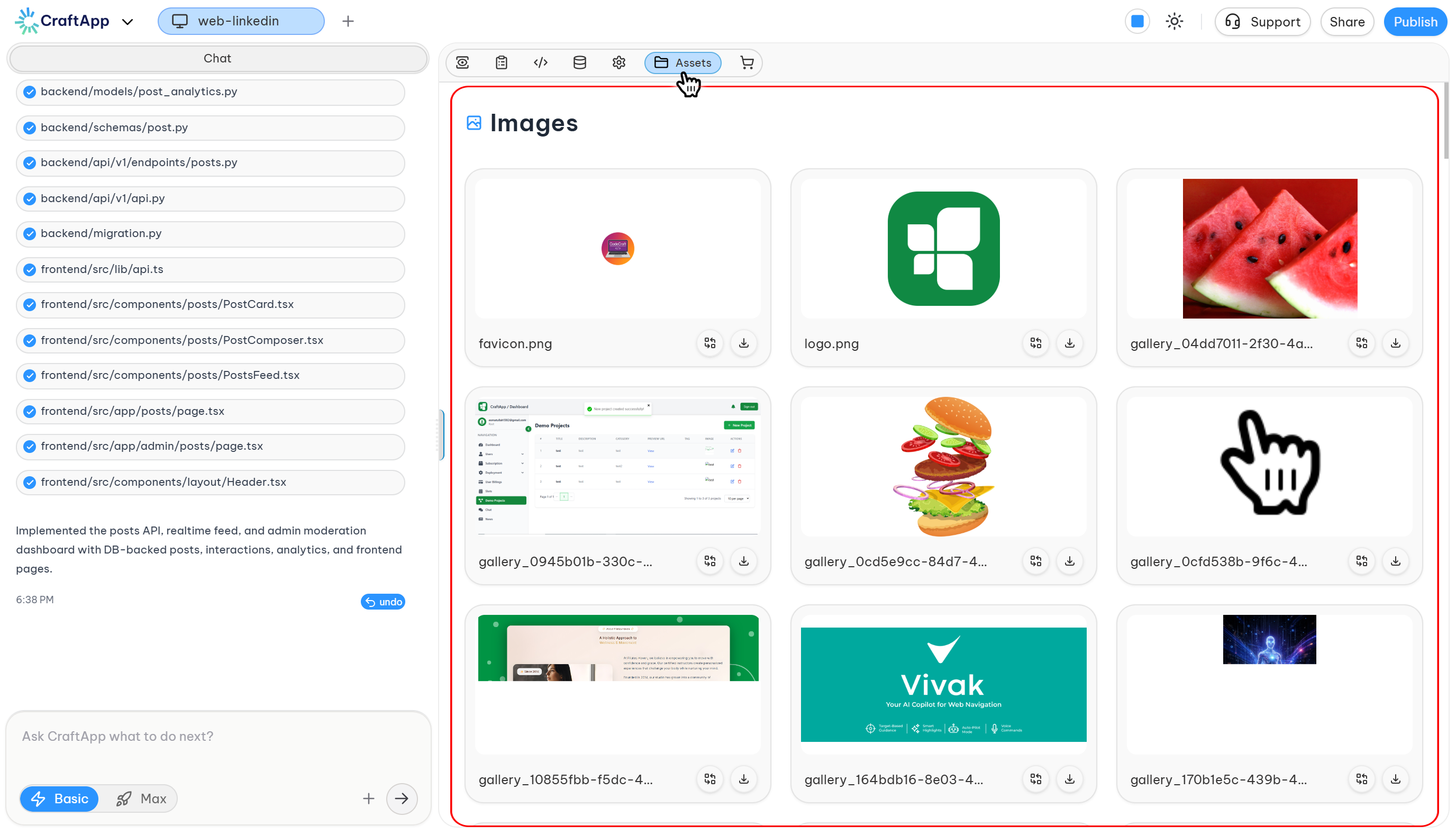
In the previous version of Craftapp, asset management was part of the Settings page. It is now a dedicated page, located next to Settings in the main navigation.
This is the central hub for all the custom media you upload to your project.
- View Media: Here, you can see all the images and files you have uploaded.
- Replace (Not Delete): If you want to change an asset, you can replace it with a new one. Due to system integrity, you cannot directly delete an asset.
- Cloud Storage: All media is stored securely in the cloud.
- Lifecycle: These assets are tied to your project. Once you delete your application, all associated media will be permanently deleted as well.