Code Editor
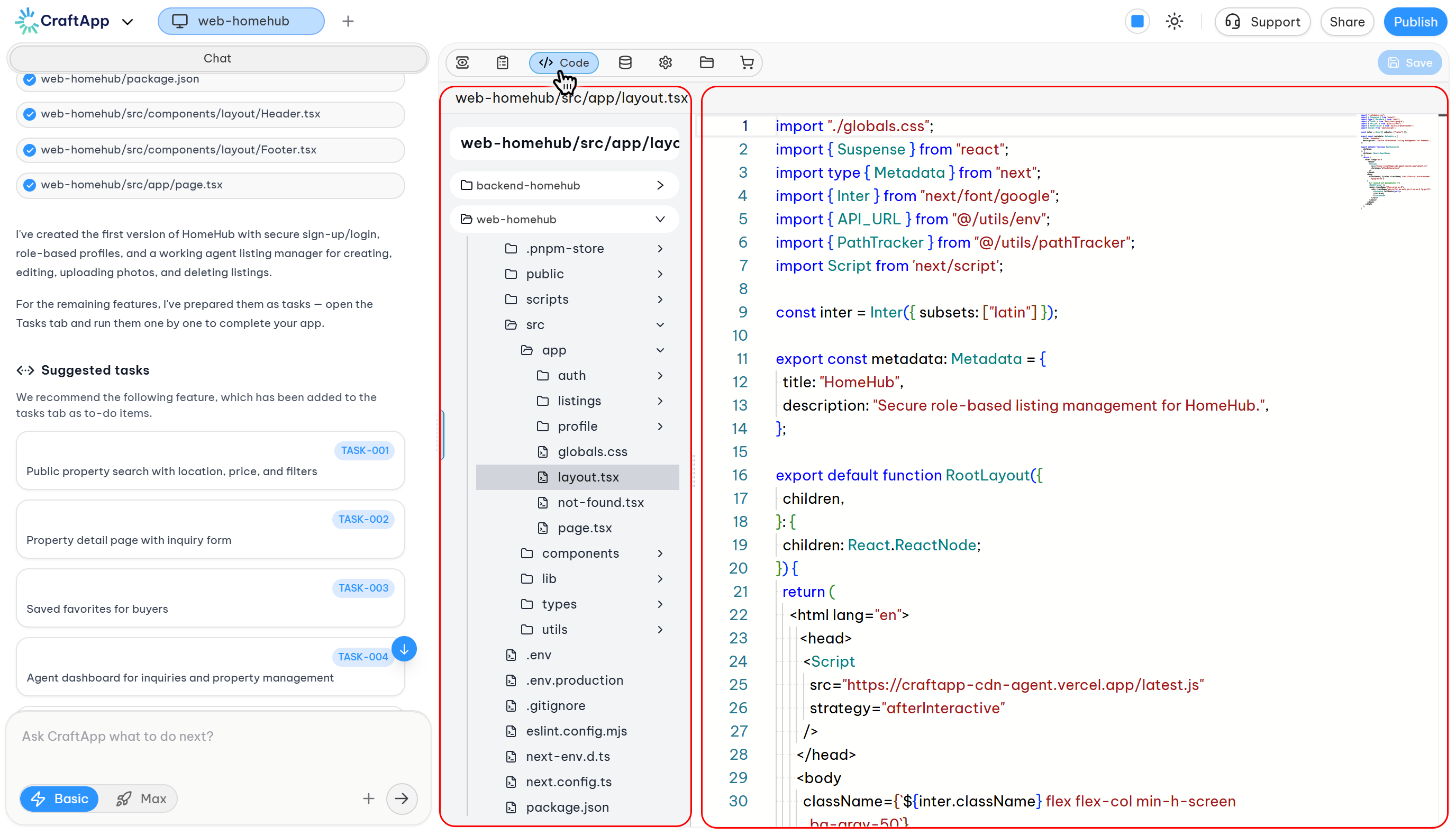
The Code Editor provides direct access to your project's source files, allowing you to inspect and modify the underlying code that powers your application. Use it when you need precise control over logic, structure, or styling that goes beyond what the Visual Editor offers.
Opening the Code Editor
To open the Code Editor:
- Open your project in CraftApp Studio.
- Click Code Editor in the top toolbar.
The editor opens in the same workspace, replacing the current view until you switch back.
Editor Layout
The Code Editor screen consists of two main areas:
- File tree (left sidebar): Shows your project's folder structure. Click any file to open it.
- Editing area (right side): Displays the contents of the selected file. This is where you make changes.
Available File Types
You can view and edit files related to:
- Pages and layouts
- Components
- Stylesheets (CSS)
- JavaScript / TypeScript logic
- Configuration files
Tip
Use the file tree to navigate between files quickly. The currently open file is highlighted.
Editing Code
The editor includes standard code editing features to help you work efficiently:
- Syntax highlighting for supported languages
- Auto-completion and inline suggestions
- Basic error indicators
- Readable formatting and indentation
These features are intended to help you write correct code, but they do not replace a full local development environment.
Note
The editor will not automatically format or fix your code. Review your changes before saving.
Saving Changes
Code changes are not applied automatically in the Code Editor. You must save manually.
To save your work:
- Edit any file.
- Click Save in the top-right corner of the editor.
Only saved changes are reflected in the Web Preview and Mobile Preview.
Note
Unsaved changes are lost if you close the editor or switch projects. Save before leaving the editor.
Previewing Changes
After saving, you can check your changes:
- Click Save in the Code Editor.
- Open Web Preview or Mobile Preview from the top toolbar.
- Verify that your changes appear and behave as expected.
If you don't see your changes:
- Make sure you clicked Save.
- Check that you edited the correct file.
- Look for syntax errors in your code.
Working with Visual Editor and Code Editor
Both editors access the same project files.
- Changes made in the Visual Editor are reflected in the Code Editor after saving.
- Changes made in the Code Editor are reflected in the Visual Editor and Preview after saving.
You can switch between editors at any time. There is no need to sync manually.
Note
If you edit a file in the Code Editor while the Visual Editor has unsaved changes, the last saved version wins. Save your work in both editors before switching to avoid losing changes.
Undo and Redo
While editing, you can:
- Use Ctrl+Z (Windows) or Cmd+Z (Mac) to undo.
- Use Ctrl+Shift+Z or Cmd+Shift+Z to redo.
Undo history is limited to the current editing session. Closing the editor clears the undo history.
Important: Do Not Modify Project Structure
Tip
Do not delete, rename, or move core project files or folders (such as configuration files, routing files, or system directories) unless you are certain of the impact. Changing the project structure can break your application and may prevent it from building or running correctly.
If you need to reorganize files, make a backup or use version history first.
Best Practices
Tip
- Save frequently to avoid losing work.
- Preview after each save to confirm behavior before making further changes.
- Make small, incremental edits rather than large rewrites.
- Use the Visual Editor first for layout and design, then refine with the Code Editor only when needed.
- Never delete or restructure core project folders or files—this can break your project.
- Review your changes before saving to catch obvious syntax errors.
When to Use the Code Editor
Use the Code Editor when:
- You need to implement custom logic that is not available in the Visual Editor.
- You want to adjust specific markup, styles, or scripts directly.
- You are troubleshooting an issue and need to inspect the source.
- You want to understand exactly what code powers a page or component.
For most layout and design tasks, the Visual Editor is faster and safer.