Mobile Settings and Assets
The Settings and Assets sections are the central locations for managing your application's core identity, security, and team collaboration within Craftapp.
-
Settings: Configure your app's project management, secrets, and team access. It is organized into three main tabs: App, Secrets, and Collaboration.
-
Assets: Manage all custom media files uploaded for use within your project. This section is now separate from Settings and is accessible directly from the main navigation.
App
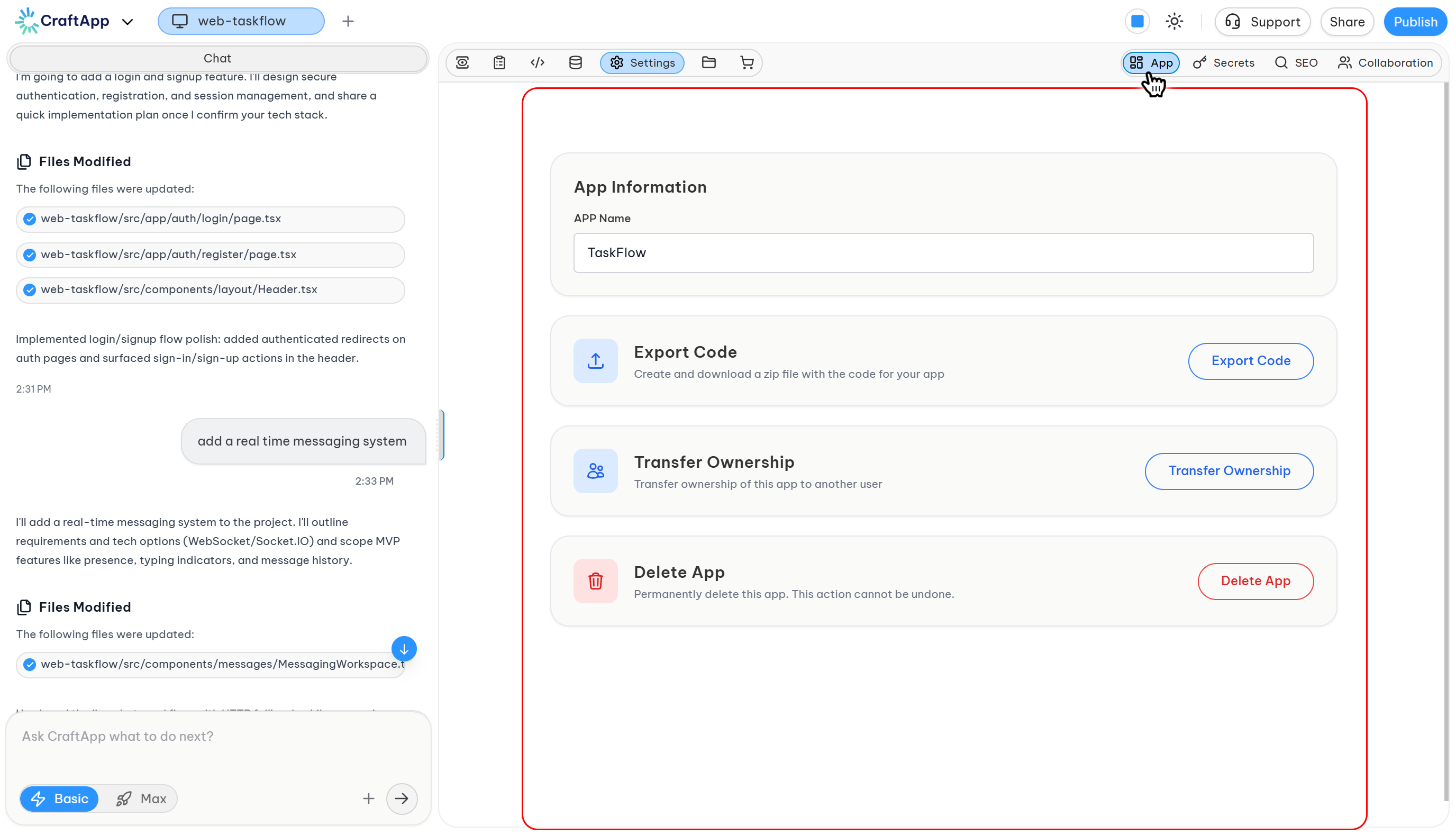
The App tab provides actions that affect the entire project.
Project Name
Displays the name of your project. This field is for visibility only and cannot be edited.
Export Code
Allows you to download the complete source code of your project as a ZIP file. This is useful for local development, performing custom native modifications, or delivering the source code to a client.
To export your code:
- Click the Export Code button.
- Wait for the system to prepare your code. The process may take a few seconds or minutes.
Transfer Ownership
Transfers full ownership of the project to another Craftapp user. This is ideal for client handovers or if the project's maintenance will be continued by someone else.
To transfer ownership:
- Click the Transfer Ownership button.
- In the popup, enter your account email and password for security verification.
- Enter the email address of the Craftapp account you wish to transfer the project to.
Delete App
Permanently deletes the entire project, including all settings, assets, and configurations.
Warning: This action cannot be undone. Proceed with caution.
To delete an app:
- Click the Delete App button.
- A confirmation popup will appear.
- Click Delete to confirm and permanently remove the project.
Secrets
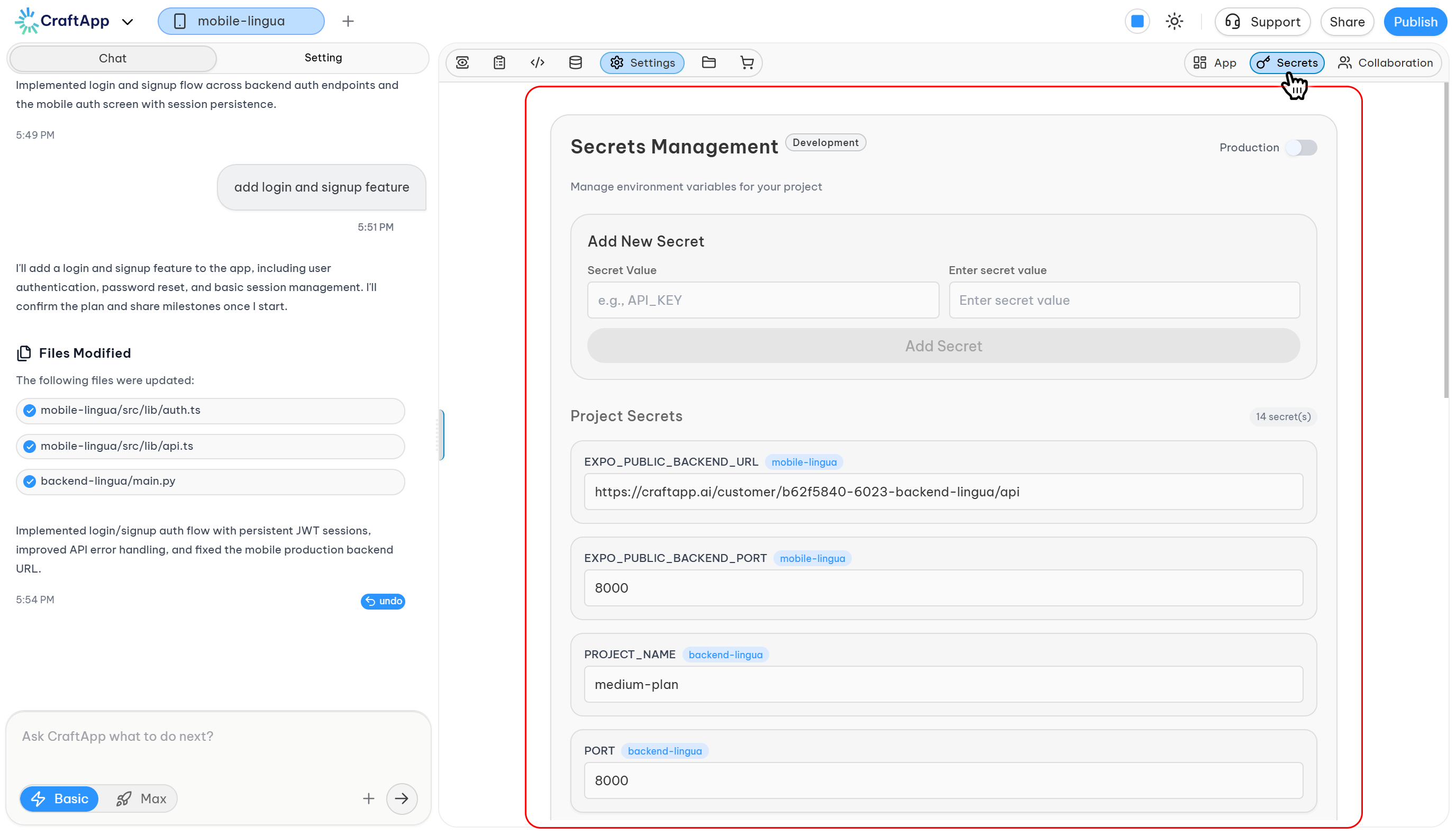
The Secrets tab is the central point for managing all sensitive credentials and configuration values. These values are not exposed in your public source code.
Security Note: Treat your secrets with the same care as your account credentials. Avoid exposing them on screen or in insecure locations.
Environments
Secrets are managed separately for two environments: Development and Production.
- Use the toggle button in the top right corner of the page to switch between environments.
- Development: Default environment for testing with development APIs and services.
- Production: Used for live builds, where real API keys and production endpoints are required.
Managing Secrets
Secrets are presented in a table format, each consisting of a key-value pair. You can add new secrets using the "Add New Secret" section.
- Key (Name): The name of the environment variable.
- Value: The actual secret value.
Naming Conventions
It is critical to follow these naming rules to prevent app errors:
- General: Use
ALL_CAPS_WITH_UNDERSCORES(e.g.,BREVO_API_KEY). Avoid lowercase names, spaces, or special characters.- Good:
BREVO_API_KEY - Bad:
breve api key,brevo_api_key
- Good:
- For Frontend/Web Projects: All secret names must start with
EXPO_PUBLIC_. This is a convention required by the Expo React Native framework. Secrets without this prefix will not be accessible in your frontend code.- Good:
EXPO_PUBLIC_STRIPE_KEY - Bad:
STRIPE_KEY
- Good:
Adding a Secret
- Ensure you are in the correct environment (Development or Production).
- In the "Add New Secret" section, enter the Name and Value for your new secret.
- Click the Save button to add the secret to the list.
The process is identical for both Development and Production environments.
Settings: Collaboration
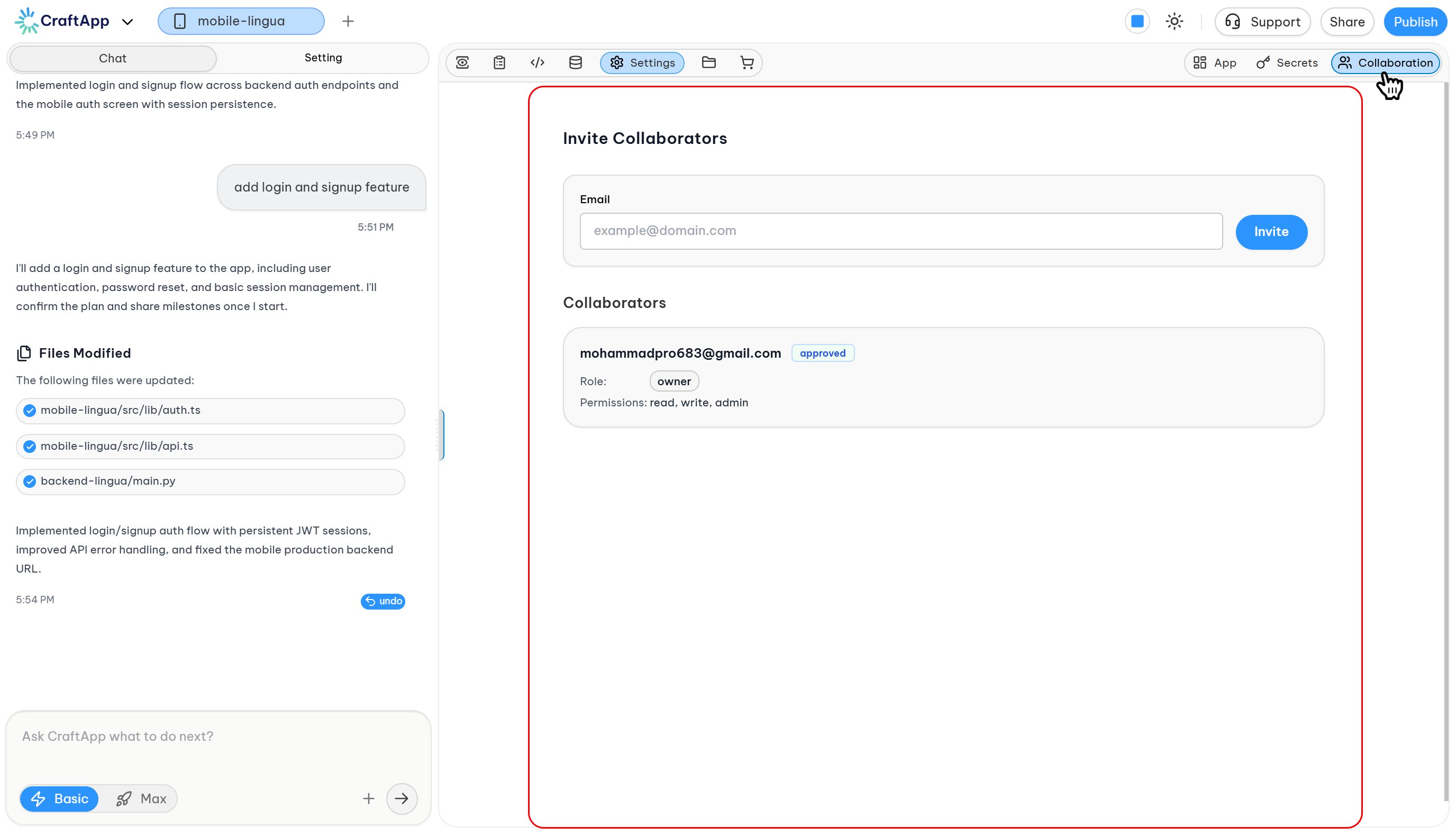
The Collaboration tab allows you to invite other Craftapp users to work on your project as a team.
Inviting a Collaborator
- In the provided input field, enter the email address of the Craftapp user you want to invite.
- Click the Invite button.
- The invited user will receive an email notification to accept the invitation.
- Their status will show as "Pending" until they accept. Once accepted, it will change to "Approved".
Collaborator Permissions
- Collaborators have read and write access to the project.
- They do not have admin access (e.g., cannot delete the app or transfer ownership).
Removing a Collaborator
To remove a collaborator, click the delete icon located on their team member box. This revokes their access to the project.
Assets
The Assets page is now a separate section from Settings and is accessible from the main navigation.
This page is where you can view and manage all the custom media files you have uploaded to your project.
Managing Assets
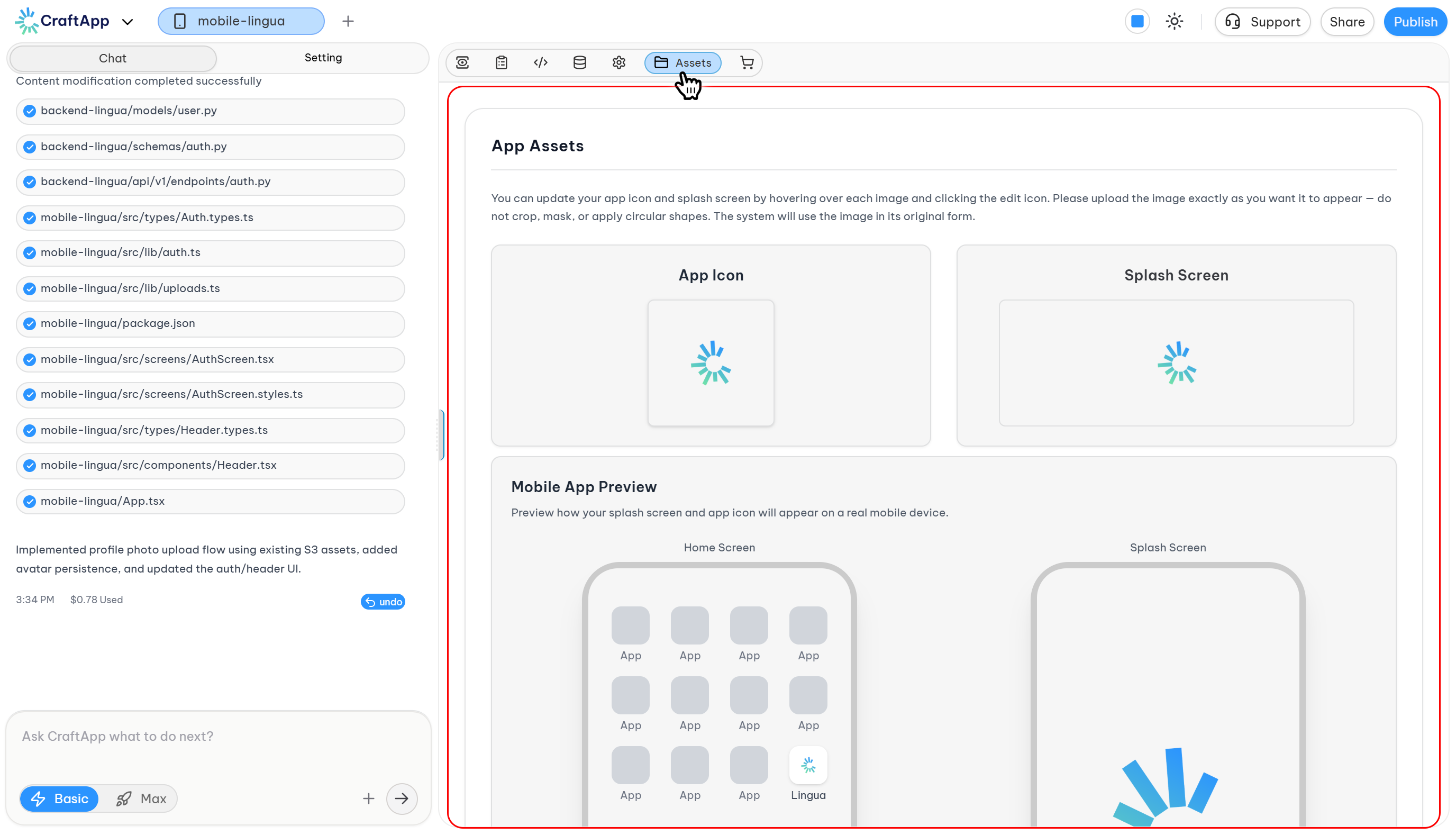
- You can see a list of all uploaded images and files.
- You can replace an asset by uploading a new version of it.
- Assets cannot be deleted.
- All assets are stored in the cloud and are permanently deleted if the entire project is deleted.