Craftapp Marketplace
Discover, share, and reuse Craftapp generated templates.
The Craftapp Marketplace is a curated platform where the community can discover, publish, and monetize production-ready applications and templates. It serves as a hub for creators to share their work and for users to find complete solutions to launch faster.
Access the Marketplace directly at Click Here or via the Marketplace link in the main navigation on the Craftapp landing page.
What you can do in the Marketplace
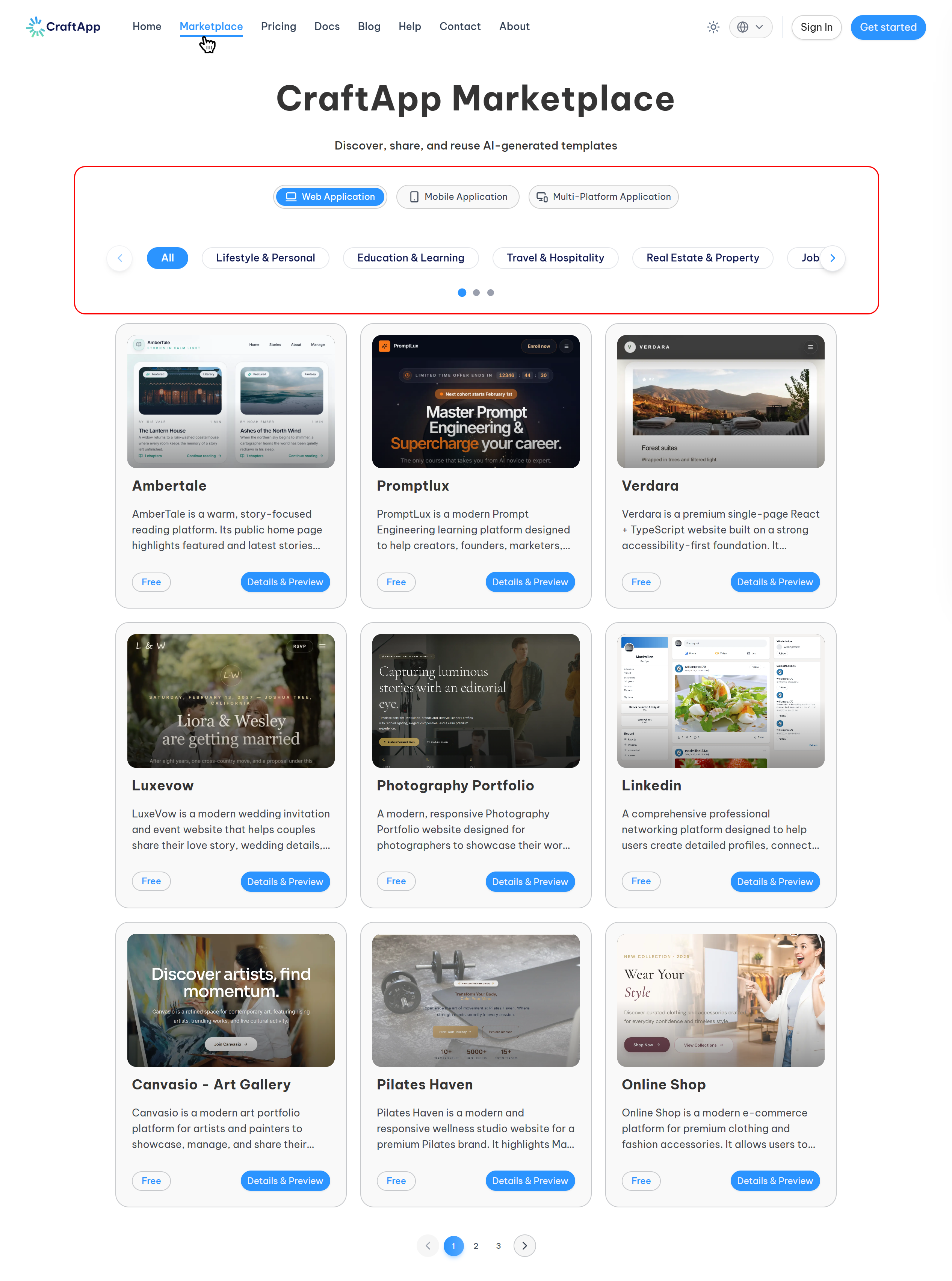
Discover and Filter Templates
Upon entering the Marketplace, you will see the header:
- Craftapp Marketplace
- Discover, share, and reuse Craftapp generated templates
Below the header, you can filter templates to find exactly what you need:
- Application Type Filter: Craftapp generates three types of applications. Use these buttons to filter the template list accordingly:
- Web Application: Templates designed for web browsers.
- Mobile Application: Templates designed for mobile devices.
- Enterprise App: Multi-platform templates that include both web and mobile applications.
- Category Filter:
Under the application type filter, you can refine the list further by selecting a category from a dropdown or button list. Options include:
- All
- Utilities
- Travel & Hospitality
- Technologies
- ...and more.
Browse Template Cards
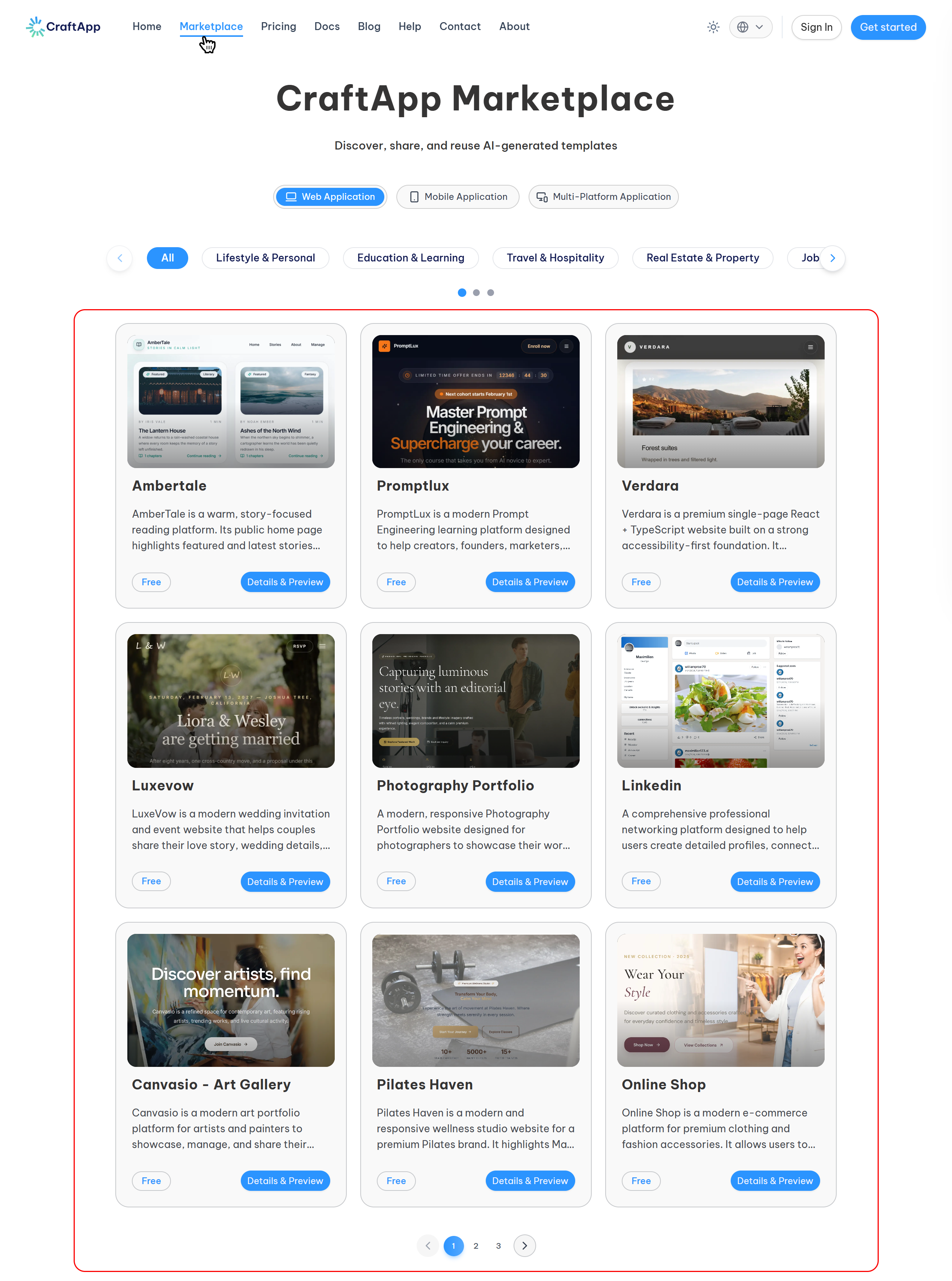
Templates are displayed as cards in a grid layout. Each card provides a quick summary of the template:
- The project name
- A short description
- The price in the bottom-left corner (e.g., "Free" or a paid price)
- A "Details & Preview" button in the bottom-right corner
Clicking "Details & Preview" will navigate you to the full detail page for that template.
Previewing a Template
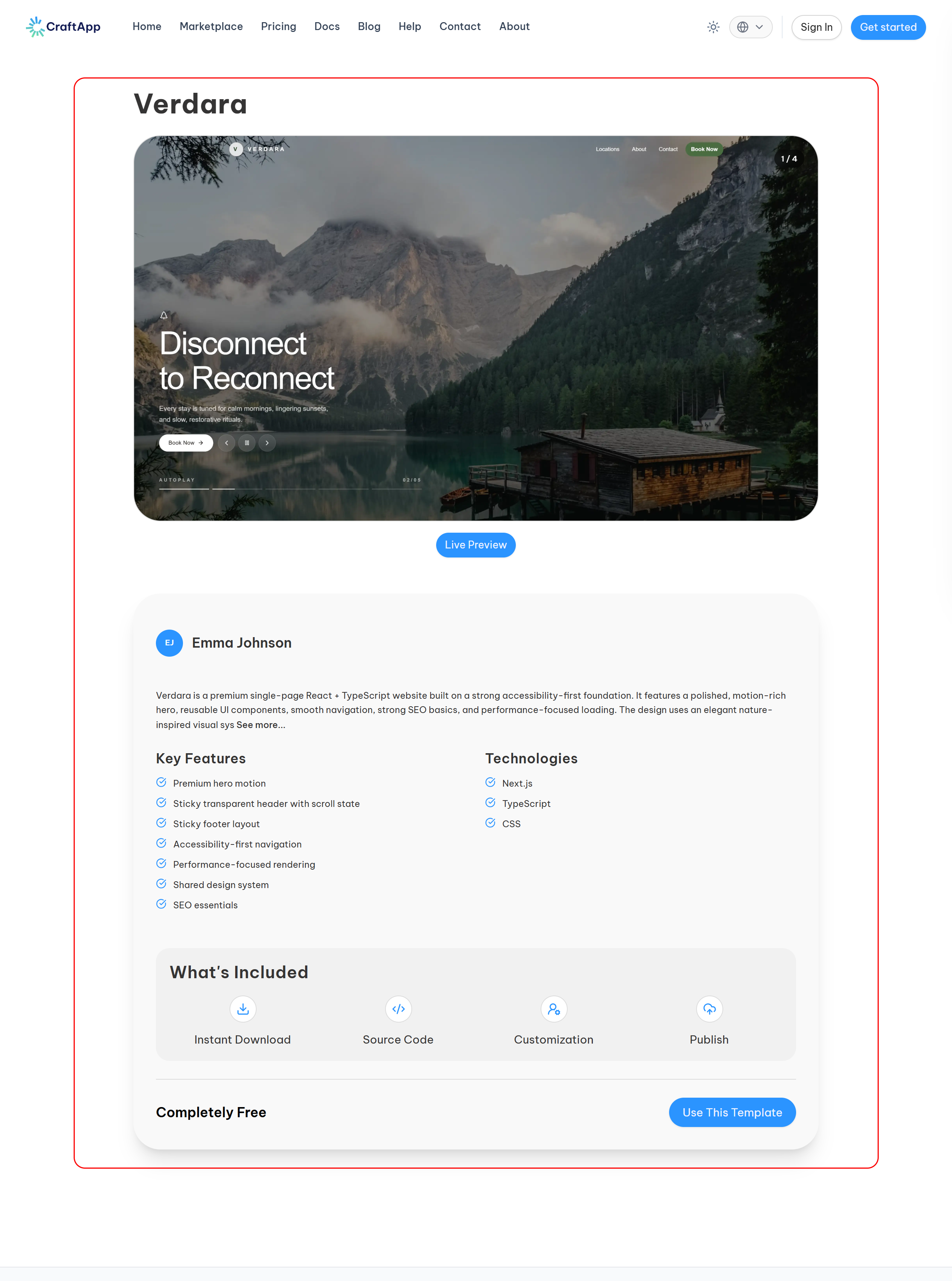
Every template has a dedicated Details & Preview page that allows you to thoroughly evaluate it before acquiring it. This page includes:
- Image Slider: Multiple screenshots of the project to visually inspect its UI and features.
- Live Preview Button: Located under the image slider, this button lets you interact with a live demo of the application to see it in action.
- Project Information: A section at the bottom provides the project owner's name and a full, detailed description of the template.
Acquiring a Template
When you are ready to use a template, you will find a "Use this template" or "Buy" button at the bottom-right of the detail page. Clicking this will allow you to purchase or claim the template and add it to your account.
Using Templates You've Acquired
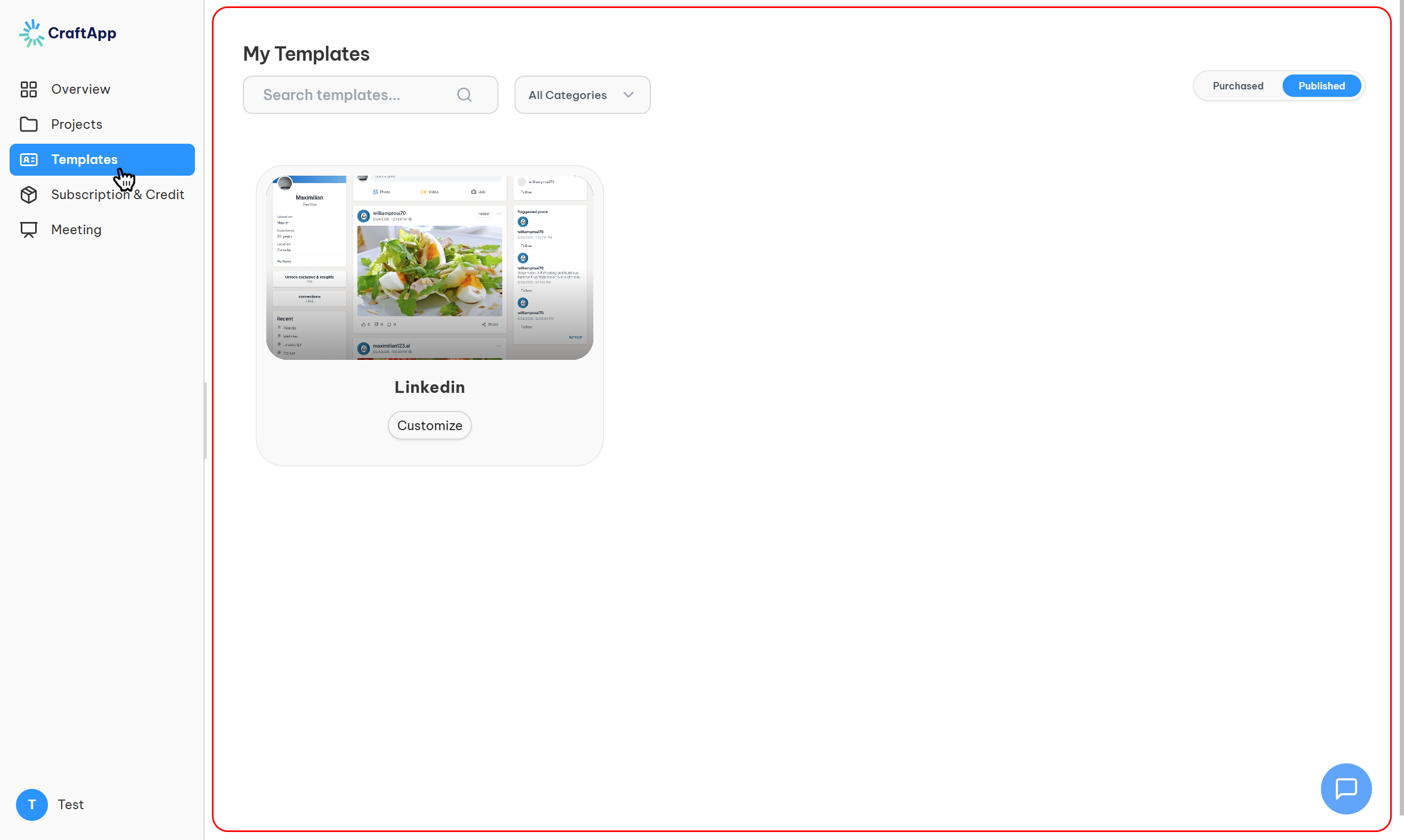
Once you have acquired a template, it becomes permanently owned by you and is available for immediate use.
- It will appear in your Dashboard → Templates section.
- You can open it directly in Craftapp Studio.
- The template is fully editable using all Studio tools:
- Visual Editor
- Code Editor
- Database & Tasks
- Deployment settings
There is no complex setup, manual cloning, or configuration required. You can start customizing instantly.
What’s Included with Templates
Templates are not just static designs; they are real, functional applications. Depending on the template, your acquisition includes:
- ✅ Full Source Code
- ✅ Prebuilt UI & Pages
- ✅ Database Schema
- ✅ Business Logic & Workflows
- ✅ Customizable Design System
- ✅ Deployment-Ready Configuration
Publishing Your Own Template
You can share your own projects with the community by publishing them to the Marketplace.
Publish Flow Overview
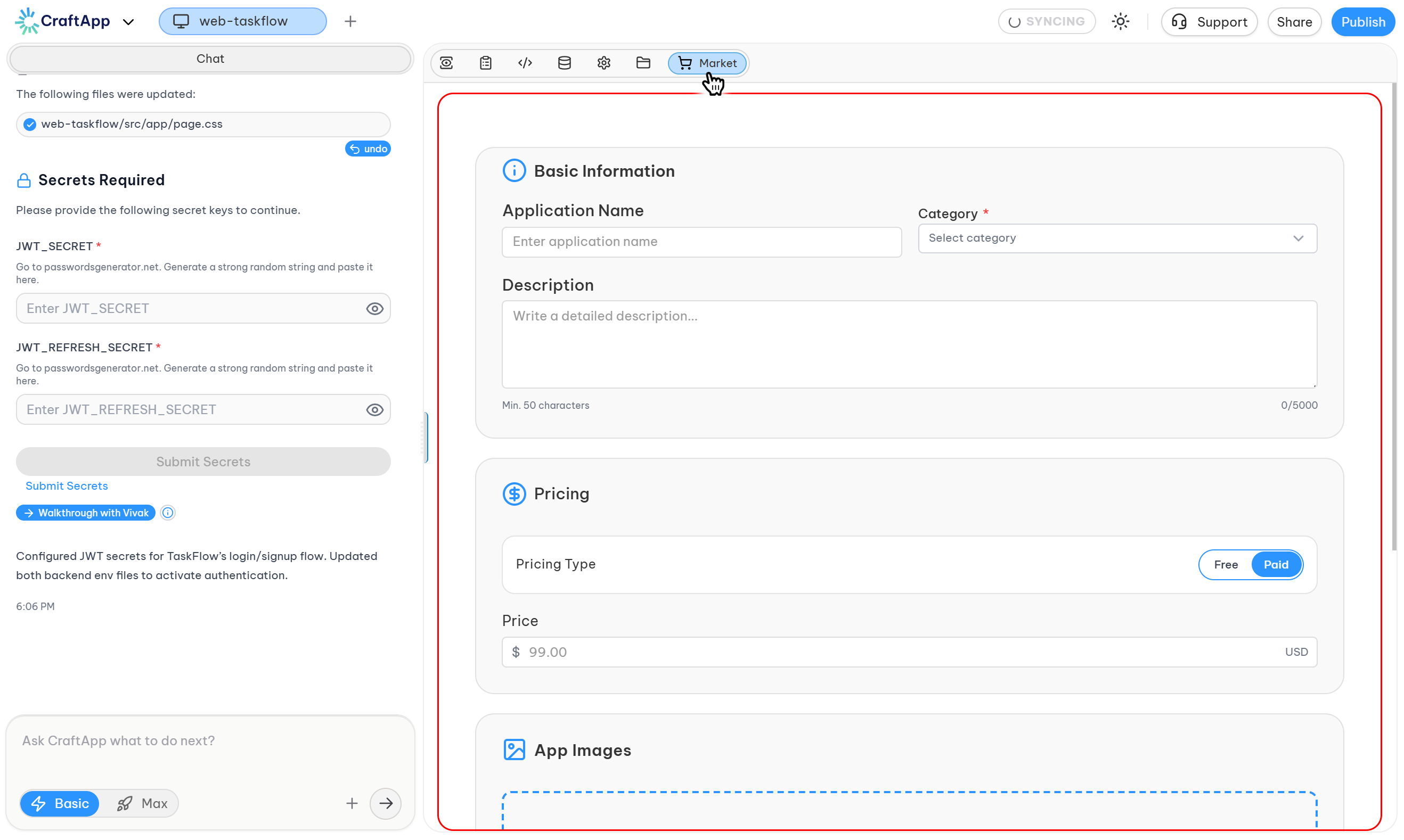
- Open your completed project in Craftapp Studio.
- Click the "Add to Market" button.
- Fill in the required template details:
- Name & Description
- Category
- Price (Free or Paid)
- Preview images
- Key features
- Technologies used
- Submit your template for publishing.
Pricing & Ownership
- Pricing: Templates can be published as Free or as a Paid one-time purchase.
- Ownership for Users: When a user acquires a template, it is:
- Permanently owned by them.
- Fully customizable without restrictions.
- Deployable in their own environment.
Craftapp handles all licensing and ownership transfer automatically.
Managing Your Published Templates
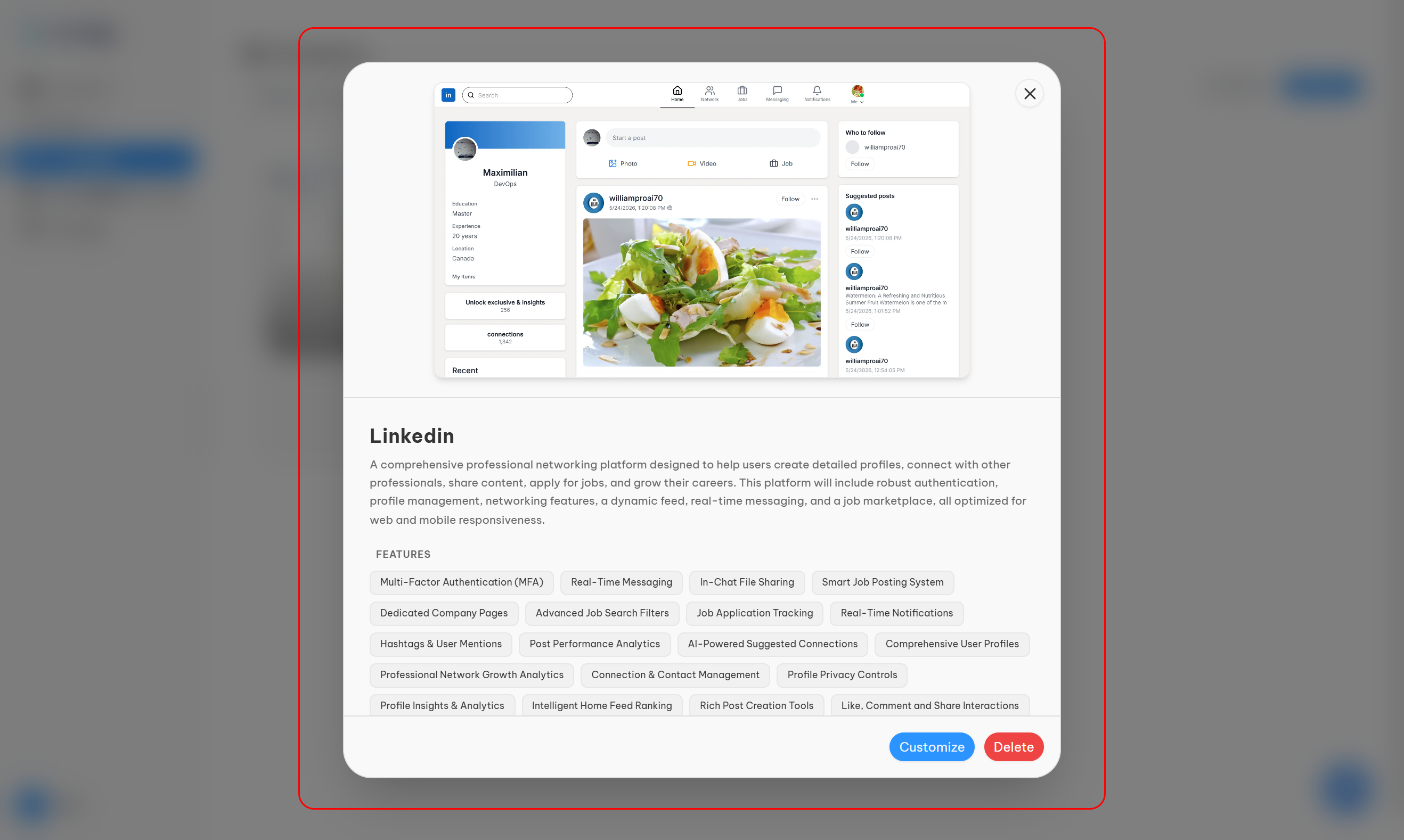
You can manage all the templates you have published from Dashboard → Templates. Here, you can:
- View the status of your published templates.
- Edit template details, screenshots, or descriptions.
- Change the pricing of your template.
- Open the template in Studio for further updates.
- Track its ownership and performance.
Designed for Real Production Use
The Craftapp Marketplace is built for real-world applications, not just demos:
- Templates adhere to Craftapp’s production-ready deployment standards.
- They are compatible with Basic, Standard, and Enterprise plans.
- Every template can be scaled, customized, and redeployed as needed.
- Seamlessly integrated with all Craftapp Studio tools.
Why Use the Craftapp Marketplace?
- For Users:
- Launch applications faster.
- Reuse proven, production-ready solutions.
- Customize everything to fit your needs.
- Deploy with a single click.
- For Creators:
- Monetize your work by selling templates.
- Share your expertise with the community.
- Gain visibility for your projects.
Next Steps
- Browse templates: Visit the Marketplace.
- Publish a project: Open your project in Studio and click "Add to Market".
- Customize a template: Acquire a template and open it in Studio.
- Deploy your app: When ready, go to the Deploy tab in Studio.
The Craftapp Marketplace is continuously evolving, with new templates and improvements being added regularly.