Purchasing Templates
Browse, preview, and purchase professional templates — ready to use and fully customizable.
Browse the Marketplace
To get started, go to the Marketplace tab in the top navigation bar.
There you’ll find a wide collection of ready-to-use templates. Each template appears as a card with:
Name Category Creator Cover ImageYou can filter templates by category to quickly find what you're looking for.
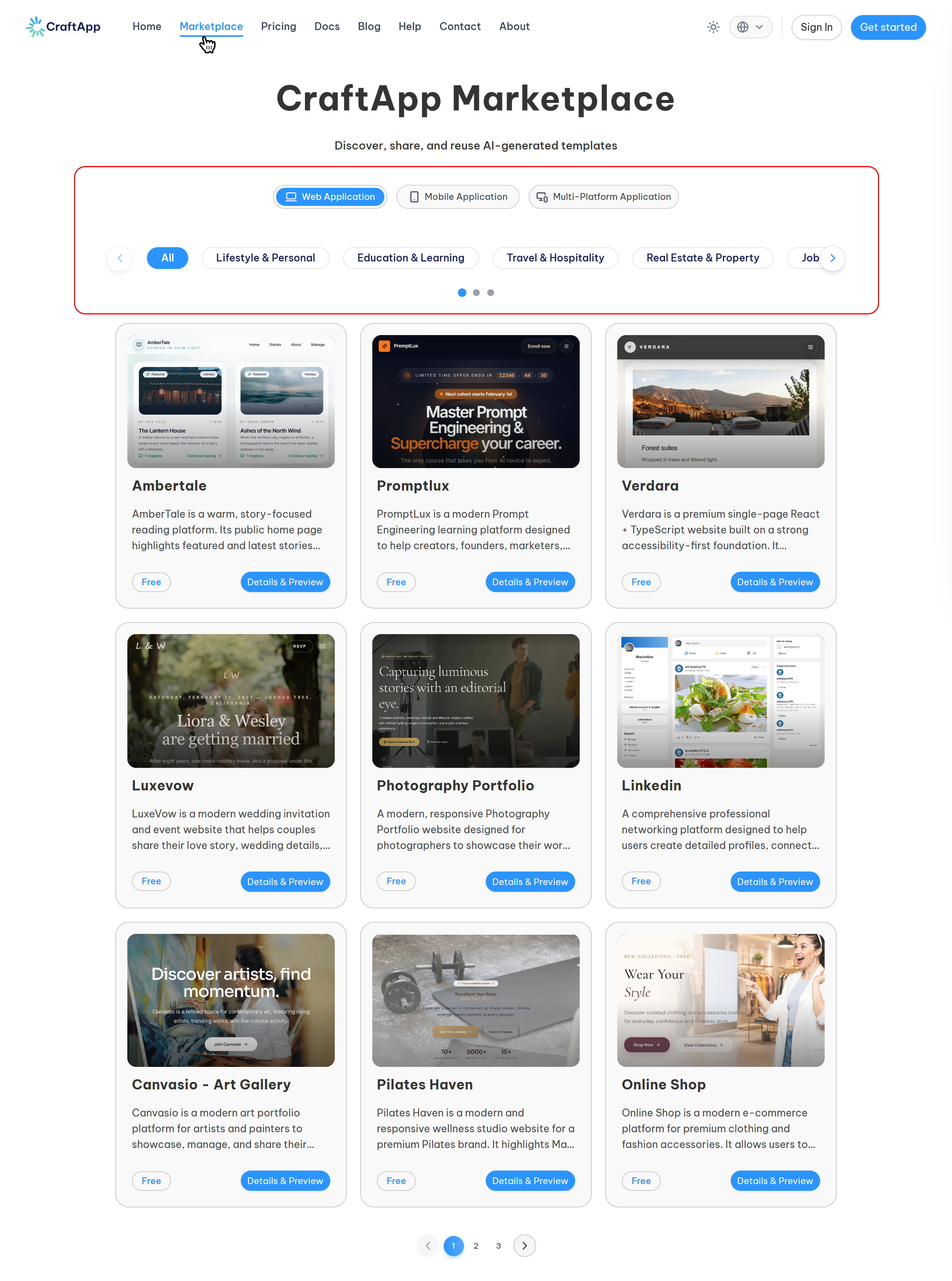
Browse the Marketplace
Preview Before You Purchase
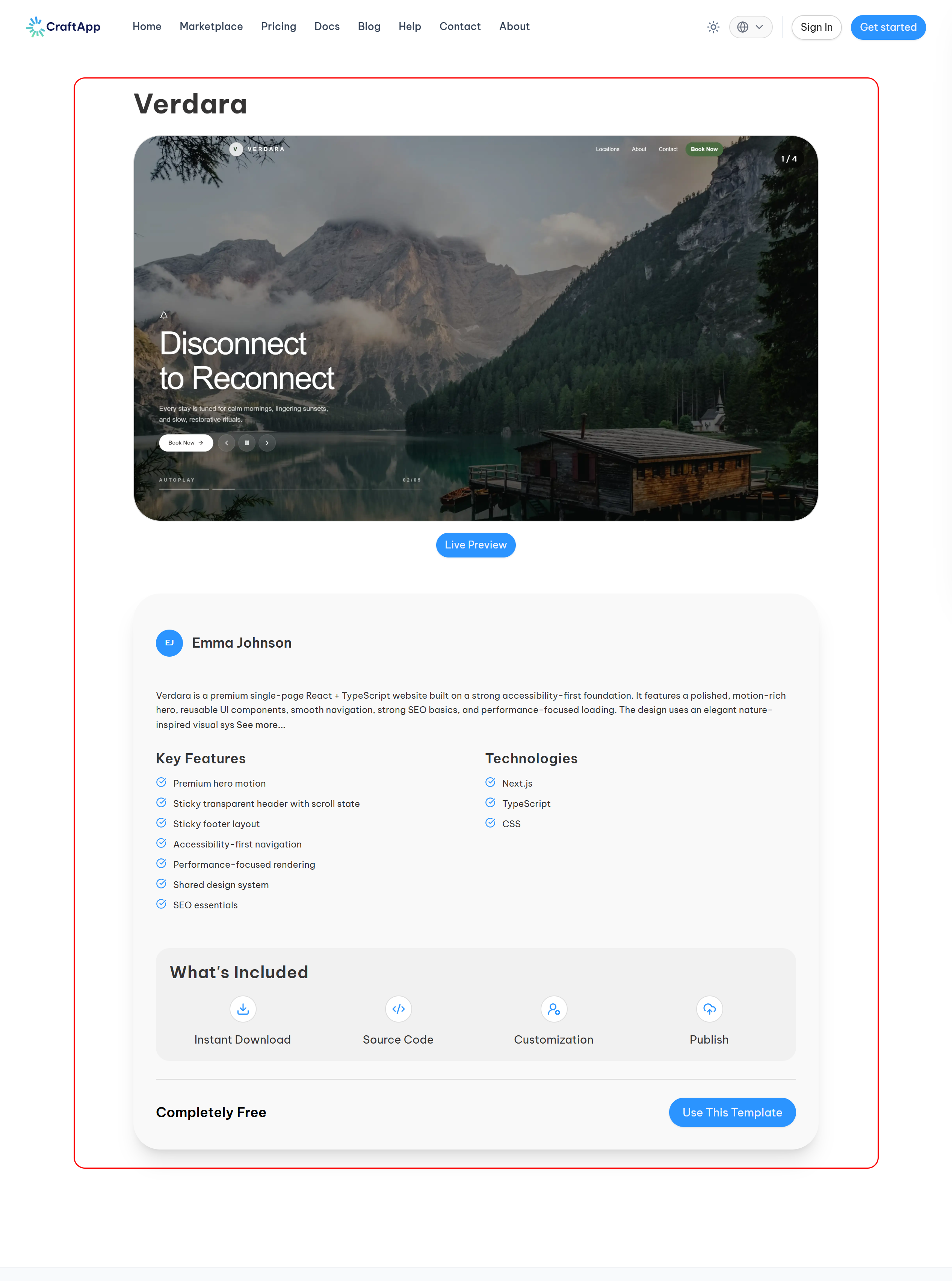
Live demo
Clicking on Preview button will open a Preview Page, where you can:
See a live demo
When you're ready to proceed, click "Use Template" to move to the purchase step.
Purchase Flow
- Click the "Use Template" button
- You'll be taken to a detail page with full template information and pricing
- Click the payment button
- You are redirected to Stripe's secure payment page
After Payment
Once the payment is successful:
- Stripe redirects you to a success page
- Your template will be processed and ready within ~1 minute
- After it's ready, it will appear in your Dashboard → Templates tab
Note
You will also receive an email confirmation from Stripe for your purchase.
Customizing Your Purchased Template
From your dashboard, you can:
- Preview the full template
- Open it in the Builder
- Customize everything:
- Update layout using the visual editor
- Change content, logos, fonts, colors
- Add new components with drag-and-drop
- Edit or extend the code
Tip
Templates are fully yours after purchase — modify and rebrand them as you wish.
Summary
| Step | What Happens |
|---|---|
| Browse | Discover templates via the Marketplace tab |
| Preview | Explore template details and features |
| Purchase | Complete payment securely via Stripe |
| Access | Template appears in your Dashboard in 1 min |
| Customize | Use our builder to modify it as you need |