Essentials
Getting started
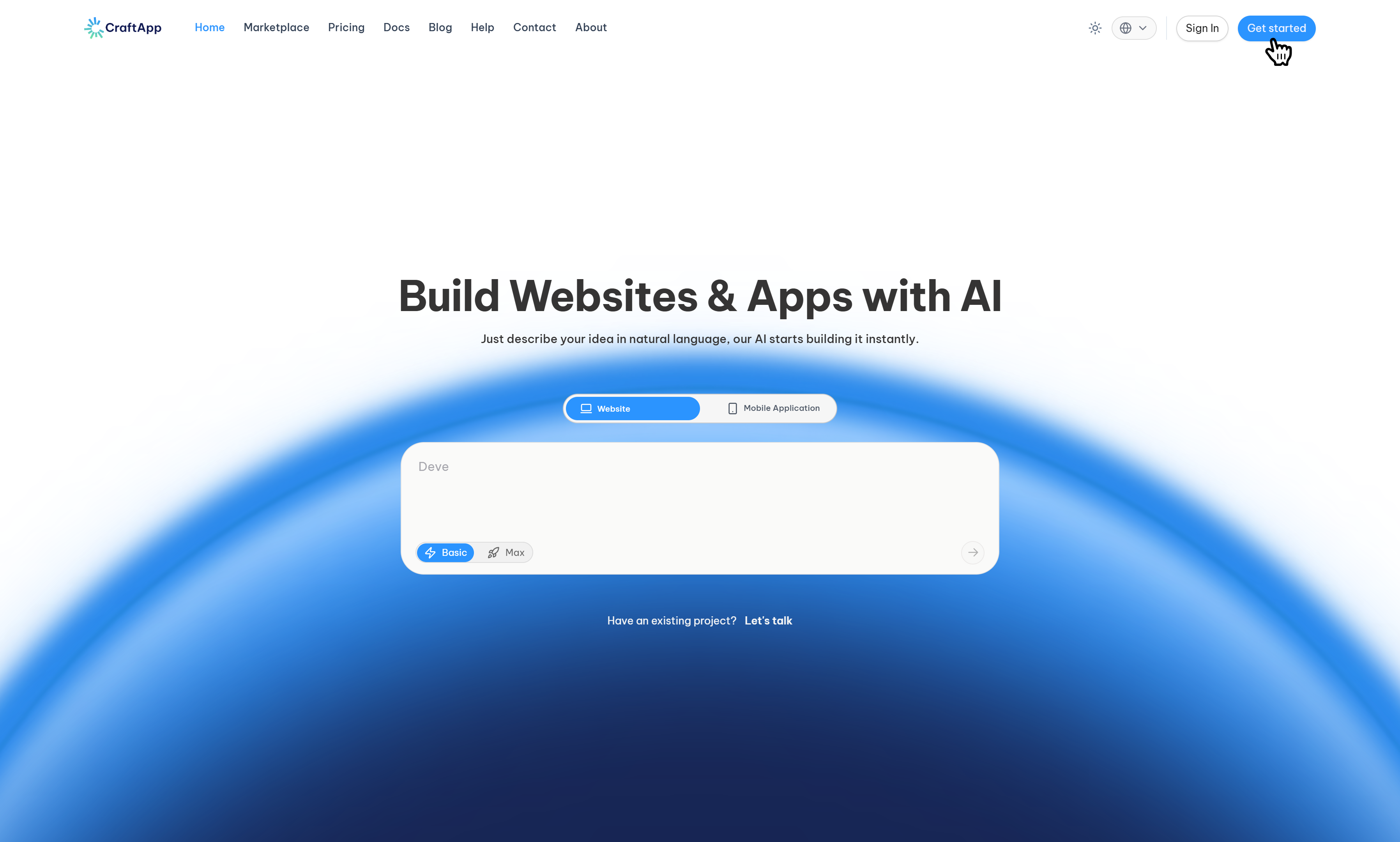
Craftapp transforms ideas into fully functional applications through natural conversation.
Describe what you want to build, choose how intelligent the generation should be, and let Craftapp handle the rest.
AI Build Modes
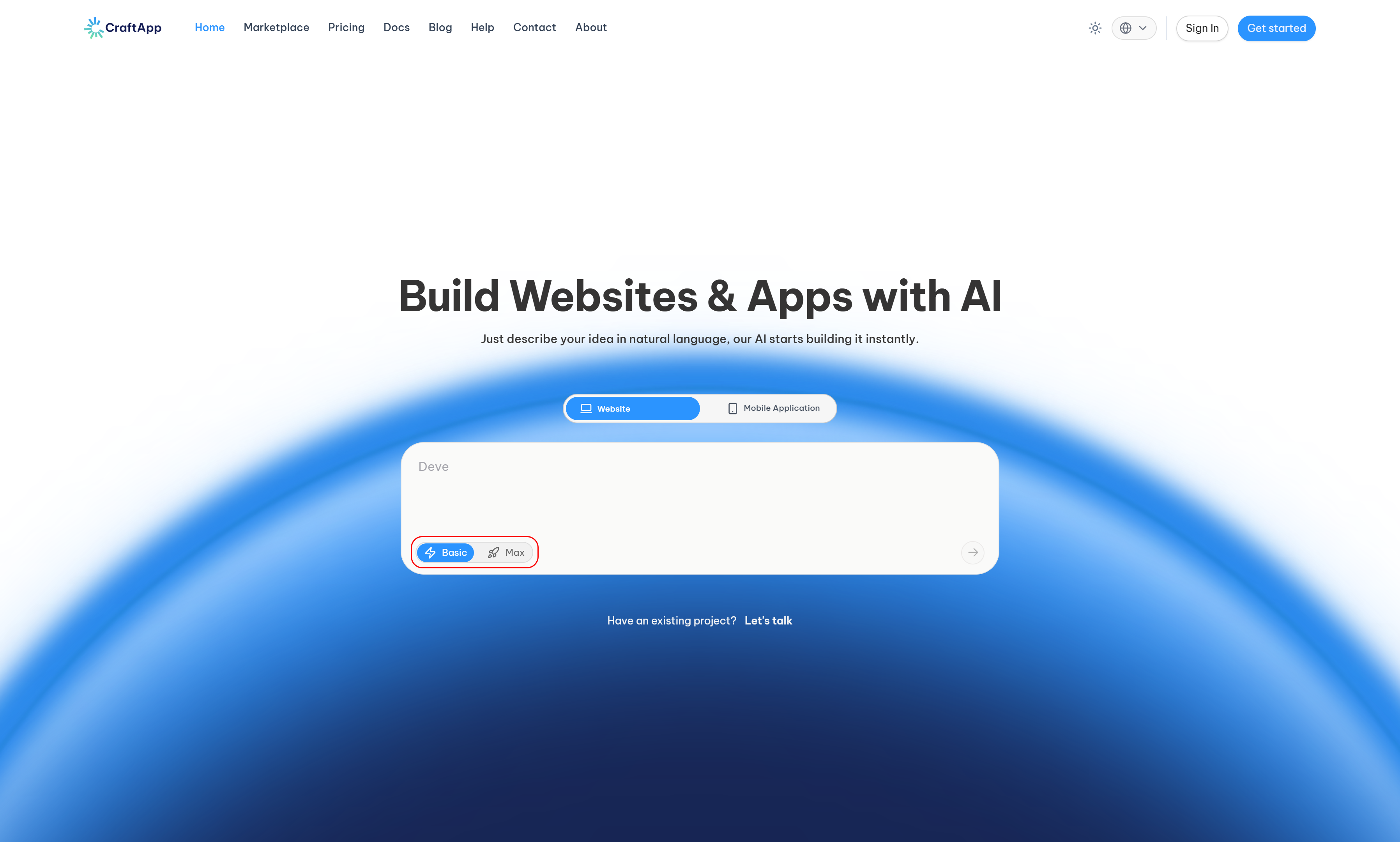
Craftapp offers multiple build modes, each designed for a different level of control, speed, and intelligence.
From one-click automation to expert-level model selection, you decide how your application is generated.
Summary
Craftapp adapts to your workflow — from fast, one-click generation to deep, reasoning-driven builds powered by the latest AI models.
Choose the mode that matches your project’s complexity and your level of control.
Project proposal page
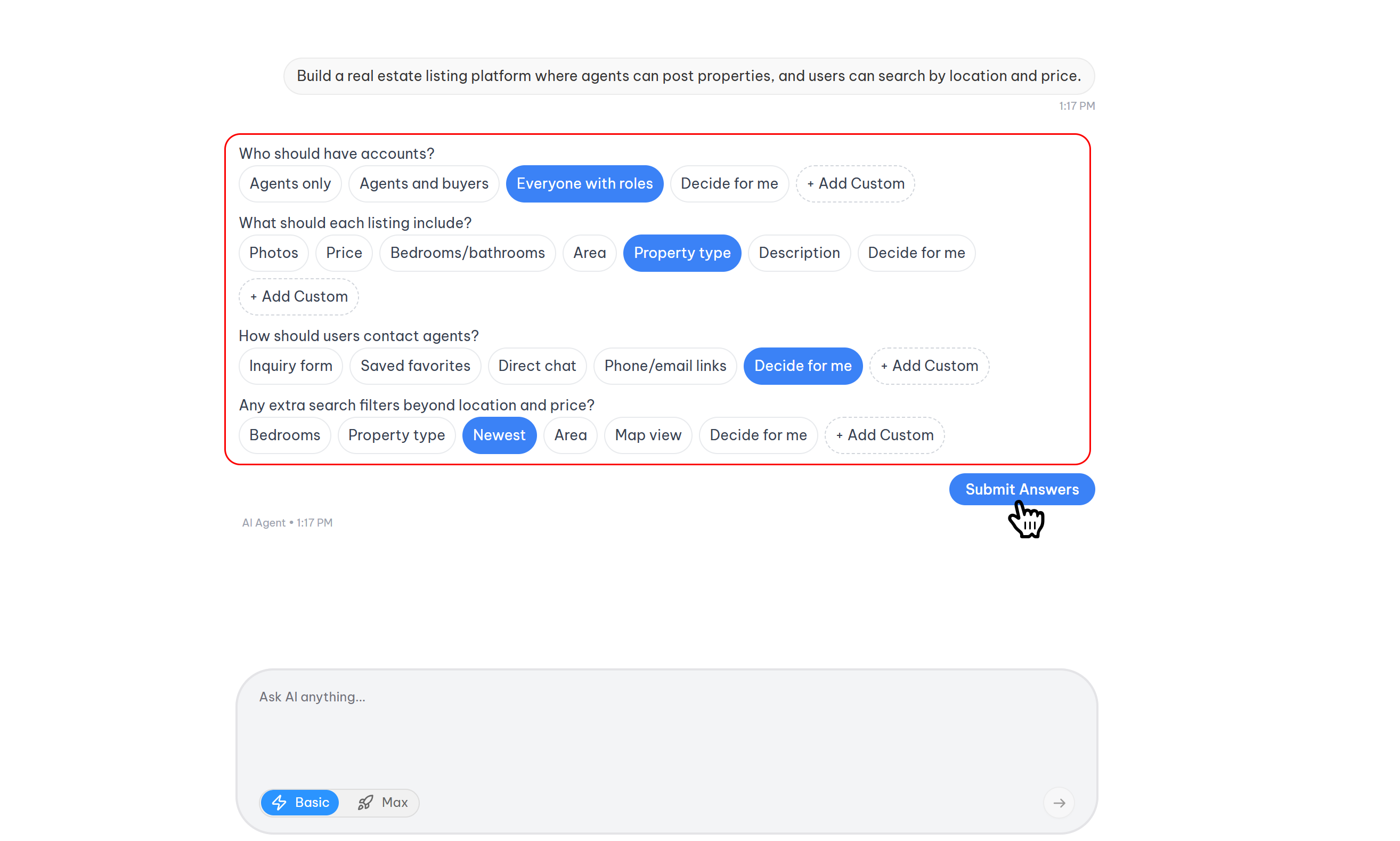
The Project Proposal page is where Craftapp translates your initial idea into a structured, reviewable project plan before creation. It allows you to verify, refine, and confirm all key details before the project is generated.
Project overview
At the top of the proposal, Craftapp.ai displays the project information inferred from your prompt:
Recommended features
Based on your prompt, Craftapp suggests a set of recommended features relevant to your application.
- Each feature is displayed as numeric list from top to bottom.
- Features are grouped and presented clearly for easy review.
- You can as Craftapp to add your custom feature.
Examples of recommended features may include:
- User onboarding and profiles
- Scheduling and bookings
- Payments and memberships
- Progress tracking and analytics
- Notifications and messaging
- Role-based access and admin dashboards
Actions
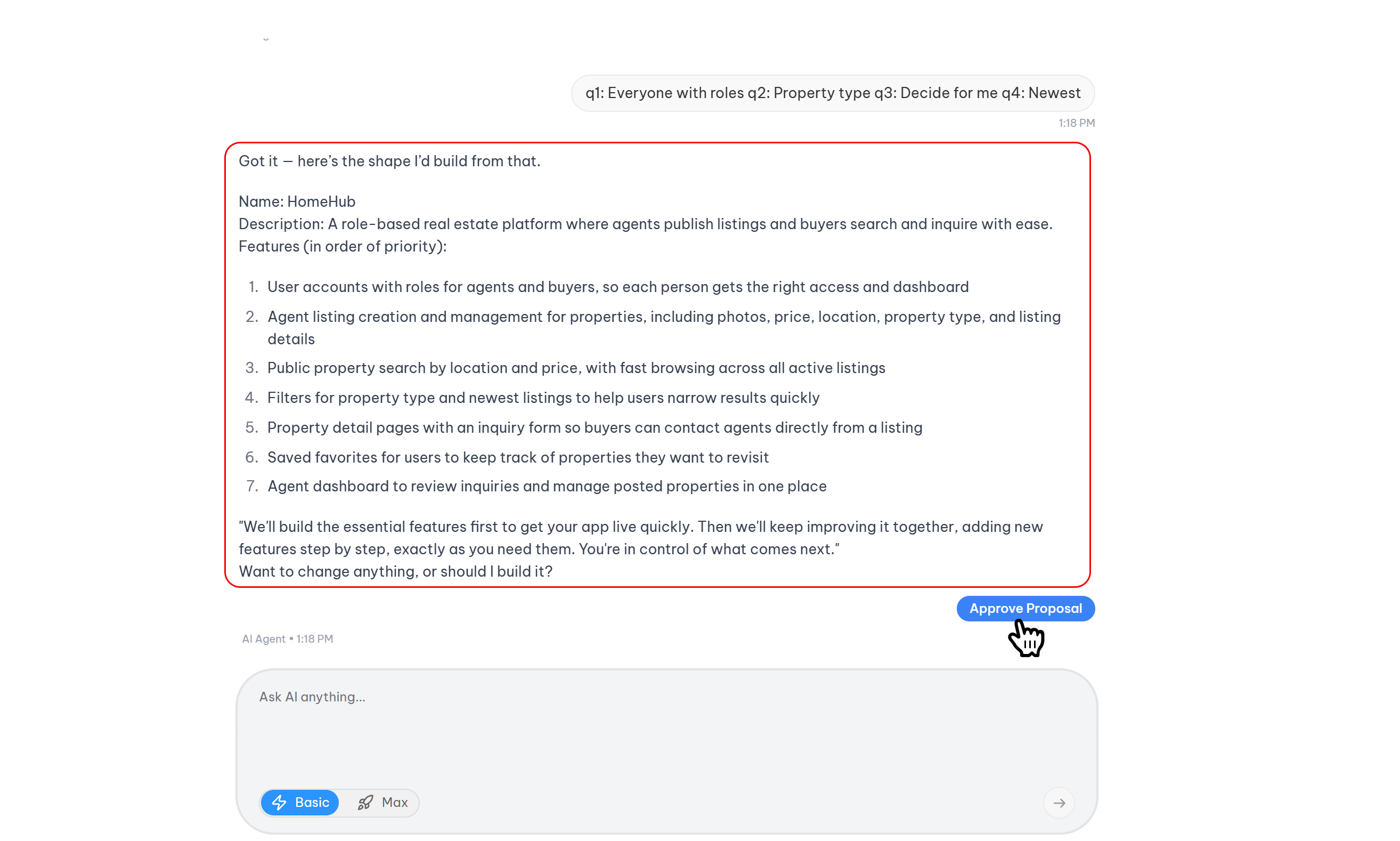
At the bottom of the proposal page, you can choose how to proceed:
- Create Project By Action Button
Confirms the proposal and starts generating the project based on the reviewed configuration just by clicking on the Approve Proposal
- Create Project By Prompt
You can Approve the proposal by saving an Approval Phrase
Looks fine create it
I approve create it
... - Change the idea
Discards the current proposal and returns you to the previous step without creating a project.
Tip
In order to Craftapp understand everything better before project generation it will take an interview by asking needed questions so it's Advance to read everything carefully and specially the final proposal and at the end you can ask Craftapp to create the project for you or you can simply click on the Approve Proposal button.
Project Technologies
Currently, Craftapp supports generating two types of applications.
| Application Type | Frontend | Backend | Database |
|---|---|---|---|
| Web Applications | Next.js | FastAPI | PostgreSQL |
| Mobile Applications | React Native | FastAPI | PostgreSQL |
Note
Craftapp supports generating both Web and Mobile applications.
When you create a new project, you only choose the platform (Web or Mobile). The project architecture is determined automatically by Craftapp based on your prompt.
- Single-Page Application (SPA) – Generates a frontend-only project for applications that don't require a backend, such as calculators, timers, landing pages, portfolios, or simple dashboards.
- Full-Stack Application – Generates both a frontend and a backend for applications that require authentication, databases, APIs, business logic, or real-time features, such as CRM systems, social media platforms, marketplaces, or SaaS products.
As your project evolves, you can upgrade it at any time:
- Add a backend to an existing single-page application whenever your project requires server-side functionality.
- Upgrade a full-stack project to an Enterprise architecture, allowing multiple clients (such as Web and Mobile applications) to share a single backend, database, and API.
Iterating and improving
Craftapp is designed for continuous improvement.
You can refine and evolve your application by sending clear, instructional messages to the assistant. Each prompt updates your project based on both your input and the current state of your application.
This allows you to experiment, adjust features, and improve your app iteratively—without restarting or rebuilding from scratch.
Best Practices
Follow these recommendations to help Craftapp generate more accurate, reliable, and predictable results when creating or refining your application.
Be Clear and Specific
Clearly describe what you want to build or modify. The more specific your instructions, the more accurate and relevant the generated result will be.
Reference Existing Elements
Mention specific pages, components, or features when requesting changes or use target element by going to Studio > edit mode > select the element and write your prompt. This helps Craftapp update only the intended parts of your application without affecting unrelated functionality.
Break Down Complex Requests
For larger features or significant changes, split your request into smaller, well-defined steps. This produces more consistent and easier-to-review results.
Learn more
For detailed examples and advanced techniques, see the Prompting Guide
Craftapp Studio
Craftapp Studio is the integrated development environment where your entire project comes to life. It provides everything you need to build, preview, test, and manage your application in one unified workspace.
After your project proposal is approved, Craftapp generates your application and opens it directly in the Studio. From there, you can interact with your live project, make changes through conversation or visual editing, and manage every aspect of your application without switching between tools.
What you can do in Craftapp Studio
- Build and iterate — Send natural language prompts to add features, modify functionality, or adjust design. Craftapp updates your project in real time while preserving your existing work.
- Preview your application — Instantly test your application as a web or mobile user. Navigate between pages, test authentication flows, and verify functionality using live previews.
- Edit visually — Enter Edit Mode to select any element on the page and customize its properties, layout, and styling directly without writing code.
- Manage your database — View, add, edit, or delete records and tables using the built-in database manager or by asking Craftapp in the Chatbox.
- Access your source code — Open the Code Editor to inspect, review, or manually modify the generated source code for greater control.
- Configure project settings — Update your application name, logo, SEO settings, secrets, and access permissions from a centralized settings panel.
- Deploy to production — When your application is ready, use the deployment workflow to build, provision, and publish your project to a live environment.
How the Studio works
Craftapp Studio is designed to be flexible and non-linear. You can move freely between previewing, editing, managing data, and refining your application at any time. Every change—whether made through the Chatbox, Edit Mode, or manual code edits—is synchronized across the entire Studio.
The Studio adapts to your workflow, so you can:
- Start by previewing your generated application.
- Send a prompt to add a new feature.
- Switch to Edit Mode to fine-tune the design.
- Check your database to verify data.
- Jump back to preview to test the result.
All without leaving your project or losing context.
Navigating your application
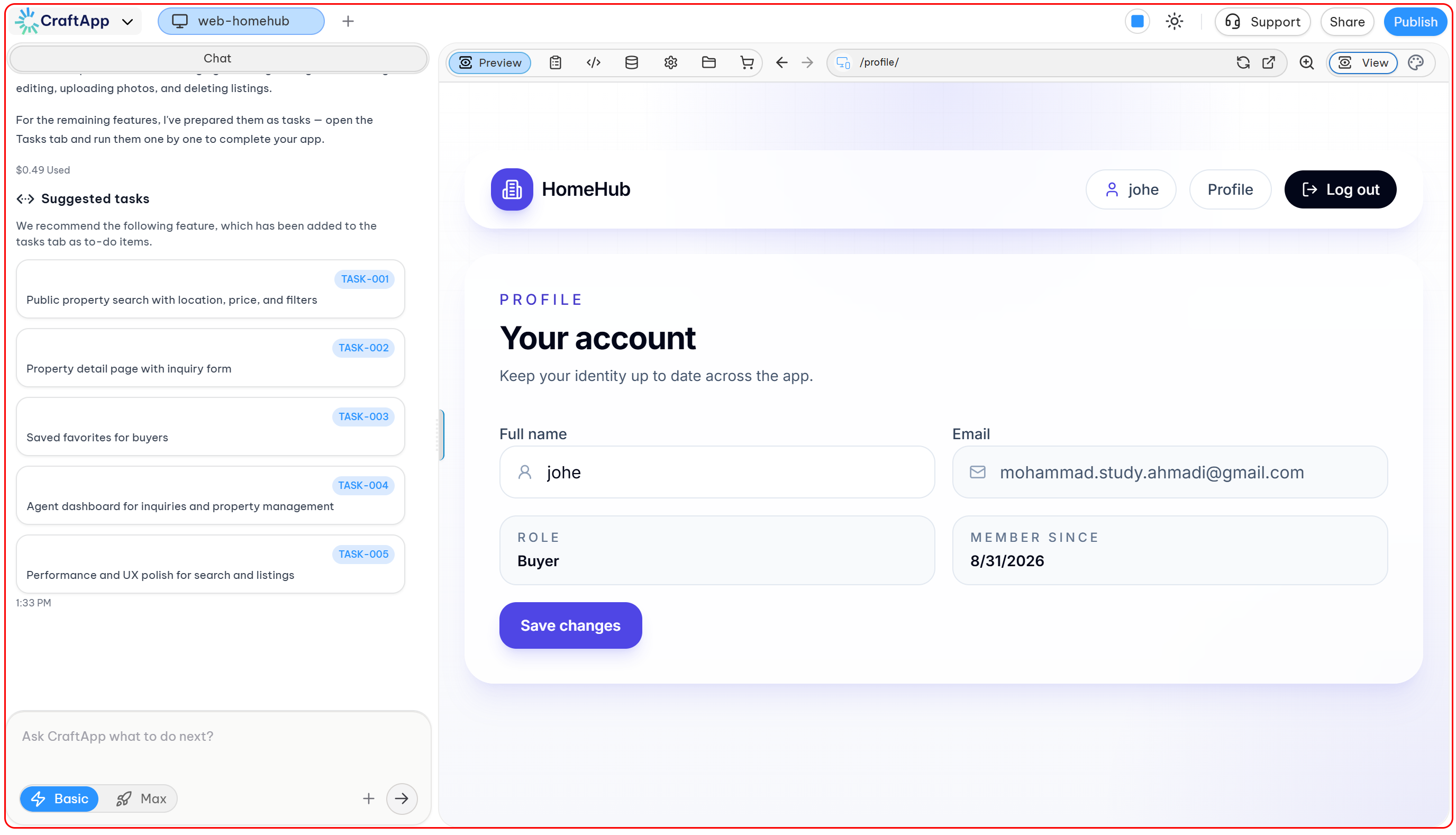
Craftapp Studio is designed around a clear, task-focused top navigation that lets you move effortlessly between building, previewing, managing, and deploying your application.
Top navigation bar
The top navigation gives you direct access to every major stage of your project:

Web Preview
View and interact with your application in a desktop browser environment.
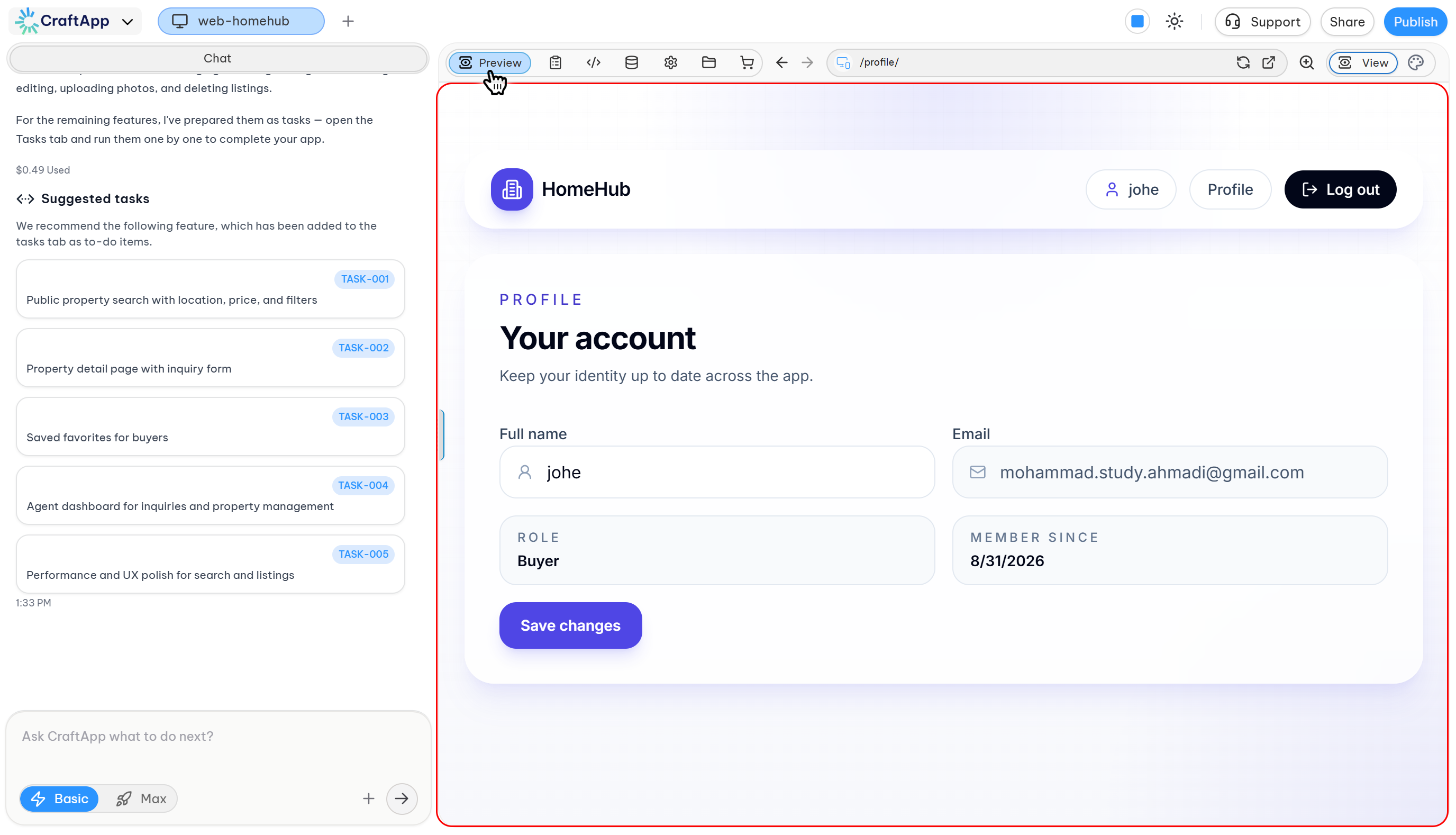
Mobile Preview Instantly switch to a mobile layout to test responsiveness and mobile behavior.
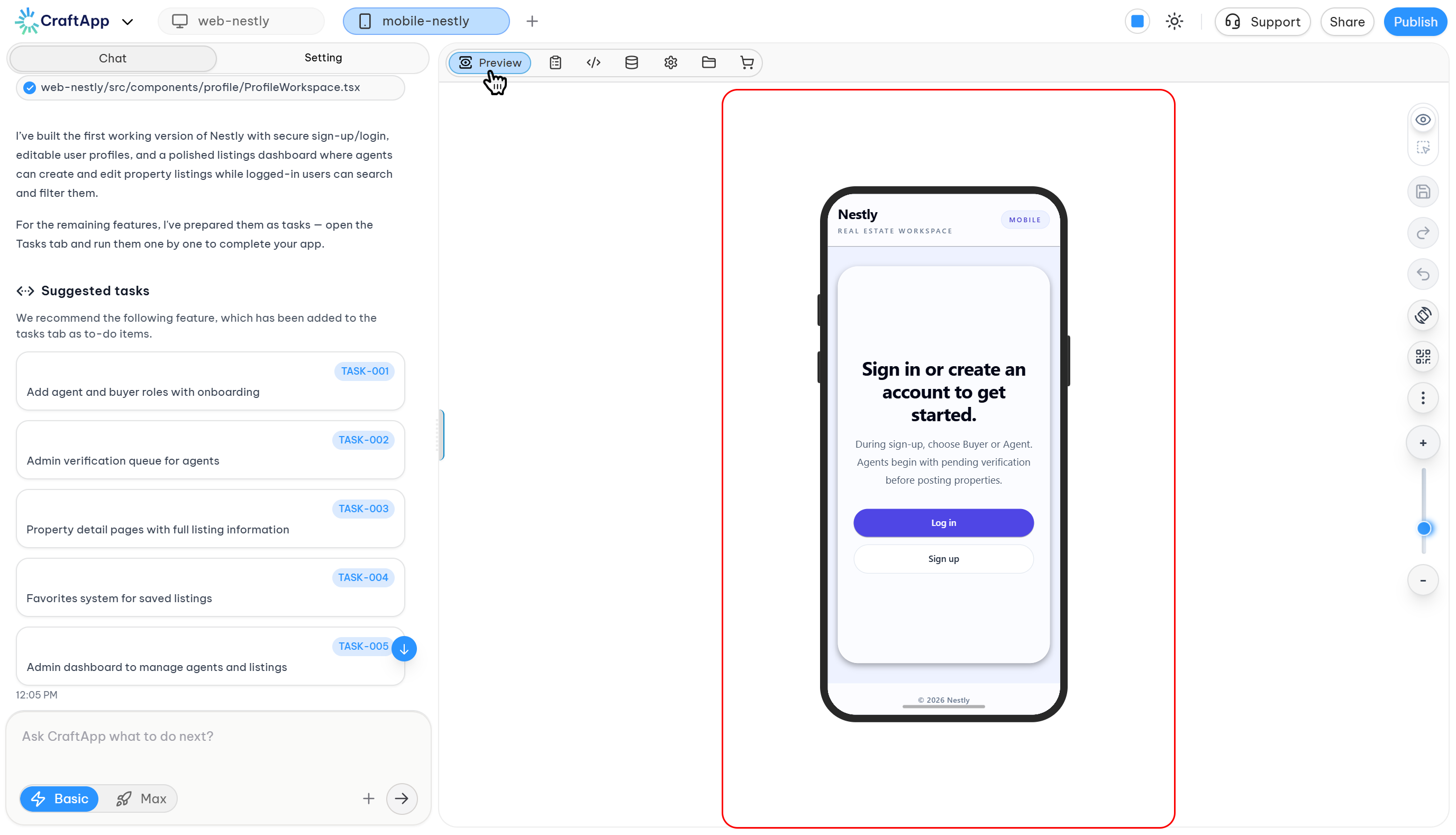
Tasks
Review AI-generated tasks and development steps. This helps you track progress and understand what the system is building for you.
Code Editor
Access the generated source code to inspect, edit, or extend your application manually.
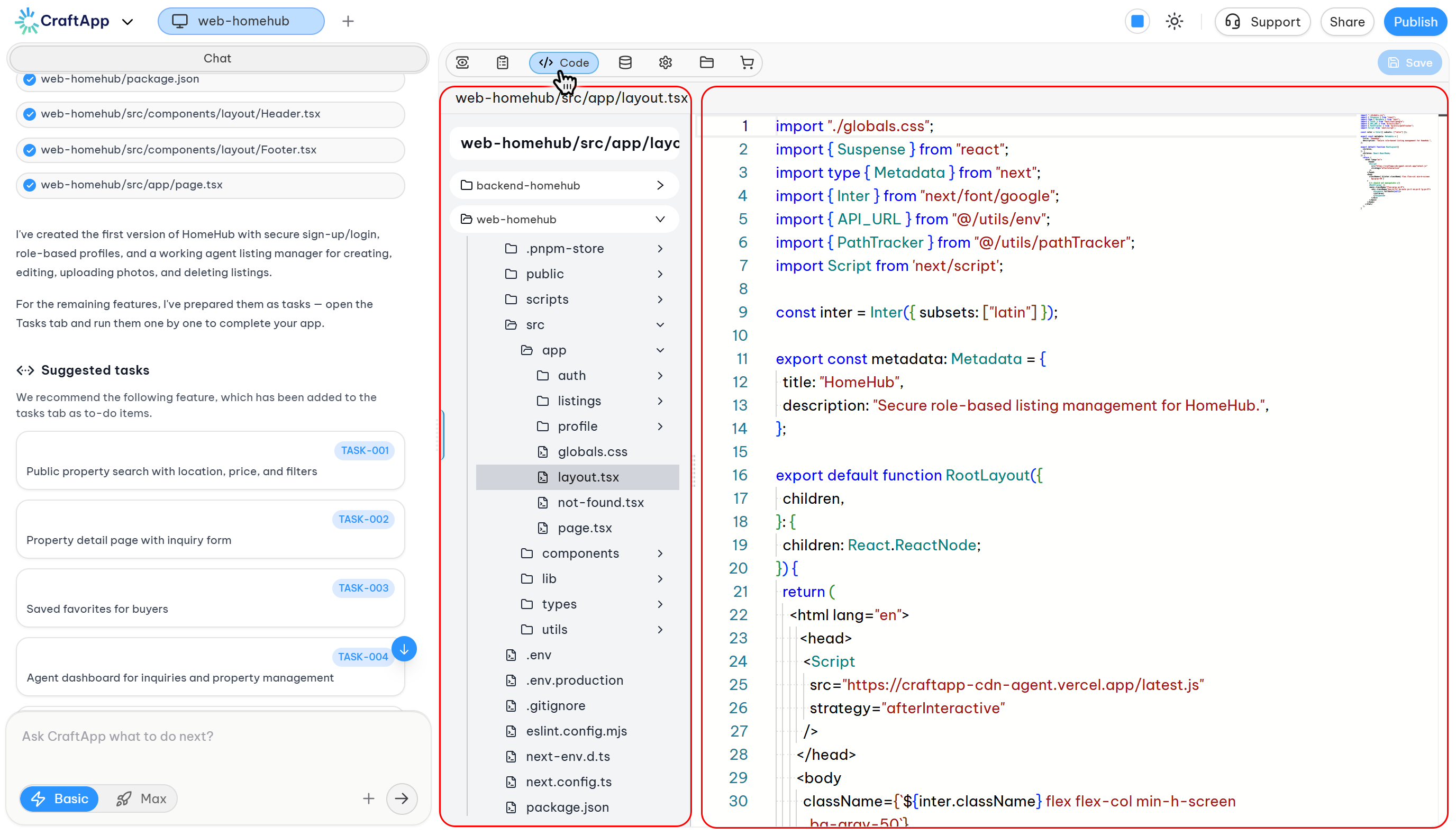
Database Manage your data models and records, including tables, fields, and stored data.
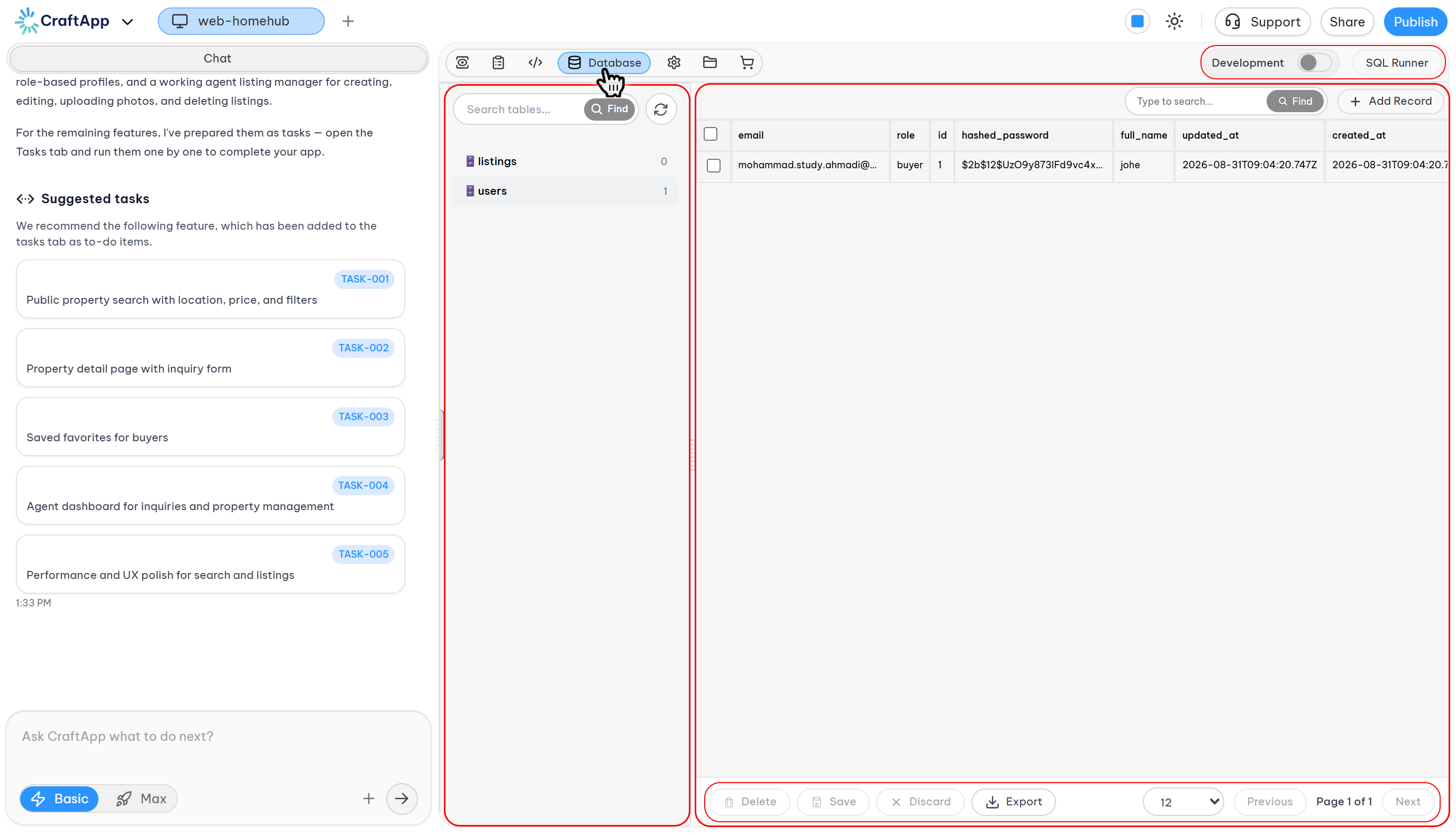
Settings
Configure application-level options such as project information, design preferences, environments, secrets, and access permissions.
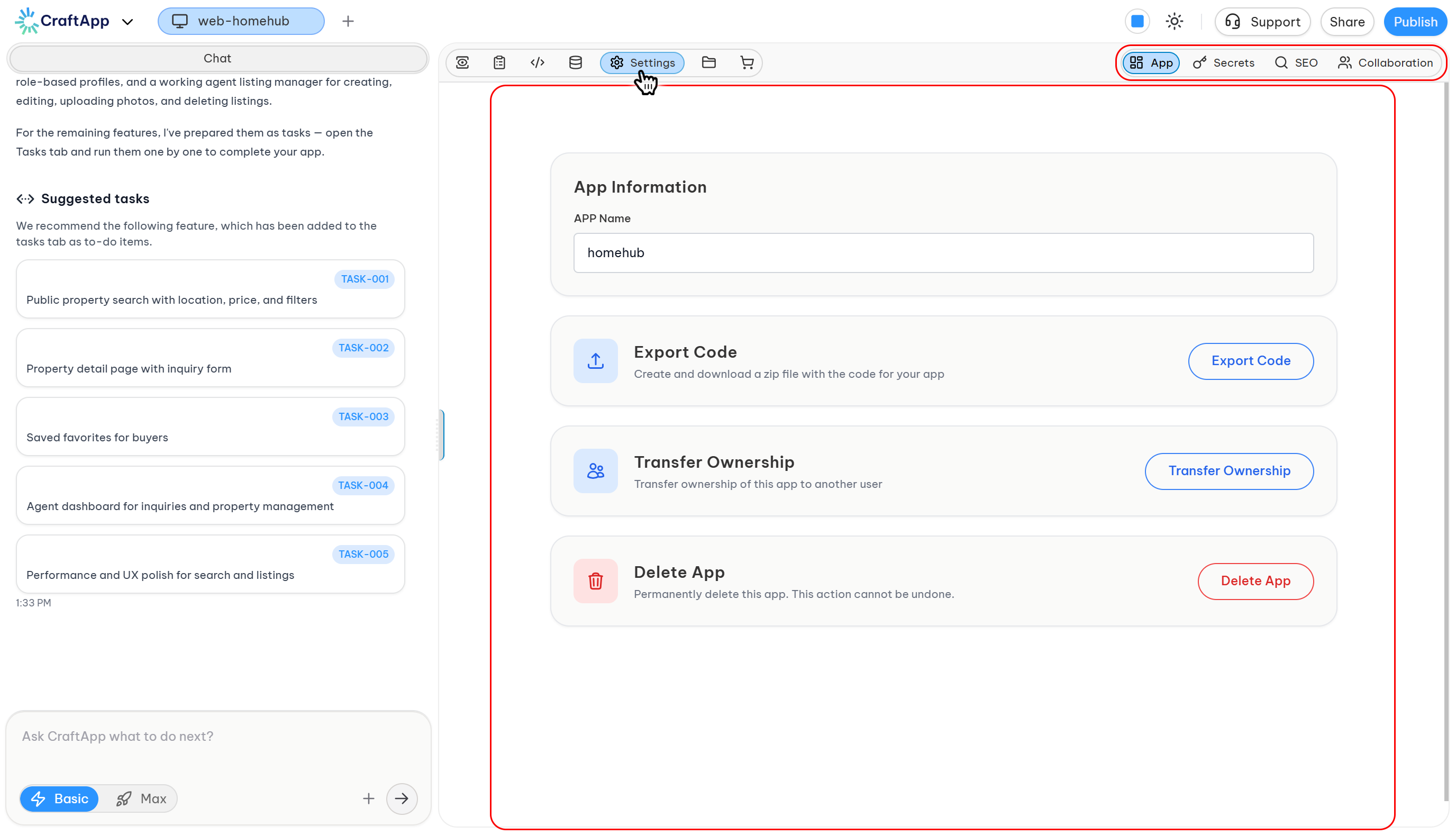
Market
Prepare your application for listing in the marketplace.
Publish Publish your application or push updates to production.
Project Preview
Inside Craftapp Studio, you have access to the Project Preview, where you can:
- View your entire project in a live preview.
- Navigate between pages using the built-in address bar and navigation controls.
- Open the preview in a new browser tab for isolated testing.
- Switch between View mode (the end-user experience) and Edit mode (builder mode).
- In Edit mode, customize your project's design using the Craftapp Visual Studio, or simply select any element on the page and ask Craftapp to modify it using natural language.
Tip
You can move freely between previewing, editing, and managing your project at any time. Craftapp Studio keeps your application state synchronized as it evolves.
Craftapp Chatbox
The Craftapp Chatbox is your primary way to interact with Craftapp using natural language. Simply describe what you want, and Craftapp will build, modify, or manage your project accordingly.
With the Chatbox, you can:
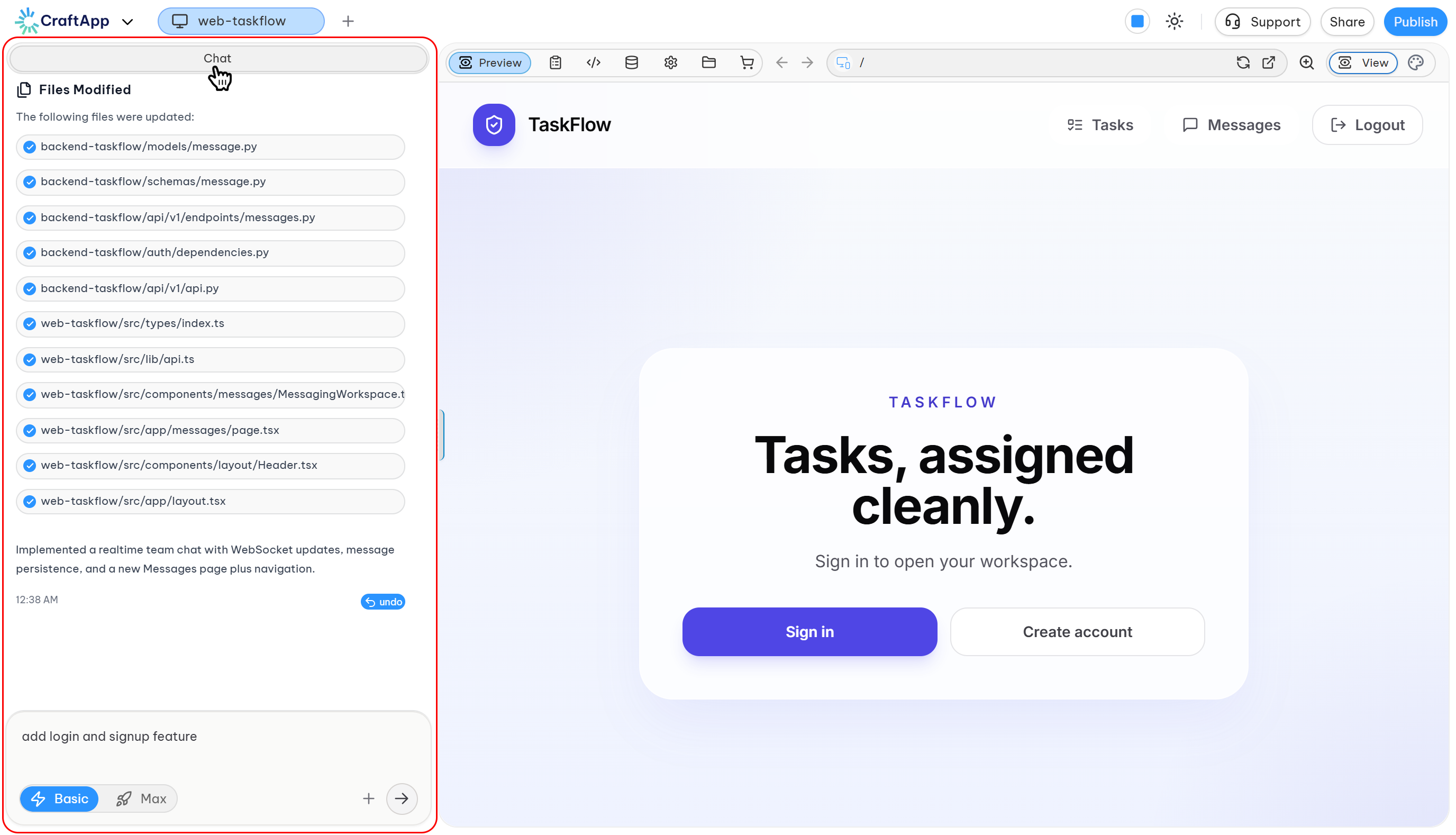
- Add new features to your project.
- Modify existing functionality, UI, or design.
- Automatically detect when your single-page application requires a backend and receive intelligent suggestions to generate one.
- Perform database operations (Create, Read, Update, and Delete) without opening the Database tab.
- Ask questions about the Craftapp Studio environment and learn how different features work.
How feature generation works
When you send a message, Craftapp analyzes your request together with your project context, including your conversation history and existing project files. It then determines the best approach to implement your request while preserving your application's structure and functionality.
Depending on your request, Craftapp may:
- Update existing files and components.
- Create new files, pages, or components when additional functionality is required.
- Extend your project's architecture as your application grows.
- Generate or update backend services, APIs, and database resources when needed.
Live generation feedback
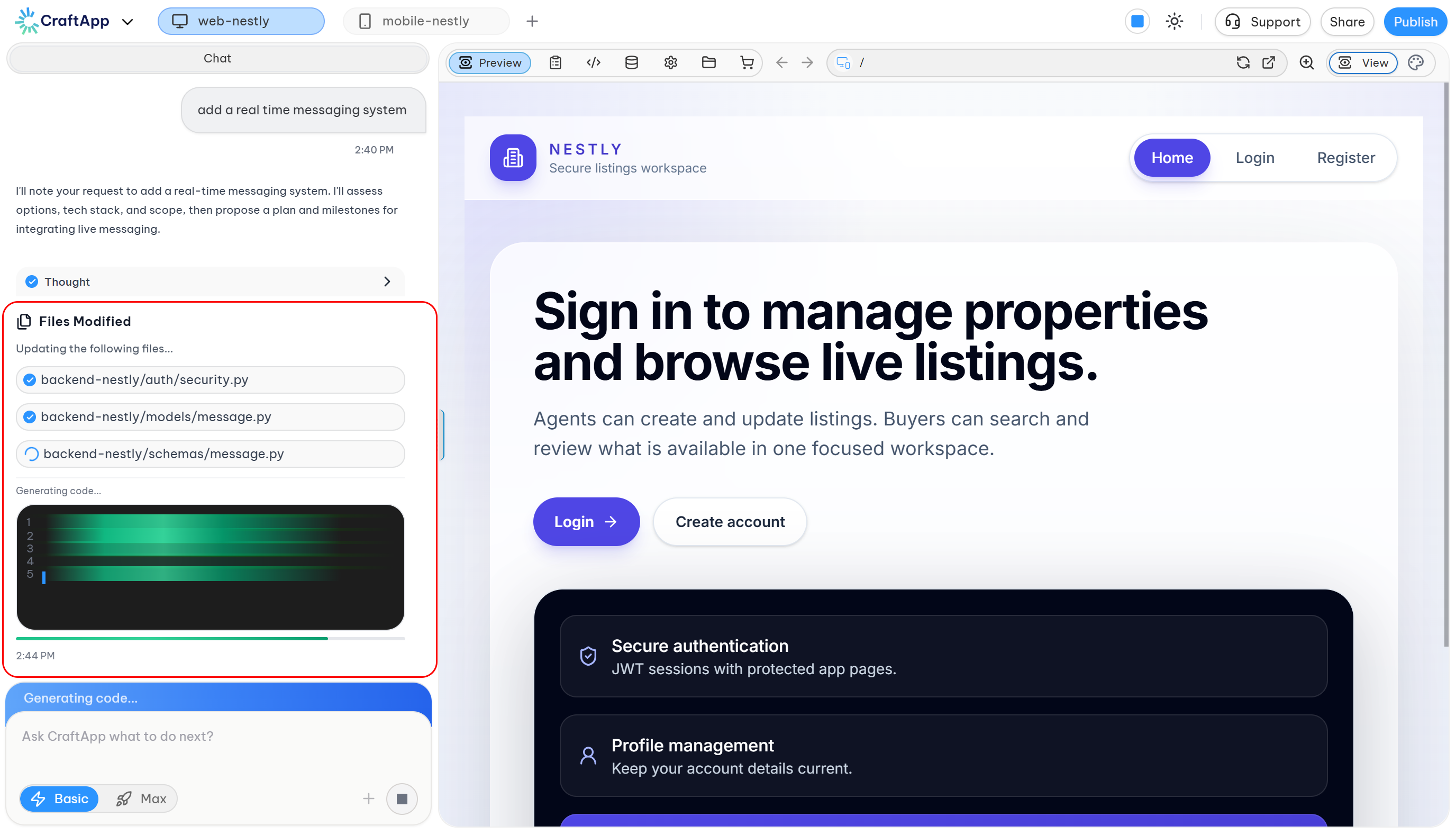
During the generation process, you'll see a live generation stream and build progress indicator that display changes in real time. This allows you to monitor which files are being created, updated, or removed as Craftapp builds your application.
Once generation is complete, you can immediately verify the result using Project Preview or Demo Mode.
Tip Read our Prompting Guide to learn how to write effective prompts and get the best results from Craftapp.
View Modes
Craftapp supports both web and mobile applications simultaneously. Each platform has its own dedicated preview, allowing you to build and test both experiences within the same project.
Craftapp Studio also provides multiple view modes, enabling you to work on your application from different perspectives—whether you're testing the user experience or visually editing your interface.
You can switch between modes at any time using the top navigation bar.
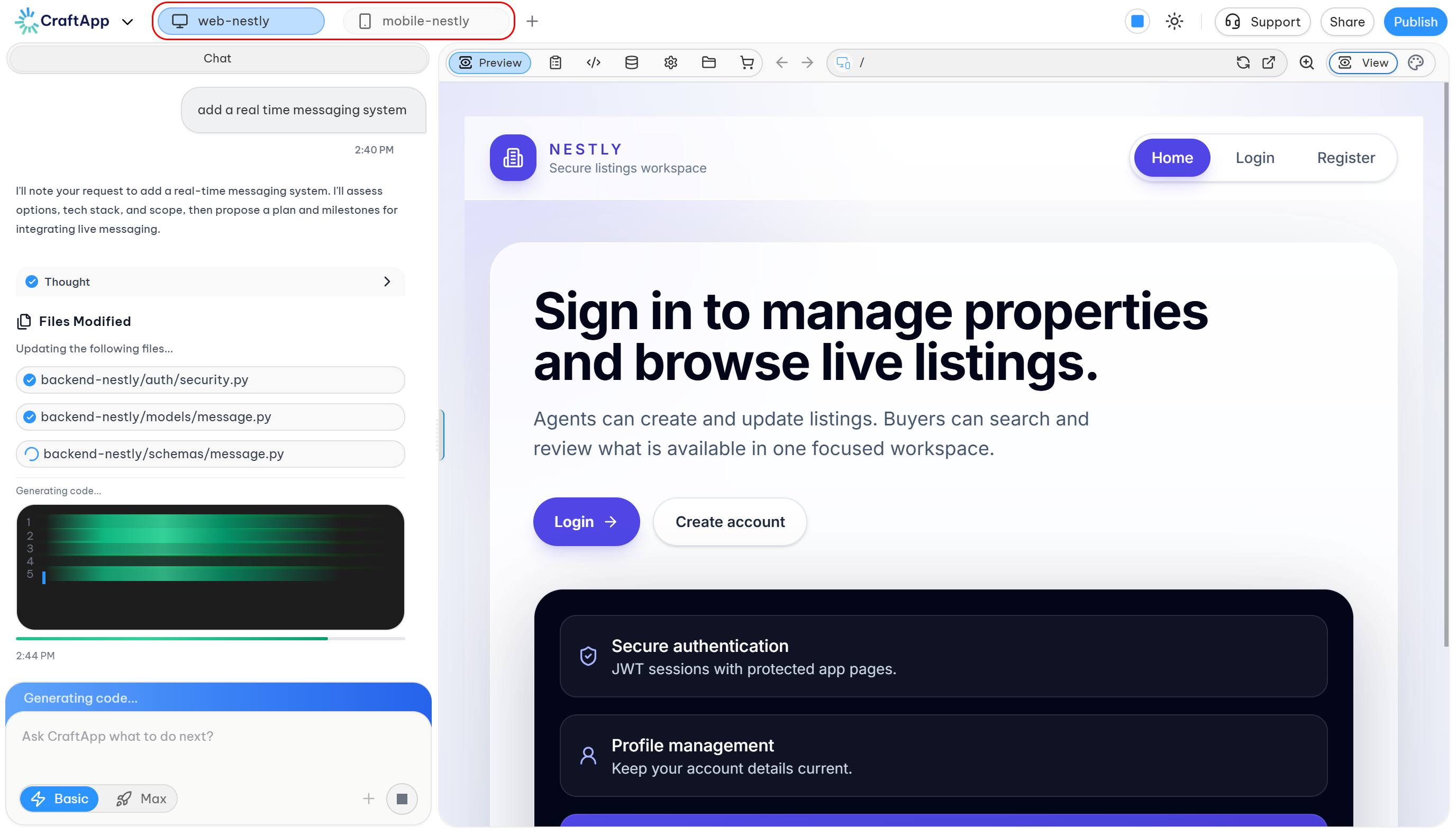
Available Modes
Web Preview Experience your application exactly as a web user would. This live preview lets you test pages, navigation, user interactions, authentication flows, payments, and other application features in real time.
Mobile Preview your application in a mobile environment to validate layouts, navigation, touch interactions, authentication flows, payments, and overall user experience.
Edit Mode provides a visual builder for designing and refining your application without writing code. Select any element to modify its properties, adjust layouts, or make design changes directly within the editor.
Changes are applied automatically, allowing you to see the results instantly without refreshing the preview.
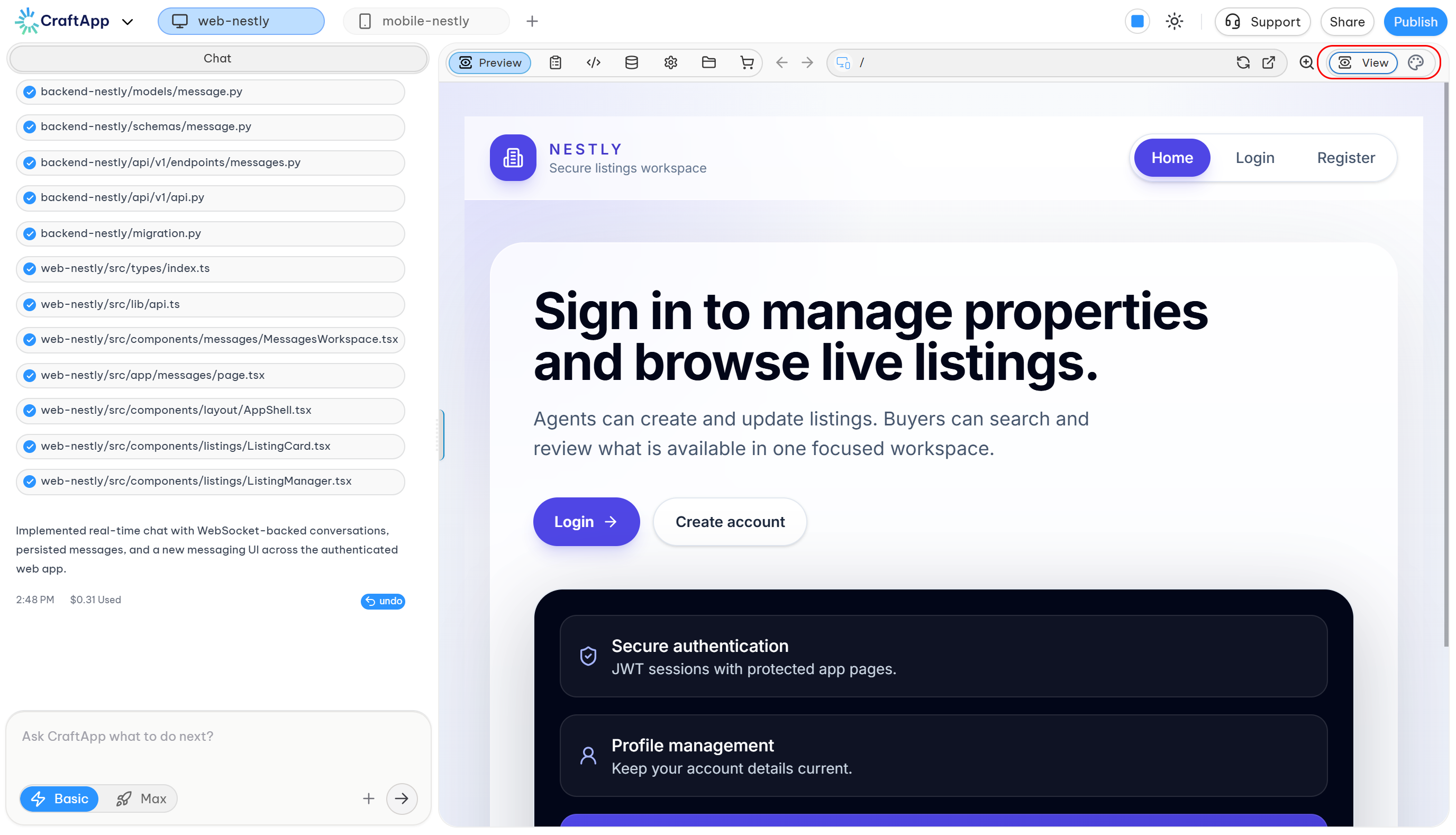
Switching Between Modes
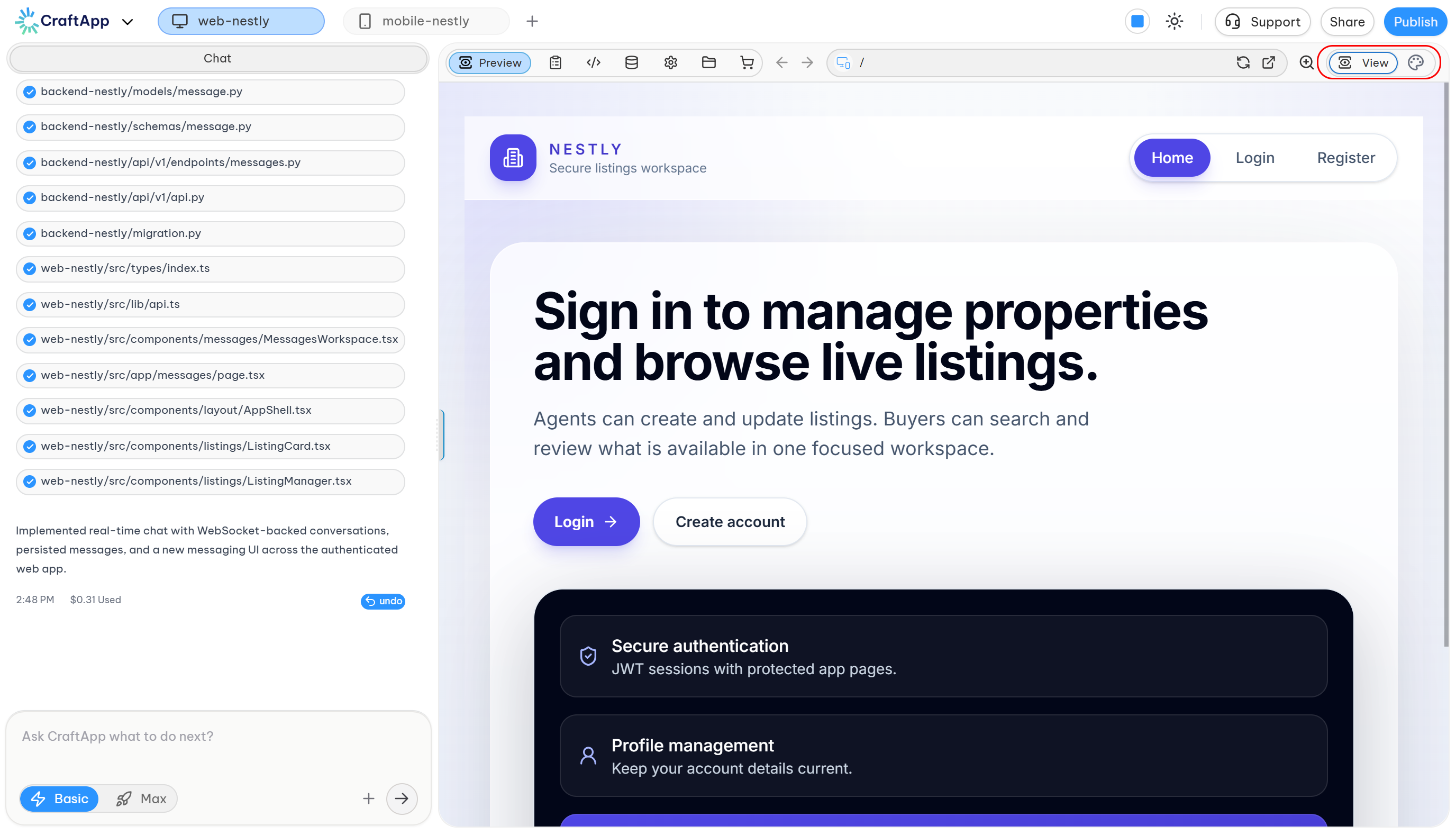
Switching between view modes is seamless, allowing you to move from building to testing at any time.
- Use the View / Edit toggle to switch between interacting with your application and editing it.
- Changes made in Edit Mode are automatically reflected in both Web Preview and Mobile Preview.
- Switch freely between modes without interrupting your workflow or losing progress.
Tip A common workflow is to make changes in Edit Mode and immediately verify them using Web Preview or Mobile Preview.
Refreshing
In some cases, your browser may temporarily cache content or experience rendering issues, preventing the latest changes from appearing immediately.
If this happens, you have two options:
- Refresh the Project Preview to reload only the simulated browser and display the latest version of your application.
- Refresh your browser page to reload the entire Craftapp Studio session if the preview does not update correctly.
Most preview synchronization issues can be resolved by refreshing the Project Preview first.
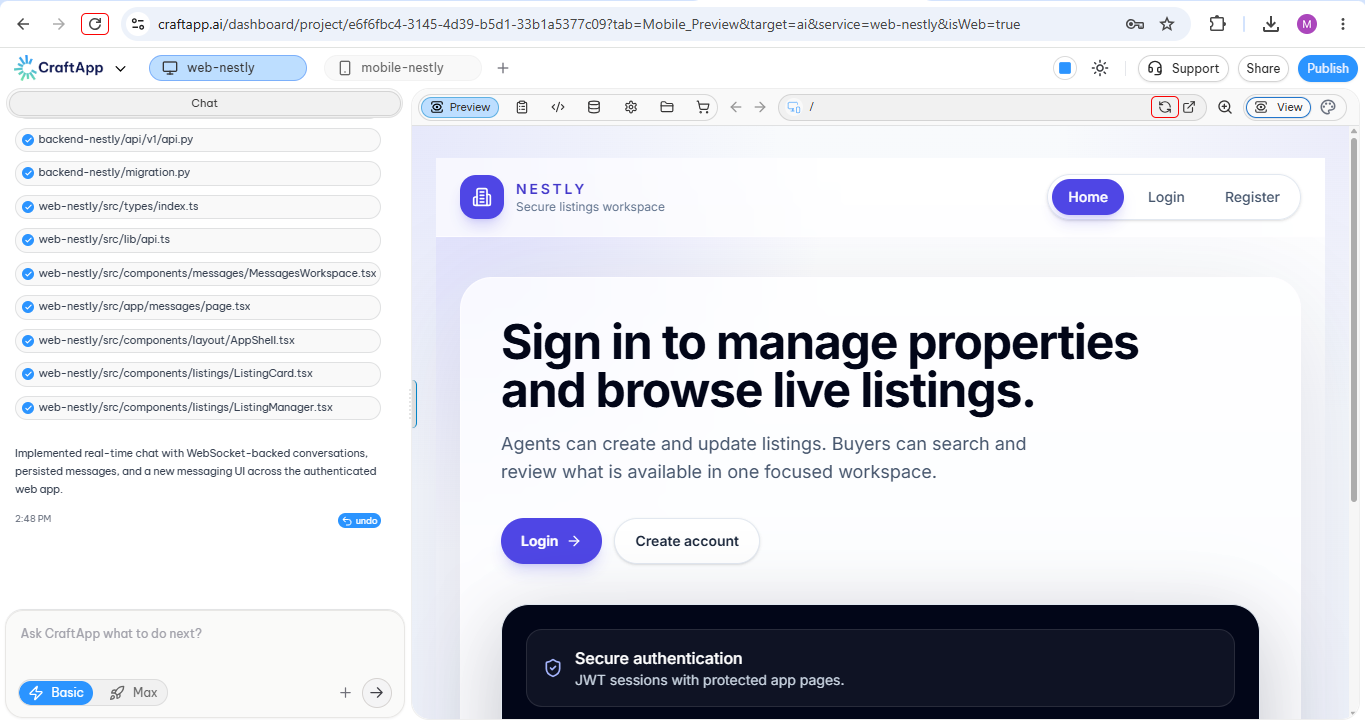
Project Settings
The Project Settings page is the central place for configuring and managing your application. From here, you can customize your project, manage production settings, upload assets, store secrets, configure SEO, and control project access.
Settings are organized into dedicated tabs, making it easy to find and manage every aspect of your application.
Available Settings
App
Manage your project's core information and administrative actions.
- Update your application name and other project details.
- Configure your application's logo and favicon.
- Select the AI provider used by your project.
- Export the complete source code as a ZIP archive for local development, backups, or external deployment.
- Transfer project ownership to another user.
- Permanently delete the project when it is no longer needed.
SEO
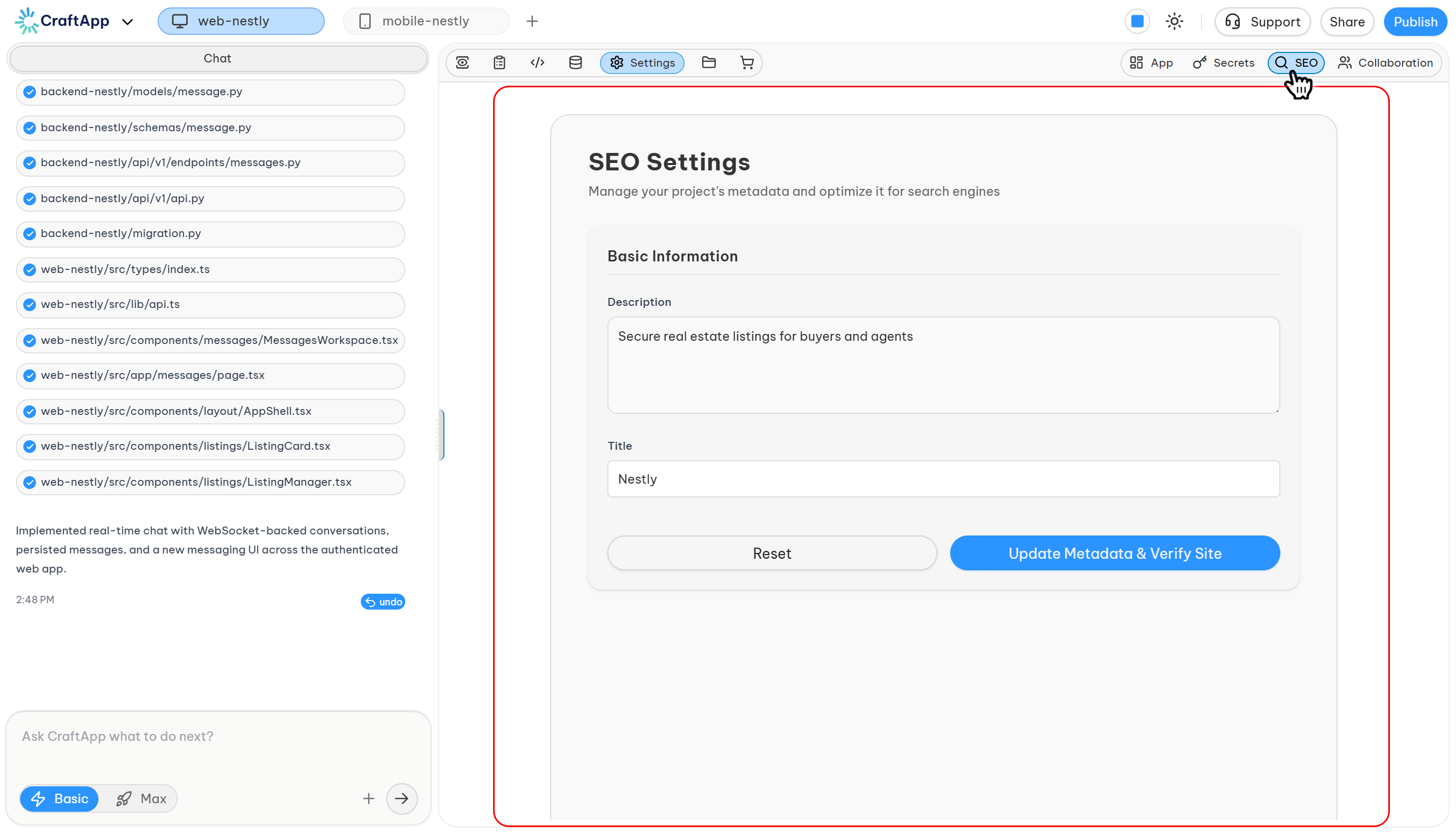
Configure your application's search engine optimization.
- Page titles
- Meta descriptions
- Search engine visibility
- Other SEO-related settings
Assets
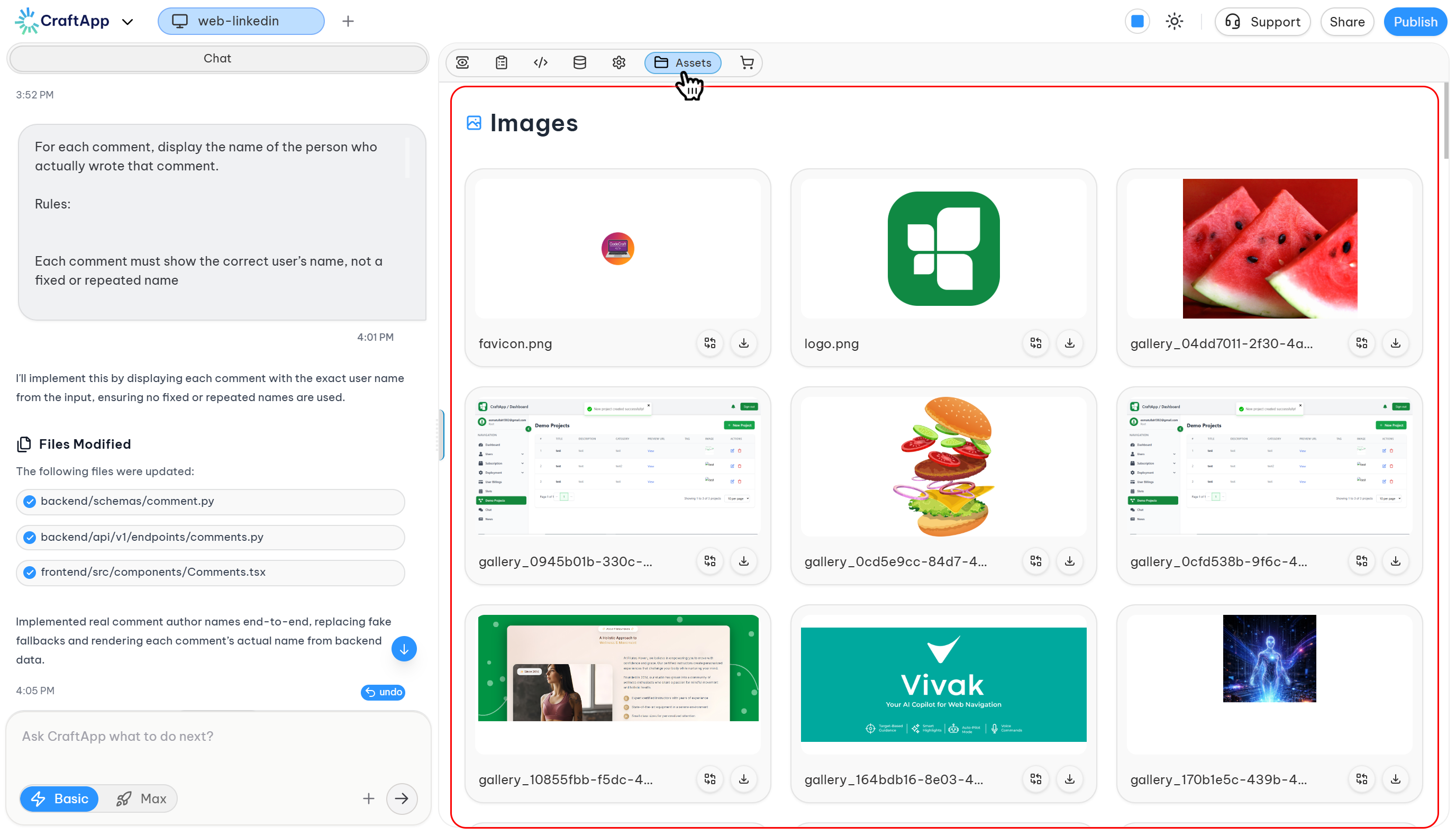
Upload and organize files used throughout your application.
- Images
- Icons
- Logos
- Fonts
- Other static resources
Secrets
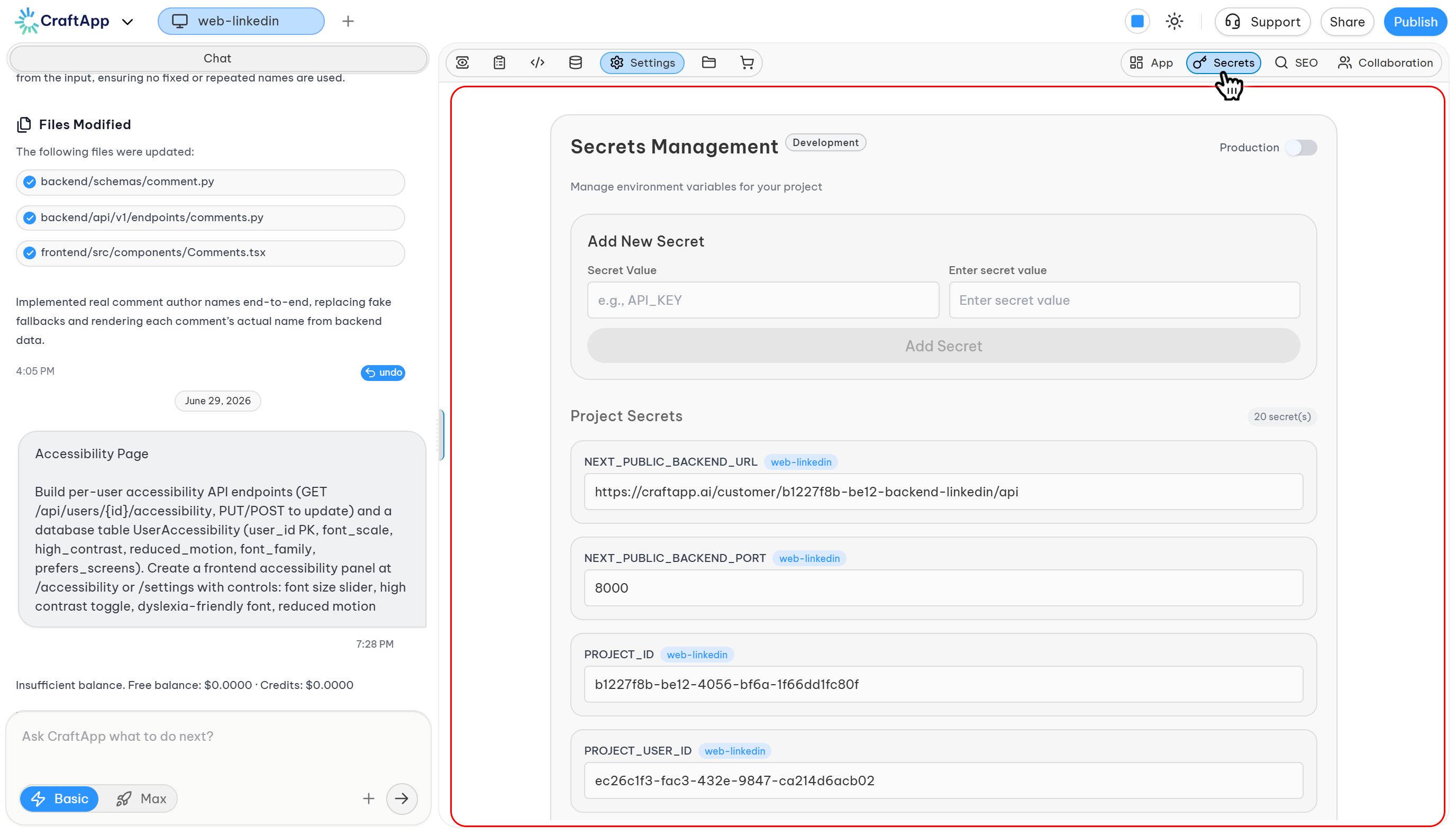
Securely manage sensitive information required by your application.
The Secrets section allows you to store and manage environment variables, API keys, and credentials used by your application.
You can switch between Development and Production environments using the environment toggle button to manage secrets for each stage separately.
- Development — Configure secrets used while building and testing your application.
- Production — Manage secrets used by your live application after deployment.
Examples of secrets you can store:
- API keys
- Database credentials
- Authentication tokens
- Third-party service credentials
- Environment-specific configuration values
Access
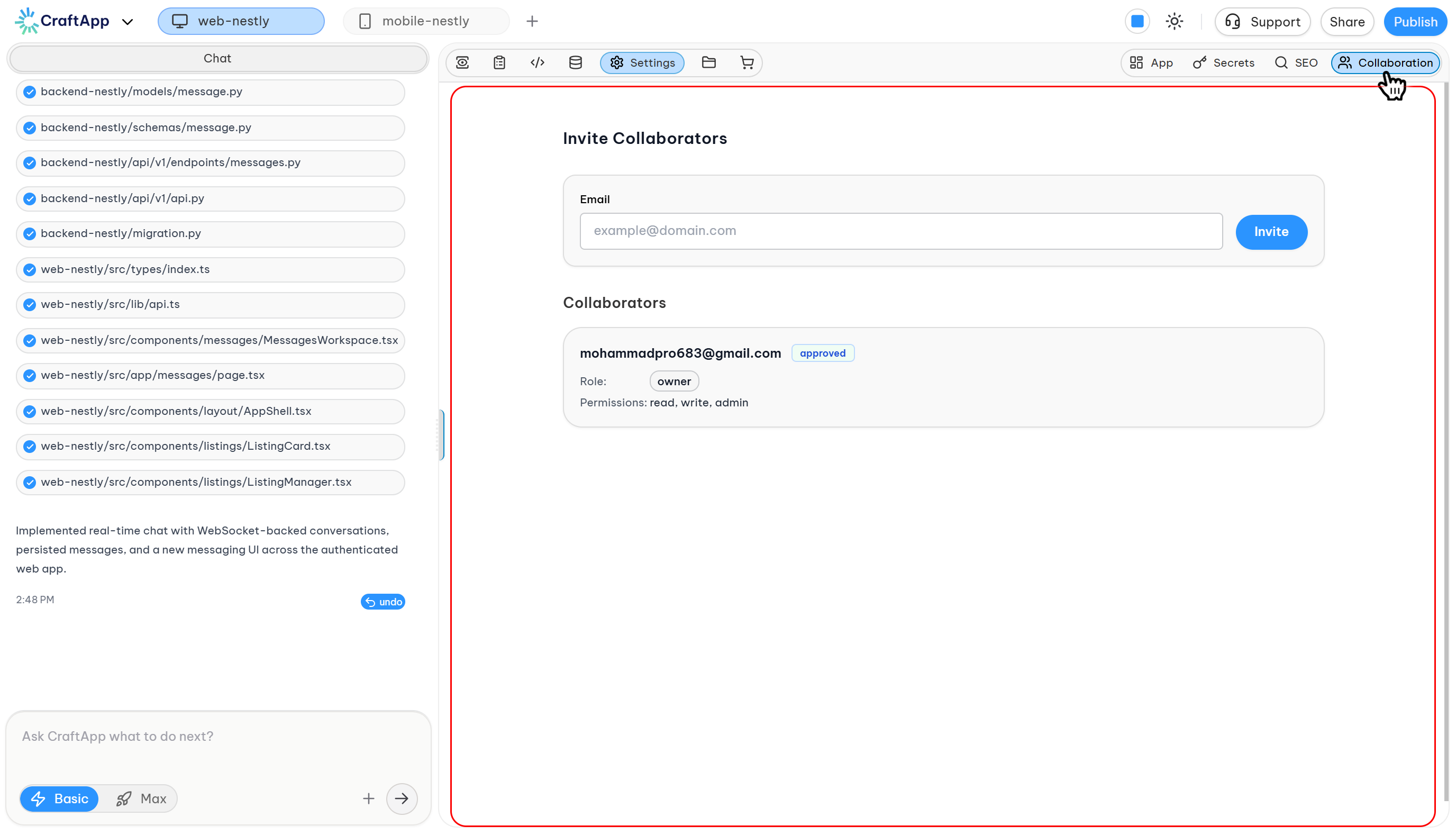
Control who can access and collaborate on your project.
- Invite collaborators
- Manage permissions
- Transfer ownership
- Configure project access
Tip Most settings are applied automatically and synchronized across your project. You can switch between tabs without losing your progress.
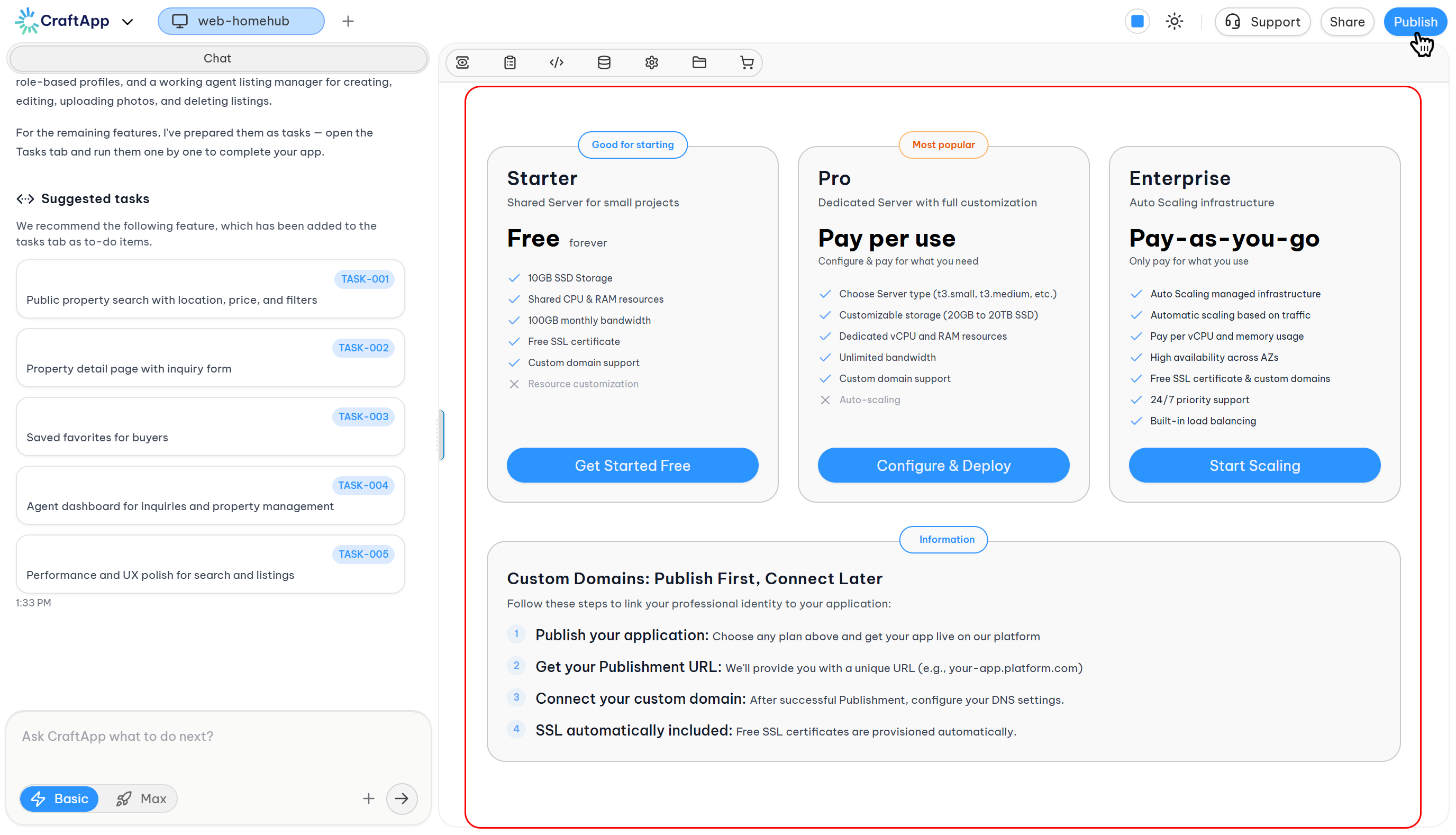
Deployment
When your application is ready for production, Craftapp provides a guided deployment workflow that automatically builds, provisions, and publishes your application.
Deployment Workflow
1. Open Deployment
Navigate to the Deploy page from the top navigation bar.
2. Choose a Deployment Plan
Select the deployment plan that best fits your application:
Basic
Free shared hosting for prototypes and small projects.
Standard
Dedicated resources with pay-as-you-go pricing.
Enterprise
Auto-scaling infrastructure designed for production workloads.
3. Review Plan Details
Review the included resources, pricing, and scaling capabilities before deployment.
4. Start Deployment
Click Deploy (or the available action button) to begin the deployment process.
5. Automatic Deployment Process
Craftapp automatically handles the deployment process:
- Builds your application.
- Provisions the required infrastructure.
- Deploys your backend and frontend.
- Publishes your application.
Once deployment is complete, your application becomes live and accessible.
Learn More For deployment plans, infrastructure options, scaling, custom domains, and production best practices, see the
Deployment Guide.
Tip You can upgrade your deployment plan at any time as your application grows, without rebuilding or manually migrating your project.